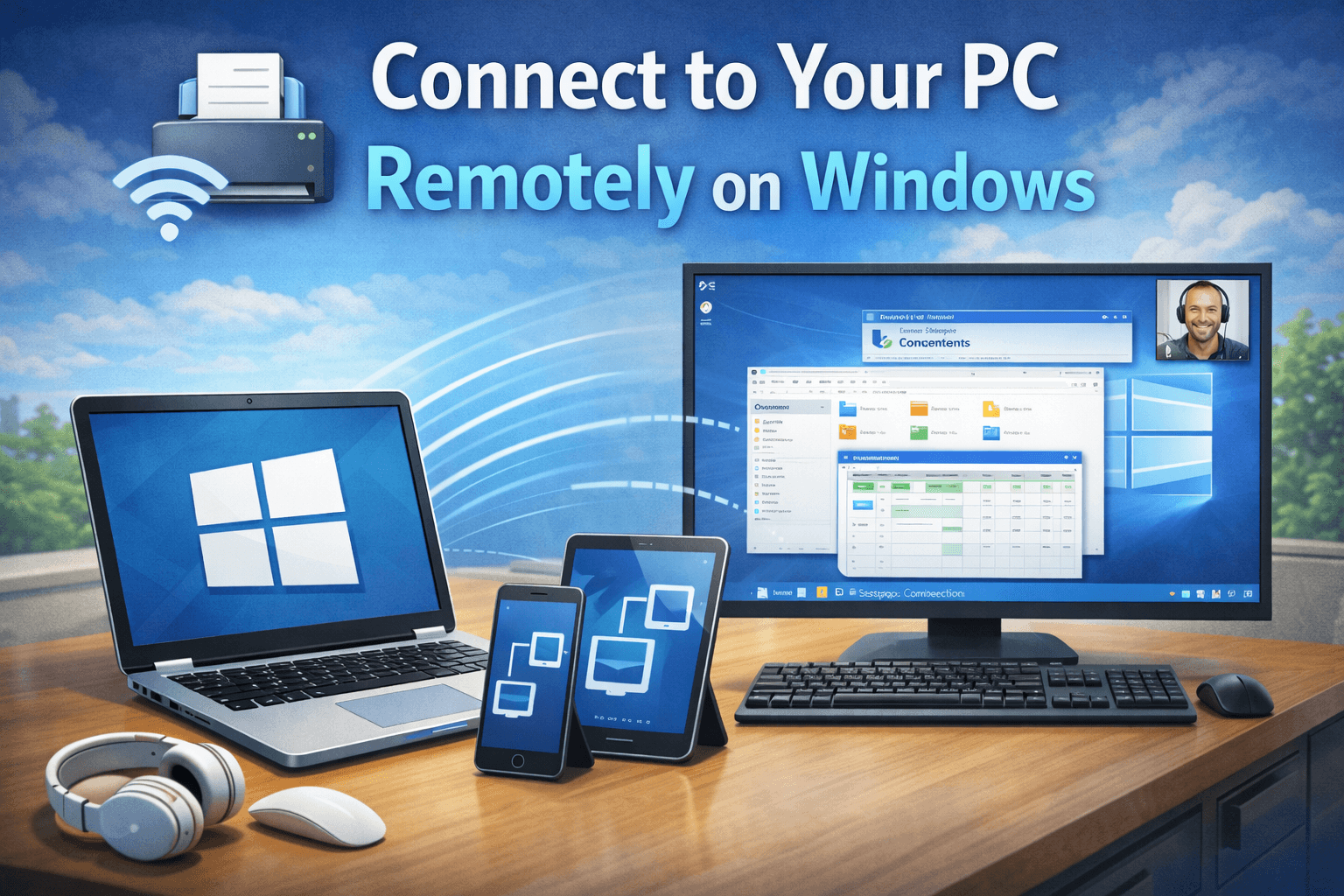
Connecting to your PC remotely allows you to access your computer from another location. You can use your files, run programs, and manage settings as if you were sitting in front of your PC. Windows provides built-in tools to do this safely and easily.
What Does Remote Access Mean?
Remote access means controlling a computer from another device using an internet or network connection. With remote access, your screen, keyboard, and mouse work from a distance.
This feature is useful for:
Working from home
Accessing office files
Providing technical support
Managing a PC while traveling
Ways to Connect to Your PC Remotely in Windows
Windows offers more than one method to connect remotely. The most common options are:
Remote Desktop (built-in Windows feature)
Remote Assistance
Third-party remote access tools
The most reliable and widely used method is Remote Desktop.
What Is Remote Desktop in Windows?
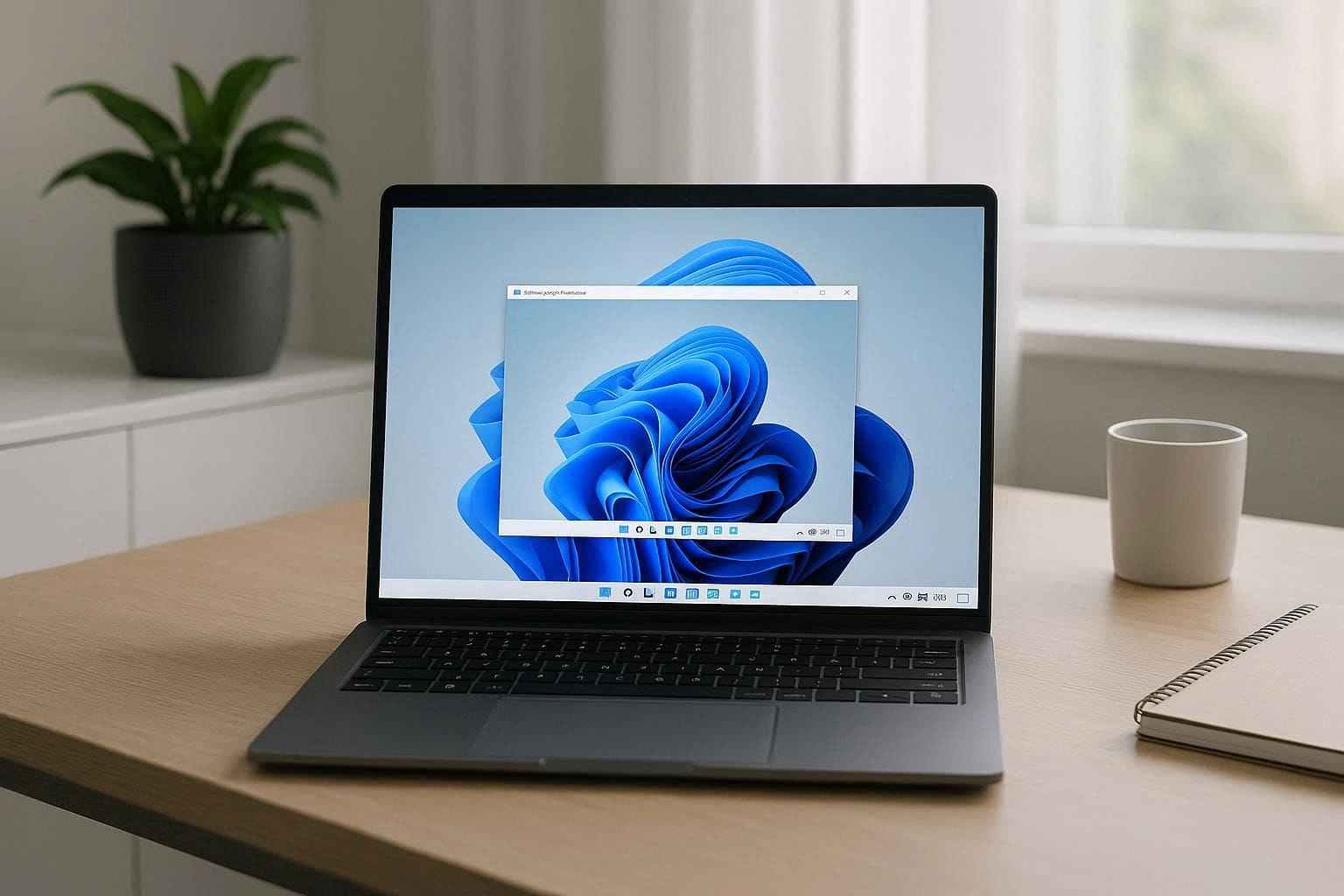
Remote Desktop is a built-in Windows feature that lets you connect to another Windows PC over a network or the internet. It shows the full desktop of the remote computer and allows complete control.
Note:
Remote Desktop hosting works on Windows Pro, Enterprise, and Education editions.
Windows Home can connect to another PC but cannot host Remote Desktop sessions.
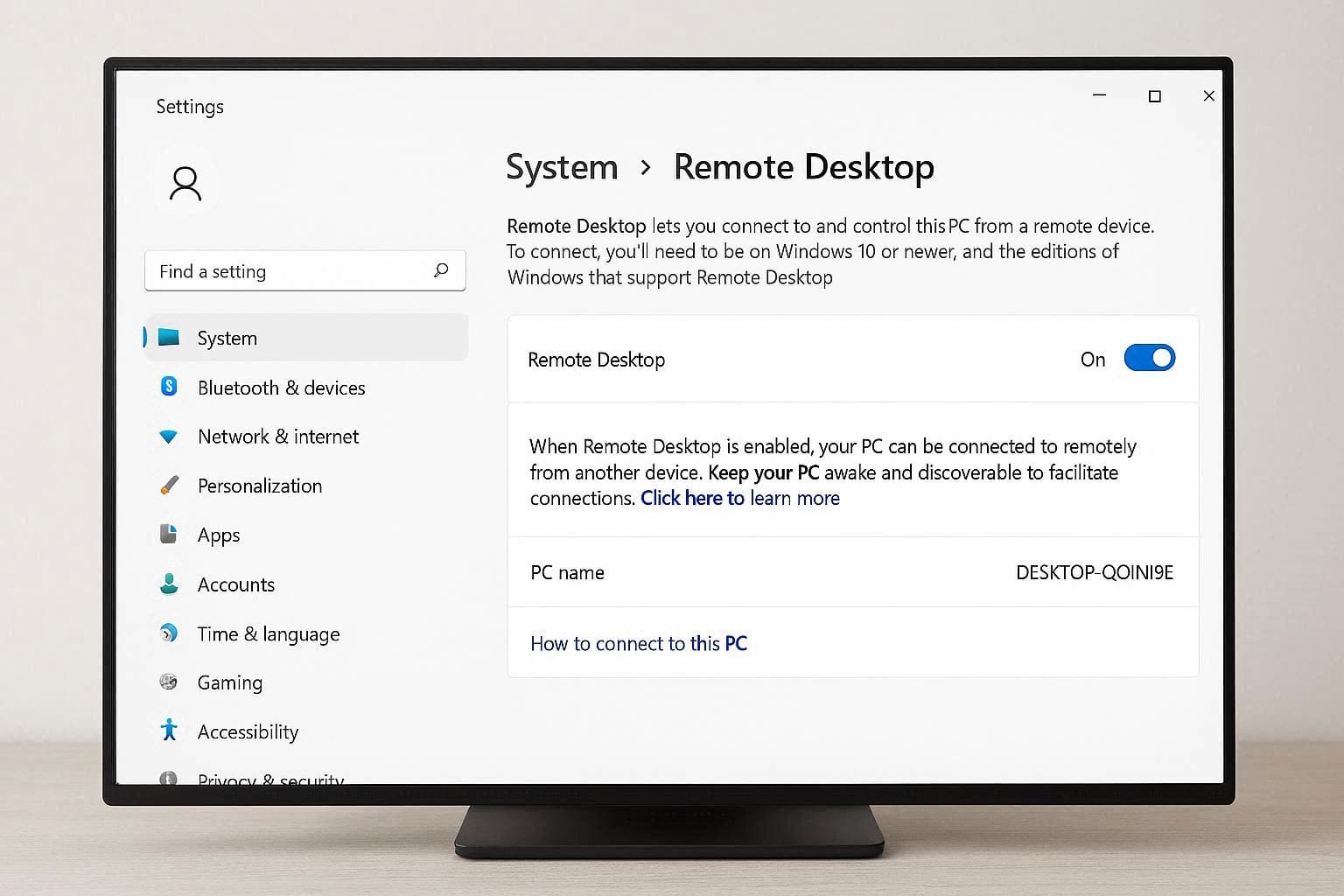
How to Enable Remote Desktop on Your PC
Follow these steps on the PC you want to access remotely:
Open Settings
Go to System
Click Remote Desktop
Turn Remote Desktop ON
Confirm the settings
Make sure the PC stays powered on and connected to the internet.
How to Connect to a Remote PC Using Remote Desktop
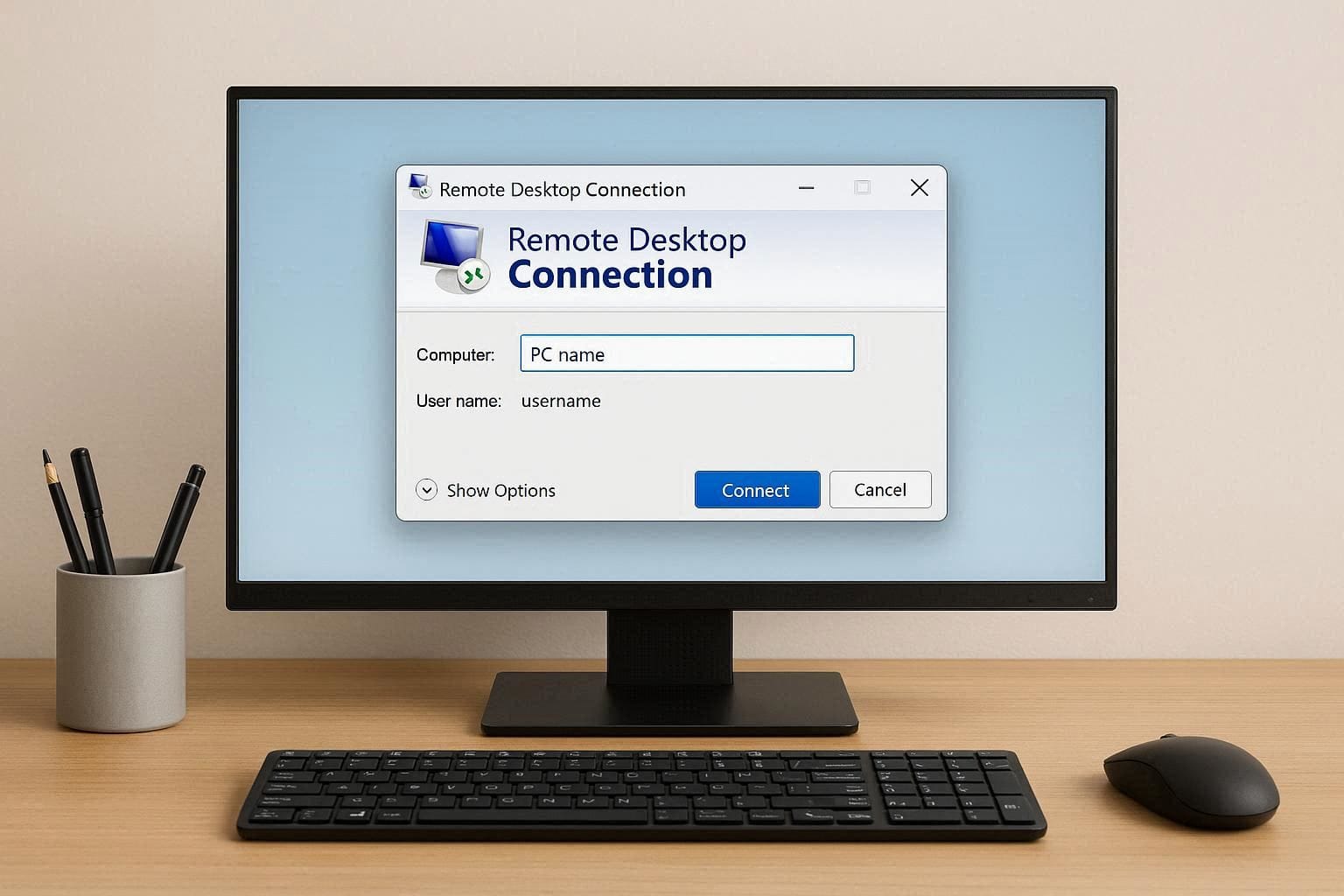
On your current PC, press Windows + R
Type
mstscand press EnterEnter the PC name or IP address
Click Connect
Enter the username and password of the remote PC
Once connected, you will see the remote desktop screen.
Finding the PC Name or IP Address
To find PC name:
Open Settings
Go to System > About
Look for Device name
To find IP address:
Open Command Prompt
Type
ipconfigPress Enter
Note the IPv4 address
Connecting Over the Internet vs Local Network
Local Network: Works easily when both devices are on the same Wi-Fi or LAN
Over the Internet: May require router port forwarding or VPN for security
For beginners, remote access within the same network is easier.
Security Tips for Remote PC Connection
To keep your PC secure:
Use a strong password
Do not leave Remote Desktop enabled when not needed
Keep Windows updated
Use a firewall or VPN for internet access
Security is important when accessing a PC remotely.
Common Problems and Fixes
Remote Desktop Not Connecting
Check internet connection
Ensure Remote Desktop is enabled
Confirm correct PC name or IP address
PC Not Found
Both devices must be on the same network
Firewall settings should allow Remote Desktop
Login Issues
Use correct username and password
Check account permissions
Alternatives to Windows Remote Desktop
If Remote Desktop is not available, other options include:
Chrome Remote Desktop
AnyDesk
TeamViewer
These tools work on all Windows editions and are easier for beginners.
Connect PC Remotely in Windows:
Connecting to your PC remotely in Windows is a useful feature for work and support. Remote Desktop provides a secure and effective way to access your computer from anywhere. With proper setup and security, remote access can save time and improve productivity.