Checking transfer status on Sedhr Punjab is one of the most confusing tasks for government teachers. Many teachers don’t know where to check, why status doesn’t update, or what “pending” actually means.
This complete guide explains how to check transfer status on Sedhr, common problems, delays, and what to do if your transfer is not showing.
What Is Sedhr Punjab Transfer Module?
The Sedhr Punjab Transfer Module records and tracks:
Inter-district transfers
Intra-district transfers
Mutual transfers
Promotion-related postings
Sedhr works alongside:
SIS (School Information System)
District Education Offices
👉 Final transfer reflection depends on official approval + data sync.
How to Check Transfer Status on Sedhr Punjab (Step-by-Step)
Step 1: Login to Sedhr
Enter CNIC (13 digits, no dashes)
Enter SIS password
Select correct staff category
Step 2: Open Transfer / Posting Section
Go to Posting / Transfer
Click on Transfer History or Service Record
📌 Transfer details usually appear under service record.
Step 3: Check Current Status
You may see one of the following:
Pending
Approved
Implemented
Not Reflected
Meaning of Transfer Status (Most Important Part)
🔄 Pending
Transfer request submitted
Approval not completed
Action required by authority
👉 Nothing to worry about yet.
✅ Approved
Transfer officially approved
Awaiting system update
📌 Approval ≠ immediate school change in Sedhr.
🏫 Implemented
Transfer completed
New school officially assigned
Salary & attendance linked to new school
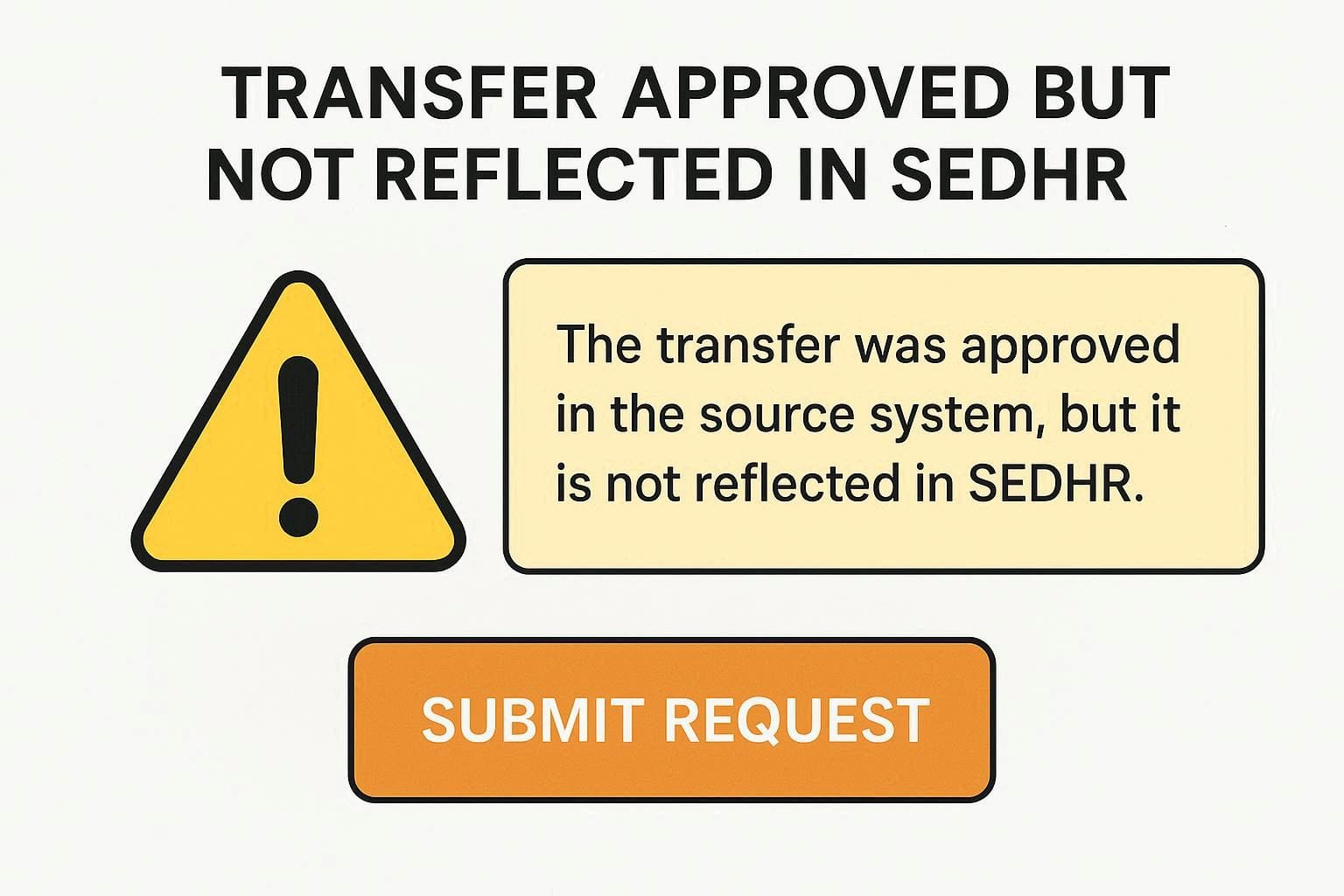
⚠️ Approved but Not Reflected
This is the most common issue.
Approved but Not Reflected – Why This Happens
Common Reasons
SIS profile not updated
Old school not released
District data entry delay
Recent transfer order
System syncing issue
How to Fix Transfer Not Showing on Sedhr
Step-by-Step Solution
Log in to SIS
Check current school & posting
Ensure:
Old school marked “Relieved”
New school marked “Joined”
Contact:
School head
AEO / DEO office
📌 Sedhr updates only after SIS correction.
Transfer Showing in SIS but Not in Sedhr
This is normal in many cases.
Why?
Sedhr syncs data periodically
Not real-time
What To Do
Wait 24–72 hours
Avoid multiple logins
If still not updated, report to district IT staff
Mutual Transfer Status on Sedhr
For mutual transfers:
Both teachers must be approved
Both profiles must be updated
Delay occurs if one profile is incomplete
📌 One missing step delays both sides.
Promotion-Related Transfer Issues
After promotion:
Old designation may appear
New school may not reflect
Fix
Profile correction required
District admin must update designation & posting
Sedhr refresh follows SIS update
Can Teachers Update Transfer Data Themselves?
❌ No.
Teachers cannot manually edit transfer records in Sedhr.
Only:
District admin
SIS operator
Authorized officers
can update transfer data.
How Long Does Sedhr Take to Update Transfer?
Typical time:
2–5 working days after SIS update
Delays increase during:
Mass transfer cycles
Promotions
End/start of academic year
Frequently Asked Questions (FAQ)
Q1: My transfer order is issued but Sedhr shows old school
→ SIS not updated yet.
Q2: Will salary stop if transfer not updated?
→ Usually no, but long delays can cause issues.
Q3: Can I apply leave during transfer delay?
→ Yes, but approval depends on current school mapping.
Q4: Do I need to submit documents again?
→ Only if district office asks.
Sedhr Punjab Guide:
Most Sedhr Punjab transfer issues are not errors — they’re data syncing delays between SIS and Sedhr.
If you understand:
Status meanings
Update flow
Authority roles
you can avoid unnecessary stress and repeated visits.
📌 Bookmark this guide — it’s extremely useful during transfer season.