
Reinstalling your Bluetooth driver can fix many common issues like:
- Bluetooth not showing in Settings
- Bluetooth icon missing
- Devices not connecting
- Bluetooth disappeared from Device Manager
- Problems after a Windows update
This guide covers all methods — automatic, manual, and advanced — and includes steps when Windows does not reinstall drivers by itself.
Before You Begin: Basic Checks
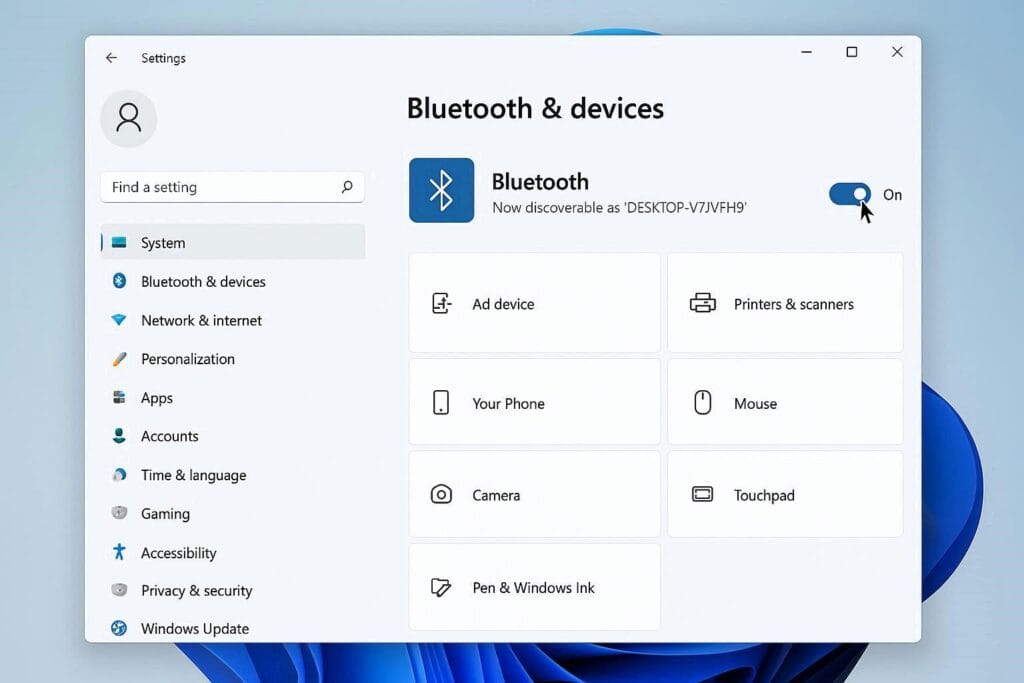
🔹 Make sure Bluetooth is turned on
Settings → Bluetooth & devices → Bluetooth toggle
🔹 Turn off Airplane mode (can block Bluetooth)
🔹 Restart your PC — this resolves many simple driver reload issues
Method 1 — Use the Built-in Bluetooth Troubleshooter
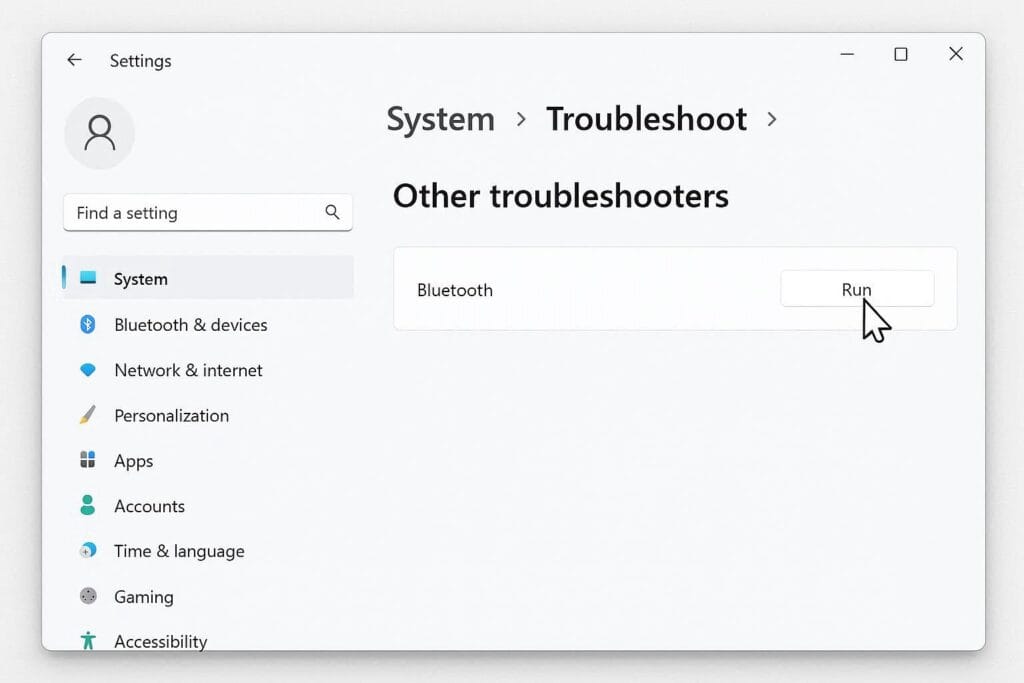
Windows 11 has a built-in troubleshooter that scans for common Bluetooth problems and can recommend fixes.
Steps:
- Open Settings
- Go to System → Troubleshoot → Other troubleshooters
- Find Bluetooth in the list
- Click Run and follow the prompts
This tool often repairs driver issues before a reinstall is needed.
Method 2 — Automatic Reinstall via Device Manager (Easy & Recommended)
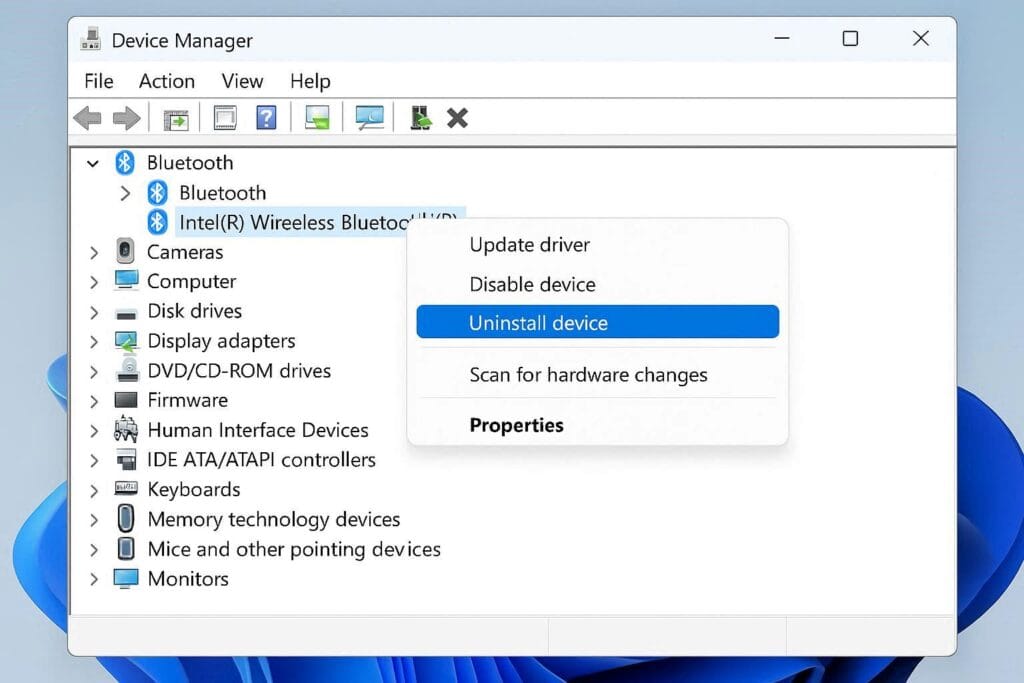
Windows will usually reinstall drivers automatically after you remove them.
Steps:
- Press Windows + X and choose Device Manager
- Expand Bluetooth
- Right-click your Bluetooth adapter (example: Intel Wireless Bluetooth)
- Choose Uninstall device
- If you see the option “Delete the driver software for this device”, check it (optional)
- Restart your PC
✔ When Windows boots up, it normally detects the Bluetooth adapter and reinstall the driver automatically.
Method 3 — Manual Reinstall Using Scan for Hardware Changes
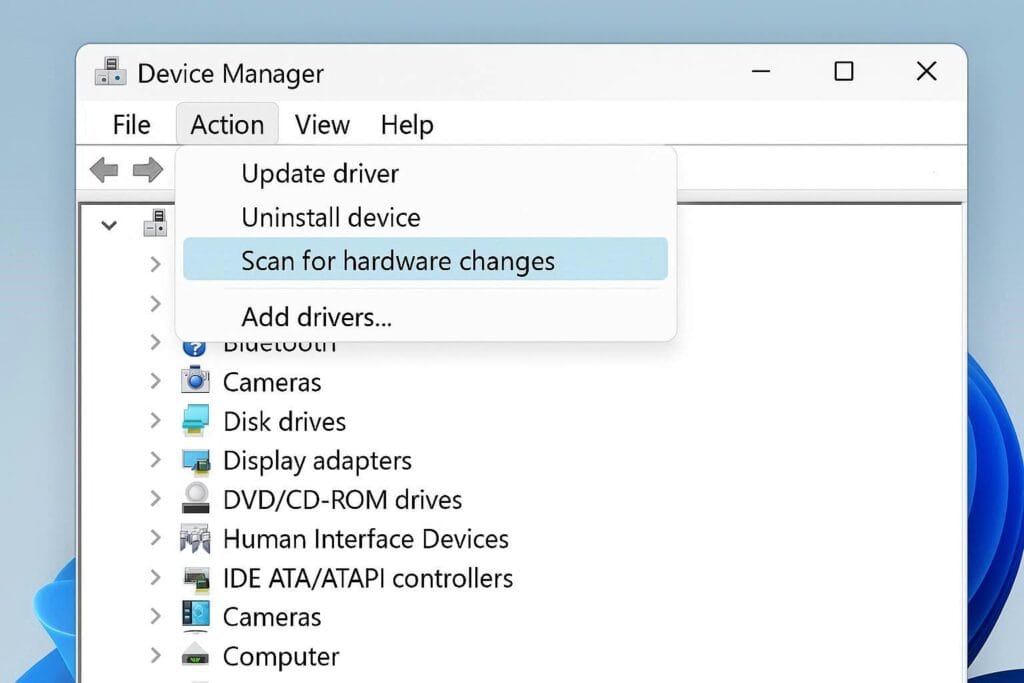
If Bluetooth doesn’t reappear:
Steps:
- Open Device Manager
- Click Action on the top menu
- Select Scan for hardware changes
This forces Windows to detect missing hardware and attempt to reinstall drivers.
Method 4 — Download and Install the Latest Bluetooth Driver
If the driver still doesn’t install:
Steps:
- Identify your PC model (usually printed on the case or under Settings → System → About)
- Go to your PC manufacturer’s support page (examples below)
- Dell: support.dell.com
- HP: support.hp.com
- Lenovo: support.lenovo.com
- Acer: acer.com/support
- ASUS: support.asus.com
- Navigate to Drivers / Downloads
- Find the latest Bluetooth driver compatible with Windows 11
- Download and run the installer (usually .exe)
- Restart your PC
This is often the most reliable way to restore Bluetooth when automatic methods fail.
Method 5 — Use Windows Update to Find Drivers
Sometimes updates include driver packages.
Steps:
- Open Settings
- Go to Windows Update
- Click Check for updates
- Install any available updates
Windows will sometimes install updated Bluetooth drivers as part of system updates.
Method 6 — Roll Back a Broken Driver
If Bluetooth stopped working after an update:
Steps:
- Open Device Manager
- Expand Bluetooth
- Right-click the adapter and select Properties
- Go to the Driver tab
- Click Roll Back Driver if available
This restores the previous driver version and can fix problems caused by a bad update.
Advanced Fixes (If Bluetooth Still Doesn’t Appear)
Check Hidden Devices
- Open Device Manager
- Click View → Show hidden devices
- Look for Bluetooth — sometimes the device is hidden due to previous errors.
Restart Bluetooth Services
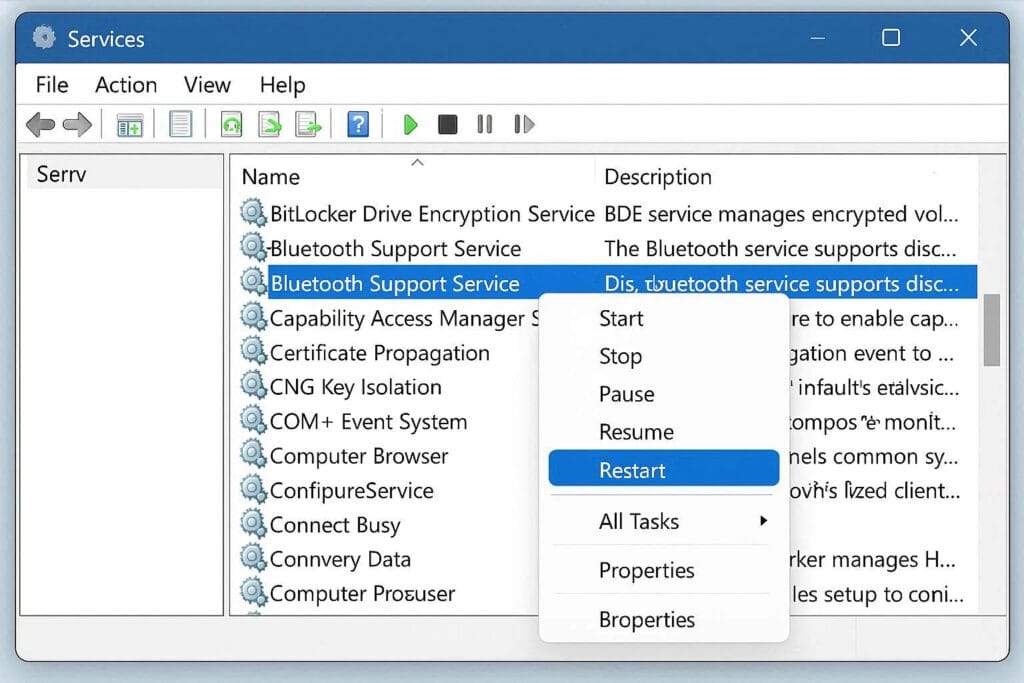
- Press Windows + R, type
services.msc, press Enter - Find Bluetooth Support Service
- Right-click → Restart
- Set Startup type to Automatic
This can fix cases where services stopped or didn’t start correctly.
Use System File Checker
- Open Command Prompt (Admin)
- Run:
sfc /scannow
Then restart your PC. This scans and repairs missing system files that might block driver installation.
Tips When Device Manager Shows No Bluetooth
Sometimes Bluetooth disappears from the list entirely — this can happen after updates or driver failure.
✔ Expand Bluetooth and also Network adapters — some systems list Bluetooth there.
✔ Use Scan for hardware changes again.
✔ If the device still doesn’t appear, download drivers from the manufacturer’s site manually.
Preventing Bluetooth Driver Issues
✔ Keep Windows up to date
✔ Install drivers from trusted manufacturer sources
✔ Avoid uninstalling drivers unless troubleshooting
✔ Do not delete driver software unless reinstalling manually
FAQs (Quick Answers)
Q: Why reinstall Bluetooth drivers?
A: To fix issues like Bluetooth missing, not pairing, or stopped working after updates.
Q: Will Windows reinstall the Bluetooth driver automatically?
A: Usually, yes — especially after a restart or hardware scan.
Q: What if Bluetooth still doesn’t work after reinstalling drivers?
A: Try Windows Update, system file repair (sfc /scannow), or download the driver manually from your PC manufacturer’s support page.
Q: Can Bluetooth stop appearing after sleep or restart?
A: Yes — this is a known issue; reinstalling drivers and scanning for hardware changes often restores it.
Complete Beginners Guide
Reinstalling Bluetooth drivers in Windows 11 doesn’t have to be difficult. Start with the built-in tools and automatic reinstall options, then move to manual driver downloads if needed. If Bluetooth disappears entirely or fails after updates, reinstallation and service checks usually restore functionality.