Connecting to a projector or another PC is a common task for presentations, meetings, classrooms, and home use. Whether you are sharing slides, videos, or your screen, understanding the correct connection method helps avoid technical issues and saves time.
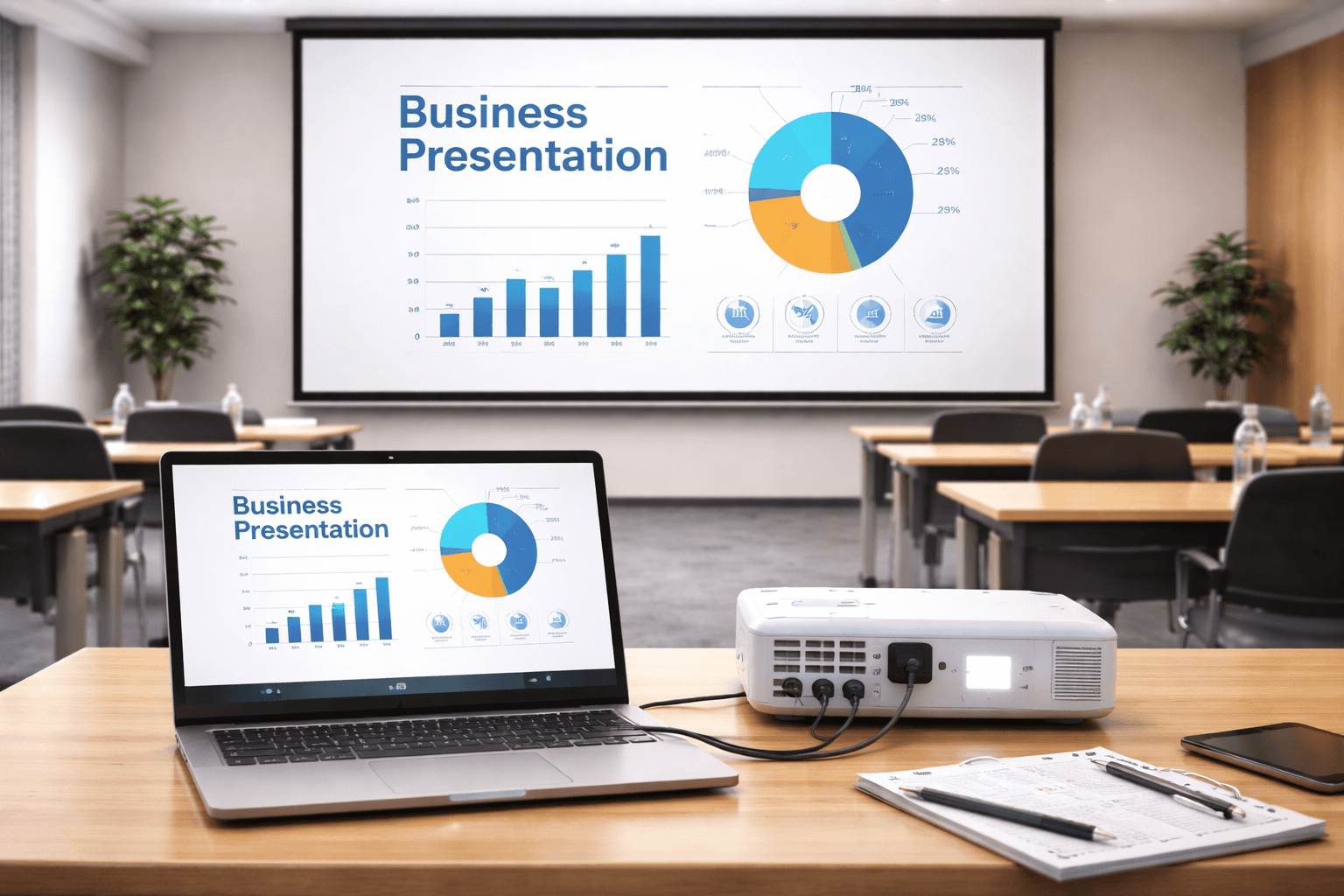
This guide explains how to connect to a projector or PC, how the connection works, why it is important, and common problems with solutions.
What Does “Connect to a Projector or PC” Mean?
Connecting to a projector or PC means linking one device to another so that content such as the screen, files, or media can be displayed or shared. This connection can be done using cables or wireless technology, depending on the devices available.
Common uses include:
- Presenting slides in meetings or classrooms
- Sharing a laptop screen on a projector
- Connecting one PC to another for screen sharing
Why Connecting to a Projector or PC Is Important
Being able to connect to a projector or PC is important because it:
- Enables clear presentations
- Supports collaborative work
- Improves learning and training sessions
- Saves time during meetings
- Allows large-screen viewing
This skill is essential for students, teachers, office workers, and professionals.
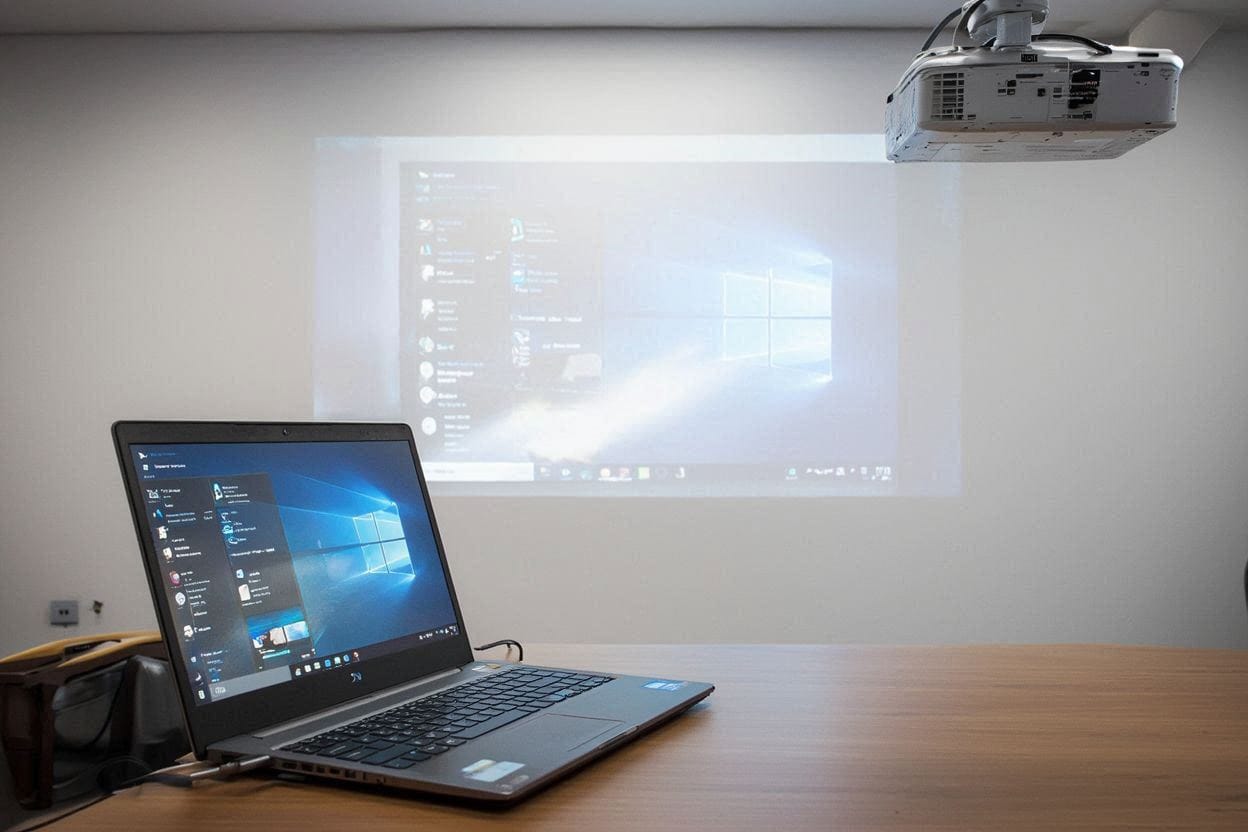
How to Connect a PC to a Projector Using a Cable
Step 1: Check Available Ports
Common ports include:
- HDMI
- VGA
- DisplayPort
- USB-C
Make sure both devices support the same connection type.
Step 2: Connect the Cable
Plug one end of the cable into the PC
Plug the other end into the projector
Step 3: Select the Input Source
Turn on the projector
Select the correct input source (HDMI, VGA, etc.)
Step 4: Adjust Display Settings
On Windows:
Press Windows + P
Choose Duplicate, Extend, or Second screen only
How to Connect to a Projector or PC Wirelessly
Using Wireless Display (Windows)
- Open Settings
- Go to System
- Select Projecting to this PC or Wireless Display
- Follow on-screen instructions
Both devices must be connected to the same Wi-Fi network.
Using Built-in Projector Wireless Features
Some projectors support:
- Screen mirroring
- Wi-Fi Direct
- Wireless presentation apps
Follow the projector’s on-screen instructions to connect.
How the Connection Works
When you connect to a projector or PC:
- The source device sends video and audio signals
- The receiving device decodes the signal
- The content is displayed in real time
Wireless connections transmit data through the local network, while wired connections use physical cables.
Common Problems and Solutions
No Signal on Projector
Check cable connections
Select the correct input source
Restart both devices
Screen Not Displaying Correctly
Adjust display resolution
Use Windows + P to select display mode
Wireless Connection Not Working
Ensure both devices are on the same Wi-Fi
Update system drivers
Restart wireless services
Public and User Impact
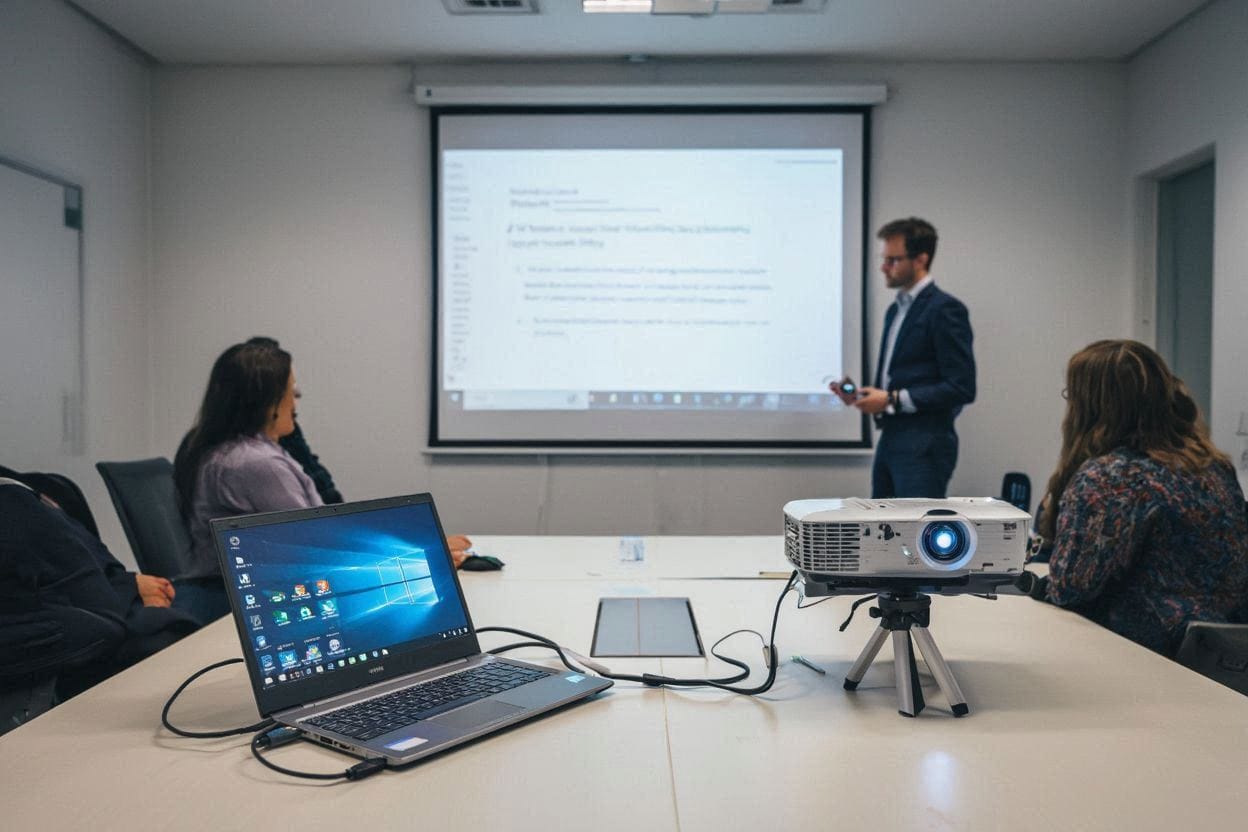
Easy connection to a projector or PC:
- Improves productivity
- Reduces technical delays
- Enhances learning experiences
- Supports remote and hybrid work
This feature is widely used in education, offices, and public institutions.
Frequently Asked Questions (FAQs)
Can I connect a PC to a projector without HDMI?
Yes, you can use VGA, DisplayPort, USB-C, or wireless options depending on device support.
Do I need internet to connect wirelessly?
Not always. Some devices support Wi-Fi Direct without internet access.
Can audio be played through the projector?
Yes, if the projector has built-in speakers or audio output.
Is screen sharing secure?
Most modern systems include security options such as confirmation prompts and access controls.
Connecting to Projector or PC:
Connecting to a projector or PC is a simple but essential skill in today’s digital environment. Whether using a cable or wireless connection, understanding the process helps ensure smooth presentations, effective collaboration, and reliable screen sharing across different settings.