Windows lets you customize how time appears on your computer. Whether you prefer the 12-hour clock (AM/PM) or the 24-hour clock, you can change the time format in just a few clicks. This guide walks you through all working methods, explains common issues, and answers frequently asked questions.
Method 1: Changing the Time Format Using Windows Settings (Recommended)
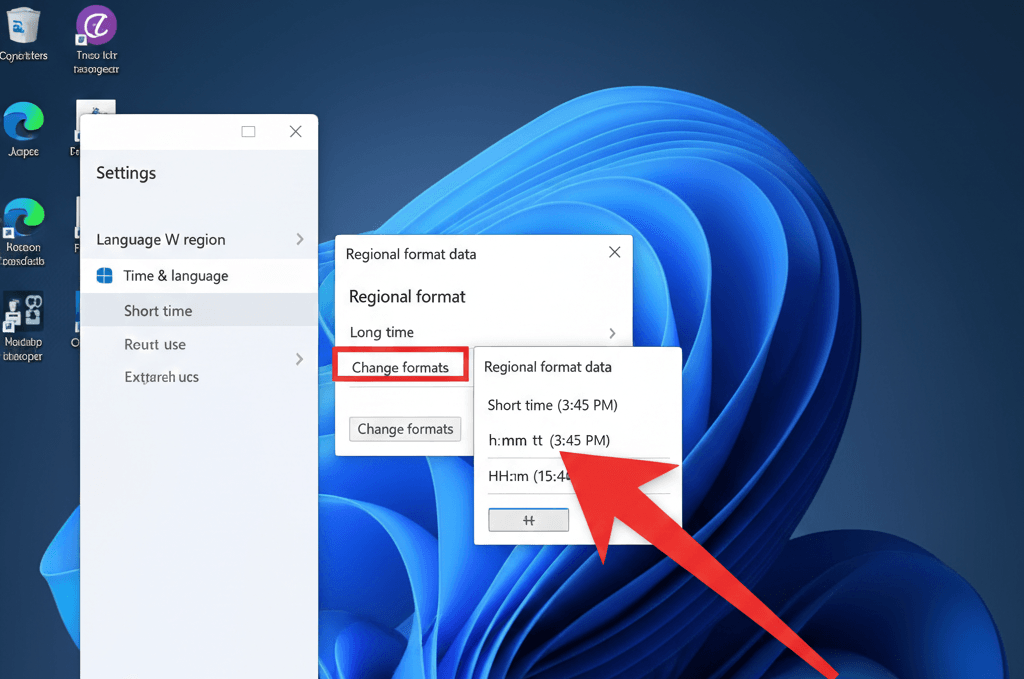
This is the easiest and most reliable method, especially for Windows 11 and updated versions of Windows 10.
Steps
Step 1: Open Windows Settings
Press Windows + I on your keyboard to open Settings.
Step 2: Go to Time & Language
From the left-hand menu, click Time & Language.
Step 3: Open Language & Region
Click Language & Region to access regional formatting options.
Step 4: Expand Regional Format
Scroll down and click Regional format, then select Change formats.
Step 5: Choose Your Preferred Time Format
Under Short time and Long time, select:
h:mm tt→ 12-hour format (example: 3:45 PM)HH:mm→ 24-hour format (example: 15:45)
Step 6: Close Settings
Your changes apply immediately—no restart needed.
Method 2: Changing the Time Format Using Control Panel
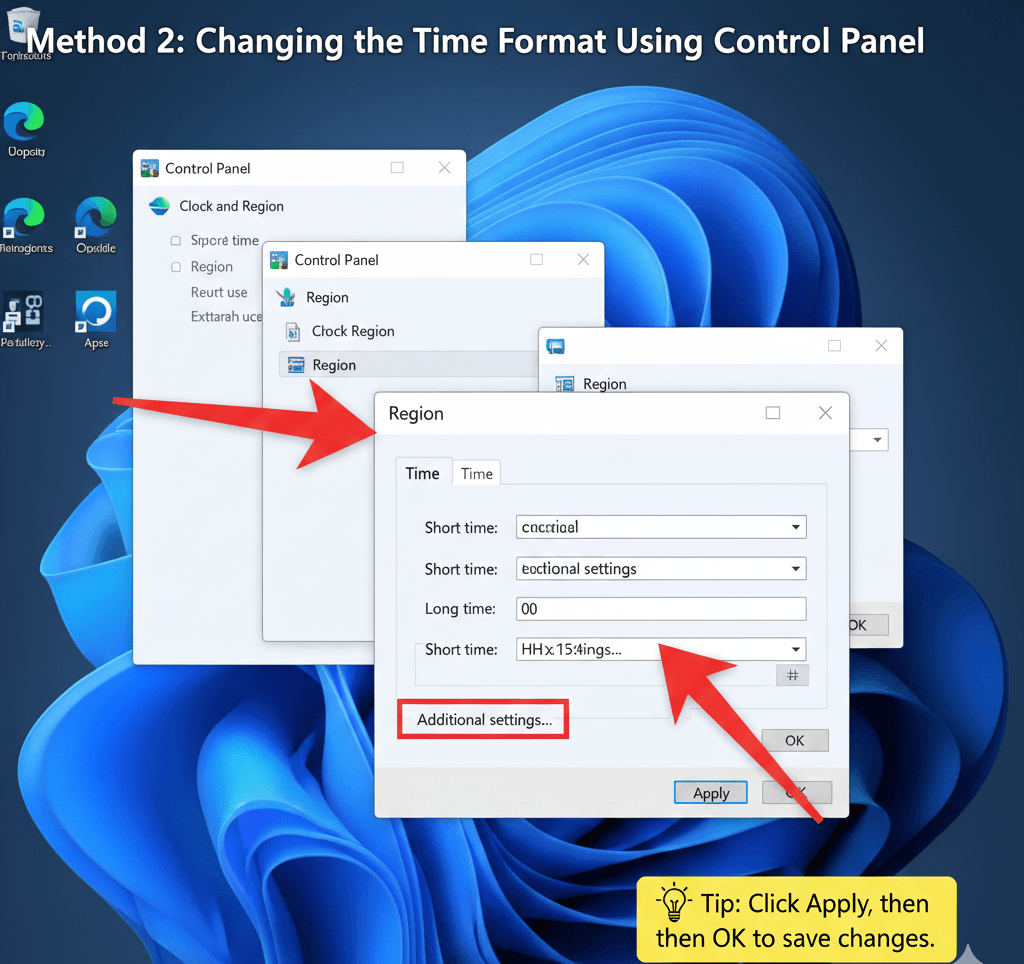
Use this method if you prefer classic Windows tools or if Settings isn’t responding.
Steps
Step 1: Open Control Panel
Press Windows + R, type control, and press Enter.
Step 2: Open Clock and Region
Click Clock and Region, then select Region.
Step 3: Open Additional Settings
Click Additional settings at the bottom.
Step 4: Edit Time Format
Switch to the Time tab and modify:
- Short time
- Long time
Step 5: Save Changes
Click Apply, then OK.
Method 3: Understanding 12-Hour vs 24-Hour Time Formats
Knowing the correct format codes helps you customize time exactly how you want.
Common Time Format Codes
| Format Code | Example Output |
|---|---|
h:mm tt | 4:30 PM |
hh:mm tt | 04:30 PM |
HH:mm | 16:30 |
HH:mm:ss | 16:30:45 |
💡 Tip: The taskbar clock automatically follows your system time format.
Method 4: Fixing Time Format Not Changing in Windows
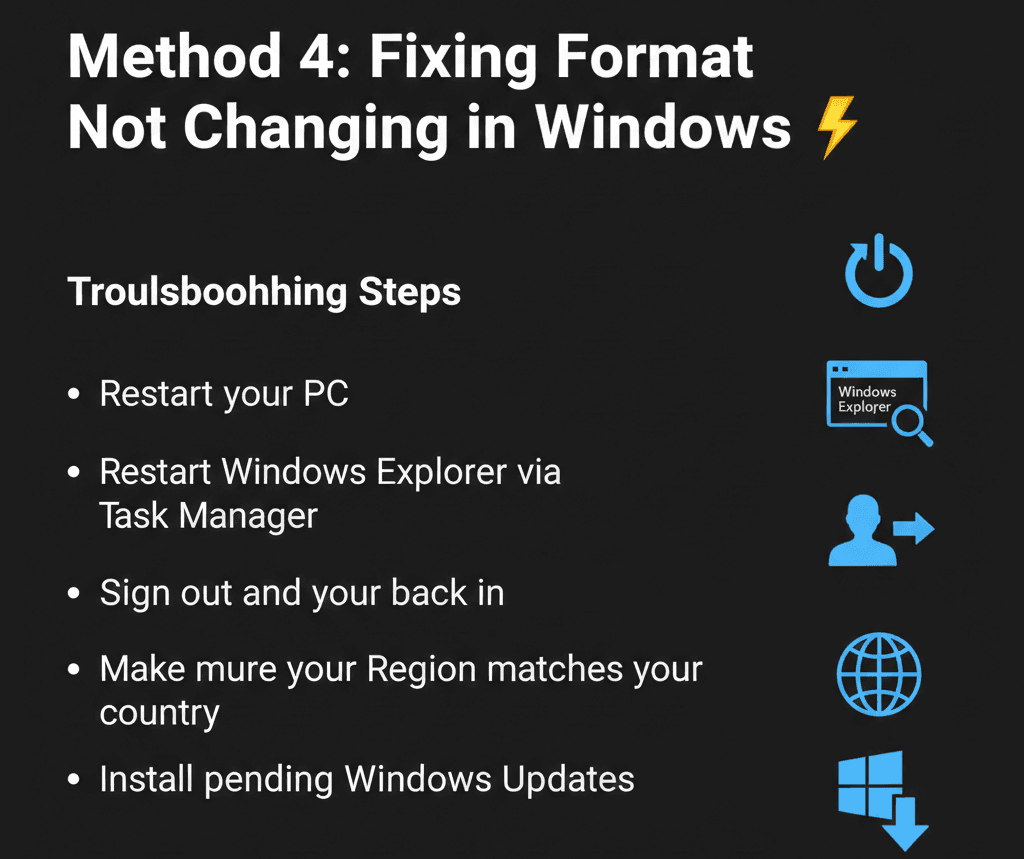
If the clock doesn’t update after changing the format, try these fixes:
Troubleshooting Steps
- Restart your PC
- Restart Windows Explorer via Task Manager
- Sign out and sign back in
- Make sure your Region matches your country
- Install pending Windows Updates
Tips and Warnings
Helpful Tips
- Use 24-hour format for work, travel, or technical accuracy
- Use 12-hour format for casual or personal use
- Changes affect most apps, including File Explorer and system notifications
Warnings
- Changing region settings may also affect date format and currency
- Some third-party apps may override system time settings
Frequently Asked Questions (FAQs)
Can I use 24-hour time in Windows 11?
Yes, Windows 11 fully supports 24-hour time formats.
Why does Windows keep switching back to AM/PM?
This usually happens due to incorrect region or language settings.
Does this change affect the taskbar clock?
Yes. The taskbar clock always follows the system time format.
Do I need to restart Windows?
No restart is required in most cases.
Windows Guide
Changing the time format in Windows is quick and customizable. Whether you want a 12-hour AM/PM clock or a 24-hour military-style clock, Windows gives you full control through Settings and Control Panel.