Notepad is one of the simplest yet most widely used tools in Windows. Whether you are typing notes, editing code, or opening text files, problems can still appear. This guide explains all the ways to get help with Notepad in Windows, from built-in options to advanced troubleshooting.
Method 1: Use the Built-In Help Menu in Notepad
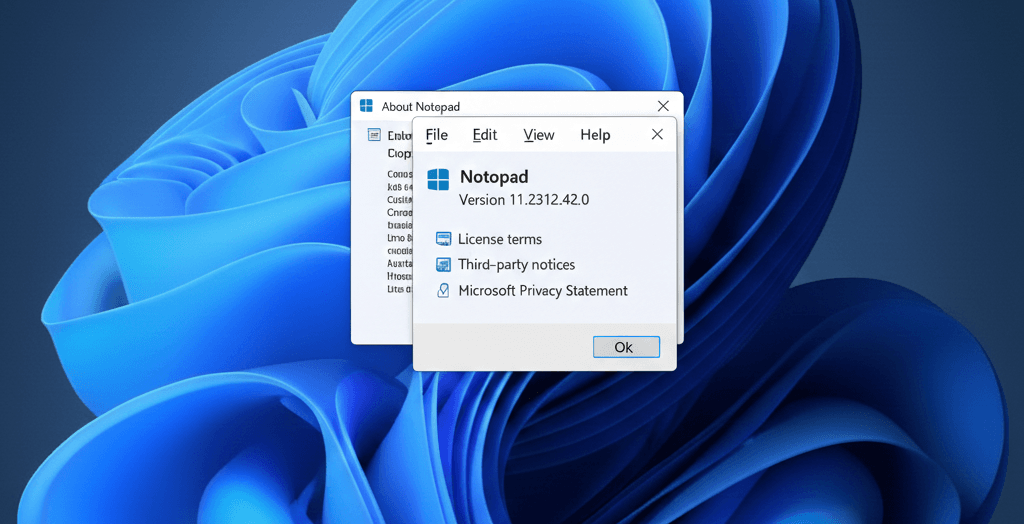
Steps:
- Open Notepad on your Windows PC.
- Click Help in the top menu bar.
- Select About Notepad.
- View version details and support links (useful for troubleshooting or updates).
Why this helps:
- Confirms whether you’re using the latest Notepad version
- Helps when reporting bugs or compatibility issues
Method 2: Use Windows “Get Help” App for Notepad Problems
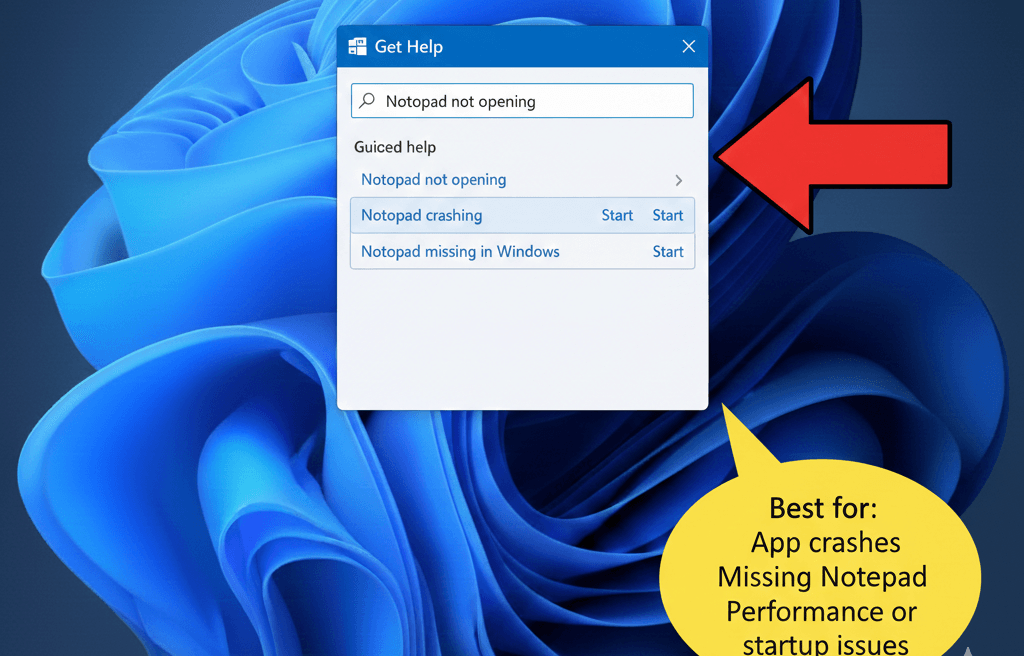
Steps:
- Press Windows + S.
- Type Get Help and open the app.
- Search for:
- Notepad not opening
- Notepad crashing
- Notepad missing in Windows
- Follow the guided troubleshooting steps.
Best for:
- App crashes
- Missing Notepad
- Performance or startup issues
Method 3: Search for Notepad Help in Windows Settings
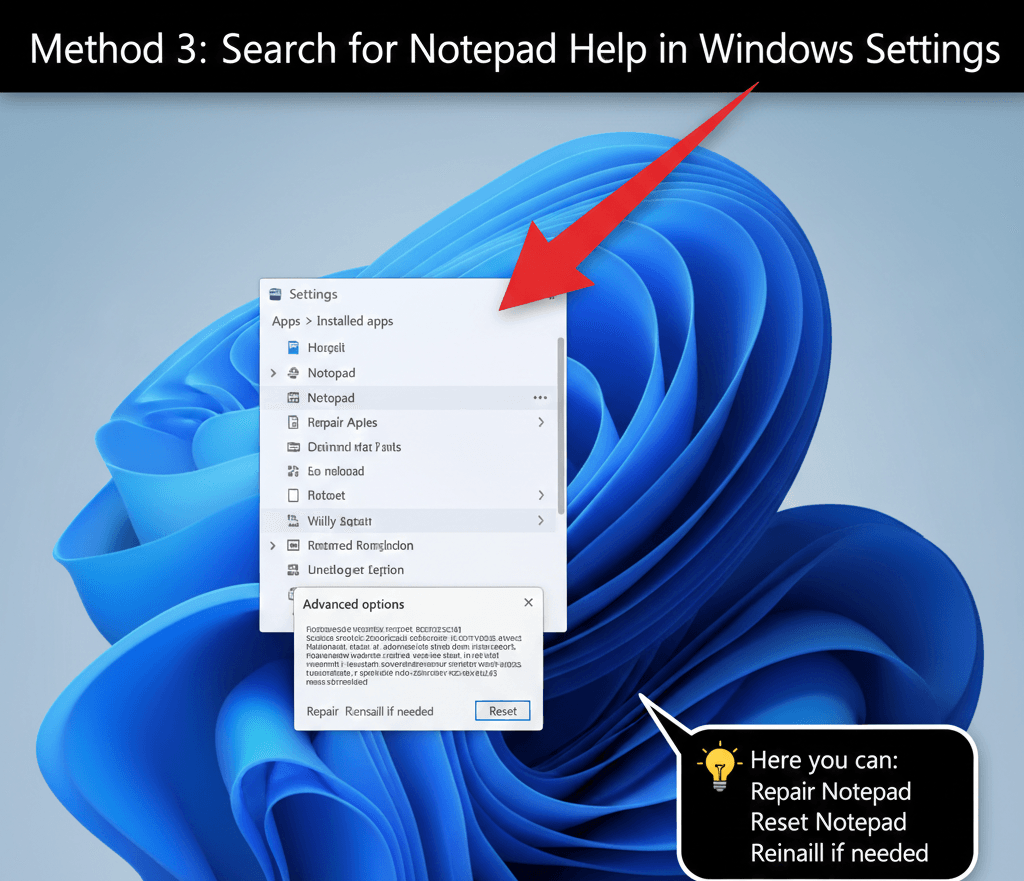
Steps:
- Press Windows + I to open Settings.
- Go to Apps → Installed apps.
- Scroll down and find Notepad.
- Click Advanced options.
Here you can:
- Repair Notepad
- Reset Notepad
- Reinstall if needed
Method 4: Use Keyboard Shortcuts to Work Faster in Notepad
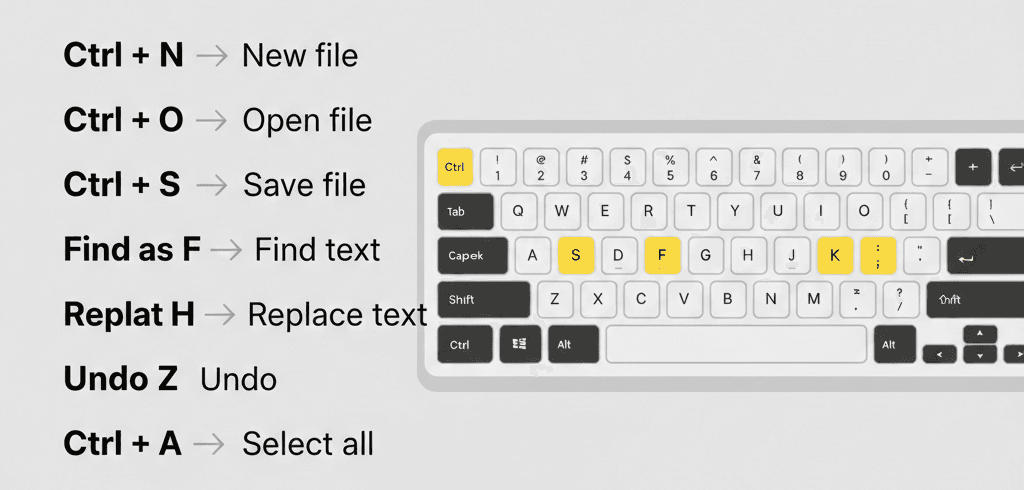
Useful shortcuts:
- Ctrl + N → New file
- Ctrl + O → Open file
- Ctrl + S → Save file
- Ctrl + F → Find text
- Ctrl + H → Replace text
- Ctrl + Z → Undo
- Ctrl + A → Select all
👉 These shortcuts solve many “Notepad help” searches without extra tools.
Method 5: Fix Common Notepad Issues in Windows
Notepad not opening?
- Restart your PC
- Run Windows Update
- Reset Notepad from Settings → Apps
Notepad missing?
- Open Settings
- Go to Apps → Optional Features
- Search for Notepad
- Install or re-enable it
Text looks weird or unreadable?
- Click Format → Font
- Choose a readable font like Consolas or Arial
Method 6: Update Notepad Using Microsoft Store
Steps:
- Open Microsoft Store.
- Search for Notepad.
- Click Update (if available).
💡 Newer Notepad versions include:
- Tab support
- Auto-save
- Dark mode
- Improved performance
Method 7: Get Online Help for Notepad
Helpful sources:
- Microsoft Support
- Windows Community Forums
- Tech blogs and tutorials
Search phrases that work well:
- Get help with Notepad in Windows
- Notepad not working Windows
- Fix Notepad issues Windows
Extra Tips for Power Users
- Use Word Wrap for long text files
- Save files as .txt, .log, or .bat for different uses
- Use Notepad for quick scripting and configuration edits
- Switch to Notepad++ if you need advanced coding features
Frequently Asked Questions
Is Notepad free in Windows?
Yes. Notepad comes preinstalled with Windows and is completely free.
Can I reinstall Notepad if it’s deleted?
Yes. You can reinstall it via Optional Features or Microsoft Store.
Why does Notepad keep crashing?
Outdated Windows versions, corrupted app data, or system errors are common causes.
Windows Guide for Beginners
Getting help with Notepad in Windows is easier than most people think. From the Get Help app to Settings, shortcuts, updates, and online resources, Windows provides multiple ways to fix and improve your Notepad experience.