Keeping Windows updated is one of the most important things you can do to keep your computer secure, fast, and bug-free. Windows Update delivers security patches, feature improvements, driver updates, and performance fixes automatically but many users do not fully understand how it works or what to do when updates fail.
This guide explains all easy ways to update Windows, how to control updates, and how to fix common Windows Update problems.
📌 Ways to Update Windows
- Use Windows Update in Settings
- Check updates manually
- Pause or schedule updates
- Update Windows drivers
- Use Windows Update Troubleshooter
- Fix stuck or failed updates
Method 1: Update Windows Using Settings (Recommended)
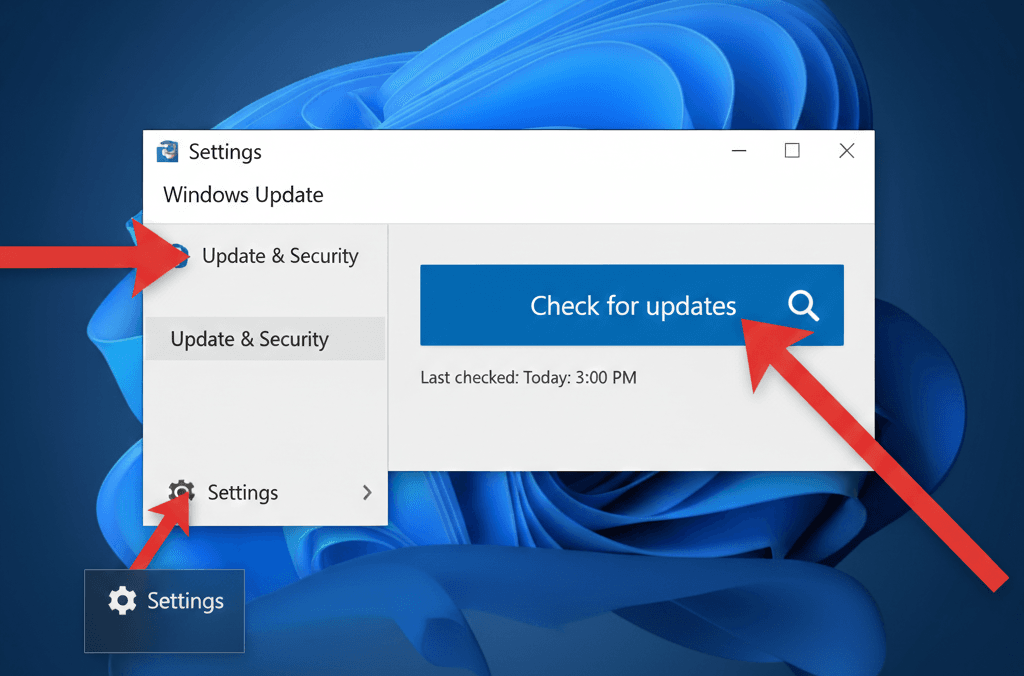
This is the safest and most reliable way to install Windows updates.
Steps (Windows 11)
- Press Windows + I to open Settings
- Click Windows Update (left sidebar)
- Click Check for updates
- Windows will automatically download and install available updates
- Restart your PC if prompted
Steps (Windows 10)
- Open Settings
- Go to Update & Security
- Click Windows Update
- Select Check for updates
✔ This method installs:
- Security updates
- Feature updates
- Bug fixes
- Performance improvements
Method 2: Download & Install Updates Manually
Use this if: Updates are not installing automatically.
Steps
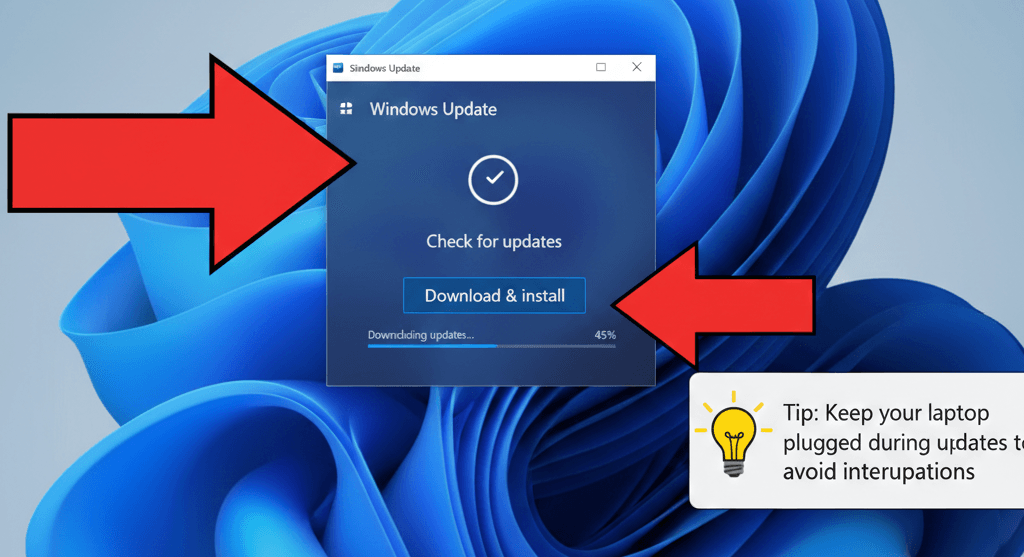
- Open Settings → Windows Update
- Click Check for updates
- Click Download & install (if shown)
- Wait for installation to complete
- Restart your PC
💡 Tip: Keep your laptop plugged in during updates to avoid interruptions.
Method 3: Pause or Schedule Windows Updates
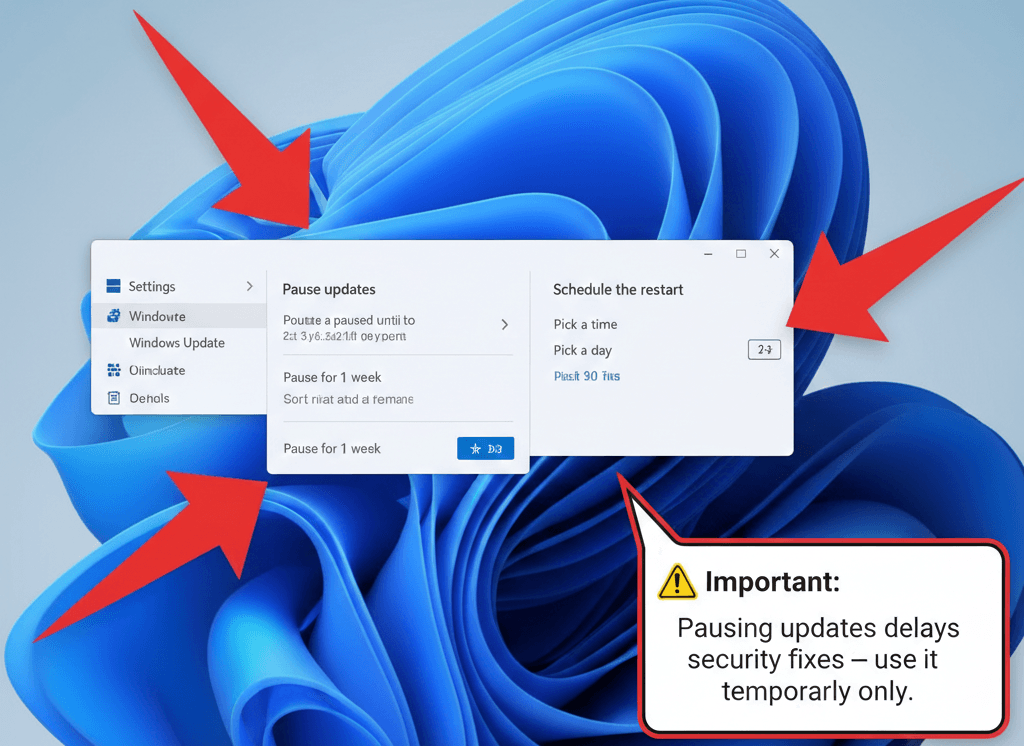
Windows allows you to pause updates if you’re busy or on limited internet.
Pause Updates
- Open Settings → Windows Update
- Click Pause updates
- Choose a pause duration (up to 5 weeks)
Schedule Restart
- Go to Windows Update
- Click Schedule the restart
- Choose a date and time
⚠ Important: Pausing updates delays security fixes — use it temporarily only.
Method 4: Update Windows Drivers Automatically
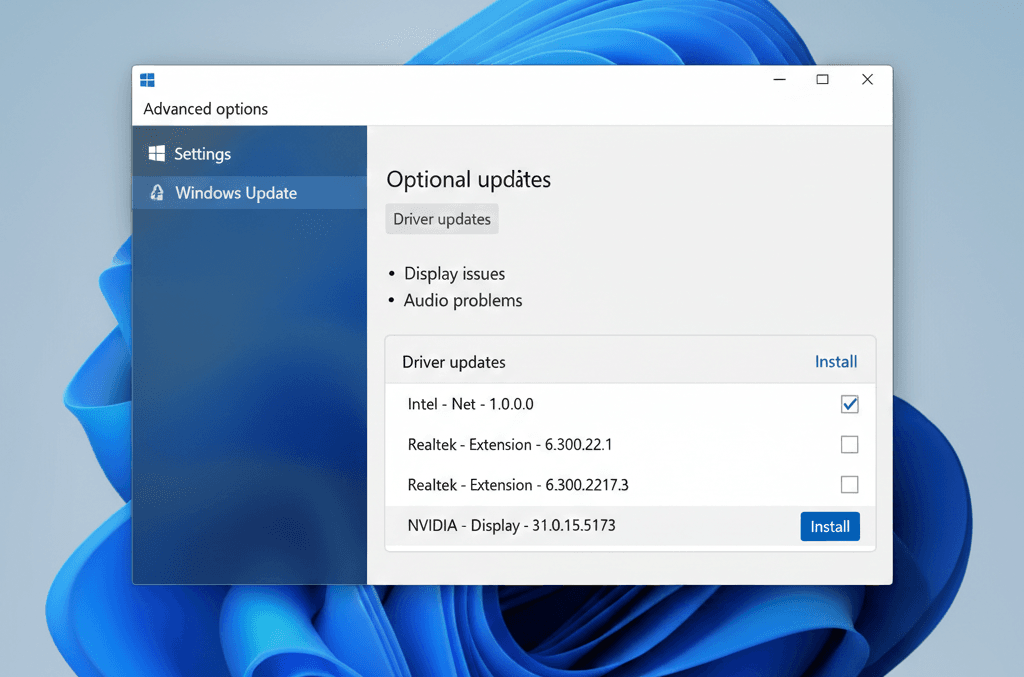
Windows Update also installs driver updates for hardware like graphics, Wi-Fi, and sound.
Steps
- Open Settings → Windows Update
- Click Advanced options
- Select Optional updates
- Install available driver updates
This helps fix:
- Display issues
- Audio problems
- Network errors
Method 5: Use Windows Update Troubleshooter
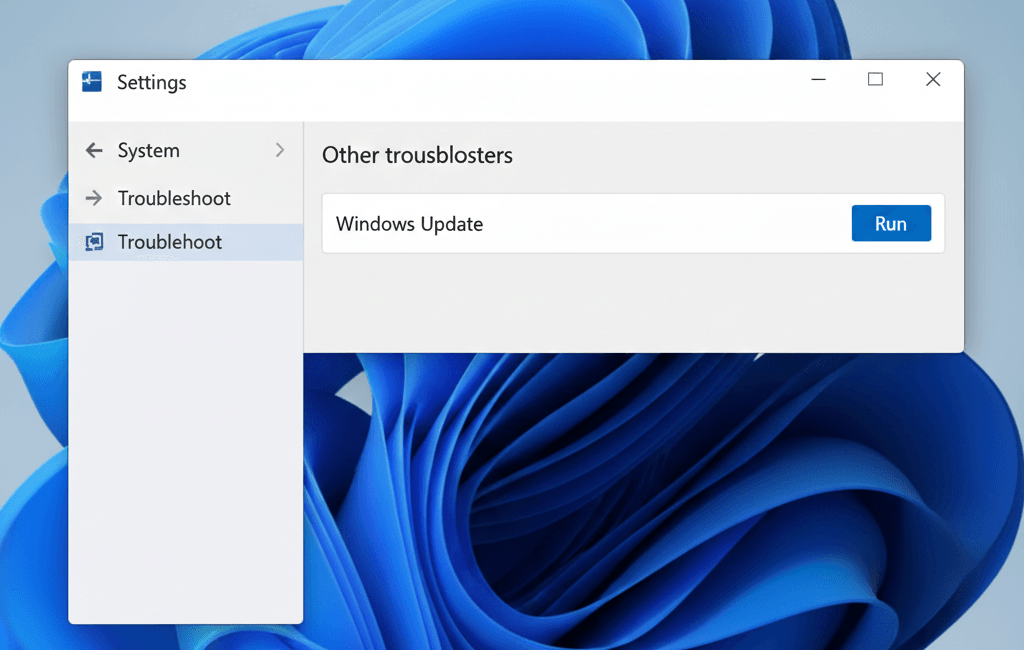
If Windows Update is not working, use the built-in troubleshooter.
Steps
- Open Settings
- Go to System → Troubleshoot
- Click Other troubleshooters
- Find Windows Update
- Click Run
- Follow on-screen instructions
This tool automatically fixes:
- Corrupted update files
- Service errors
- Download failures
Method 6: Fix Windows Update Stuck or Failed Issues
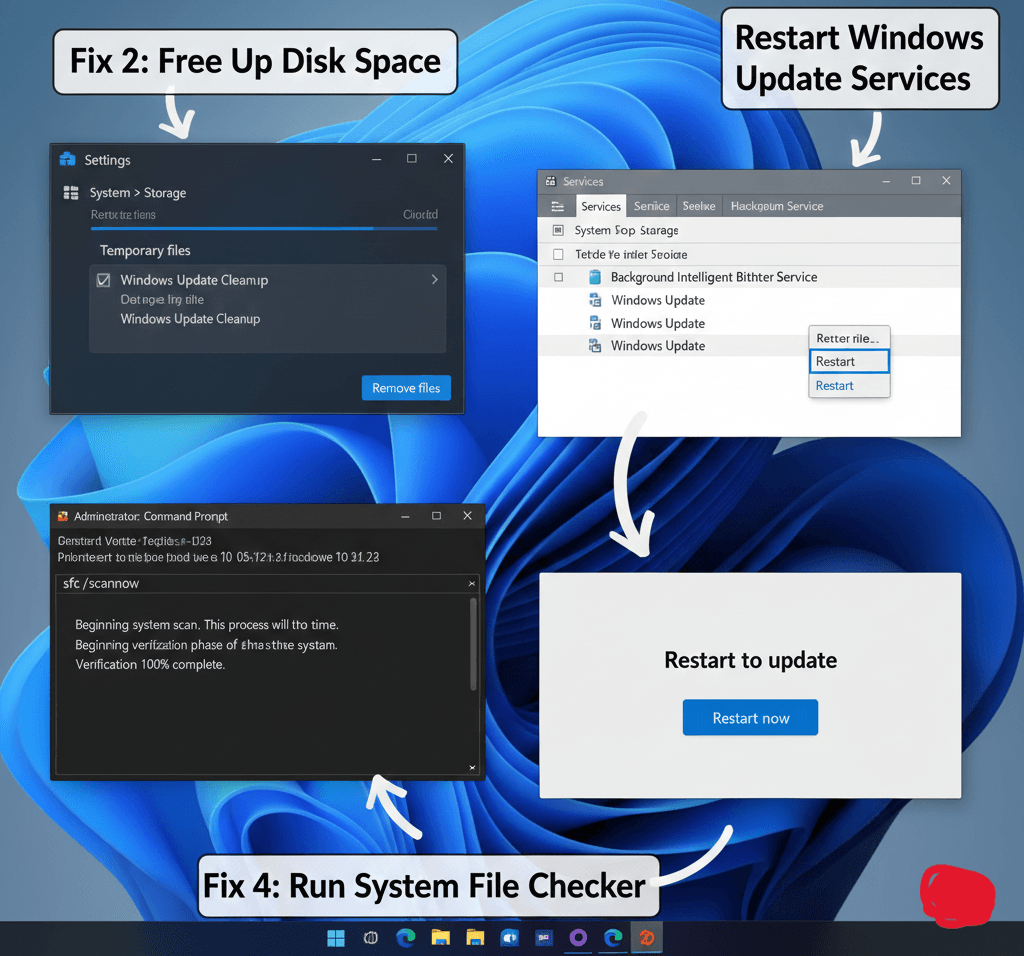
If updates are stuck at 0%, 99%, or fail repeatedly, try these fixes.
Fix 1: Restart Your Computer
A simple restart often clears temporary update issues.
Fix 2: Free Up Disk Space
Windows updates need storage space.
- Open Settings → System → Storage
- Delete temporary files if space is low
Fix 3: Restart Windows Update Services
- Press Windows + R
- Type
services.msc - Restart:
- Windows Update
- Background Intelligent Transfer Service (BITS)
Fix 4: Run System File Checker
- Open Command Prompt (Admin)
- Run:
sfc /scannow
This repairs corrupted system files that block updates.
Method 7: Update Windows Using Microsoft Update Catalog (Advanced)
Use this if: A specific update keeps failing.
Steps
- Visit the Microsoft Update Catalog
- Search for the update KB number
- Download the correct version
- Install manually
⚠ This method is recommended for advanced users only.
Common Windows Update Problems & Solutions
| Problem | Solution |
|---|---|
| Updates not downloading | Check internet + run troubleshooter |
| Update stuck | Restart PC + free disk space |
| Error codes | Run SFC & Windows Update Troubleshooter |
| PC slow after update | Restart + check driver updates |
Helpful Tips for Windows Updates
✅ Keep automatic updates enabled
✅ Restart regularly after updates
✅ Avoid shutting down during updates
✅ Use official Microsoft tools only
Warnings ⚠
- Do NOT use fake “Windows Update fixer” software
- Avoid turning off updates permanently
- Back up important files before major feature updates
Frequently Asked Questions (FAQ)
How often does Windows release updates?
Microsoft releases security updates monthly and feature updates once or twice a year.
Can I turn off Windows updates completely?
Not recommended. Updates protect your system from security threats.
Why does Windows update take so long?
Large feature updates, slow internet, or low disk space can increase update time.
Is Windows Update free?
Yes. Windows updates are completely free for genuine Windows users.
Windows Complete Guide
Windows Update is essential for keeping your PC secure, stable, and fast. Whether you update automatically or manually, staying up-to-date prevents bugs, malware, and compatibility problems.
Using the methods above, you can update Windows easily and fix update issues without technical expertise.