Wireless connectivity is the backbone of modern computing. But what happens when your internet slows down, drops unexpectedly, or your Wi-Fi keeps disconnecting? The culprit often lies in outdated or corrupt wireless network drivers. Updating wireless network driver is not just a technical task—it’s a crucial step for ensuring your PC’s stability, security, and performance. Therefore, a comprehensive steps are explained in infographics and also detailed guide on “How to Update Wireless Network Drivers” easily by following instructions as our blog is providing.
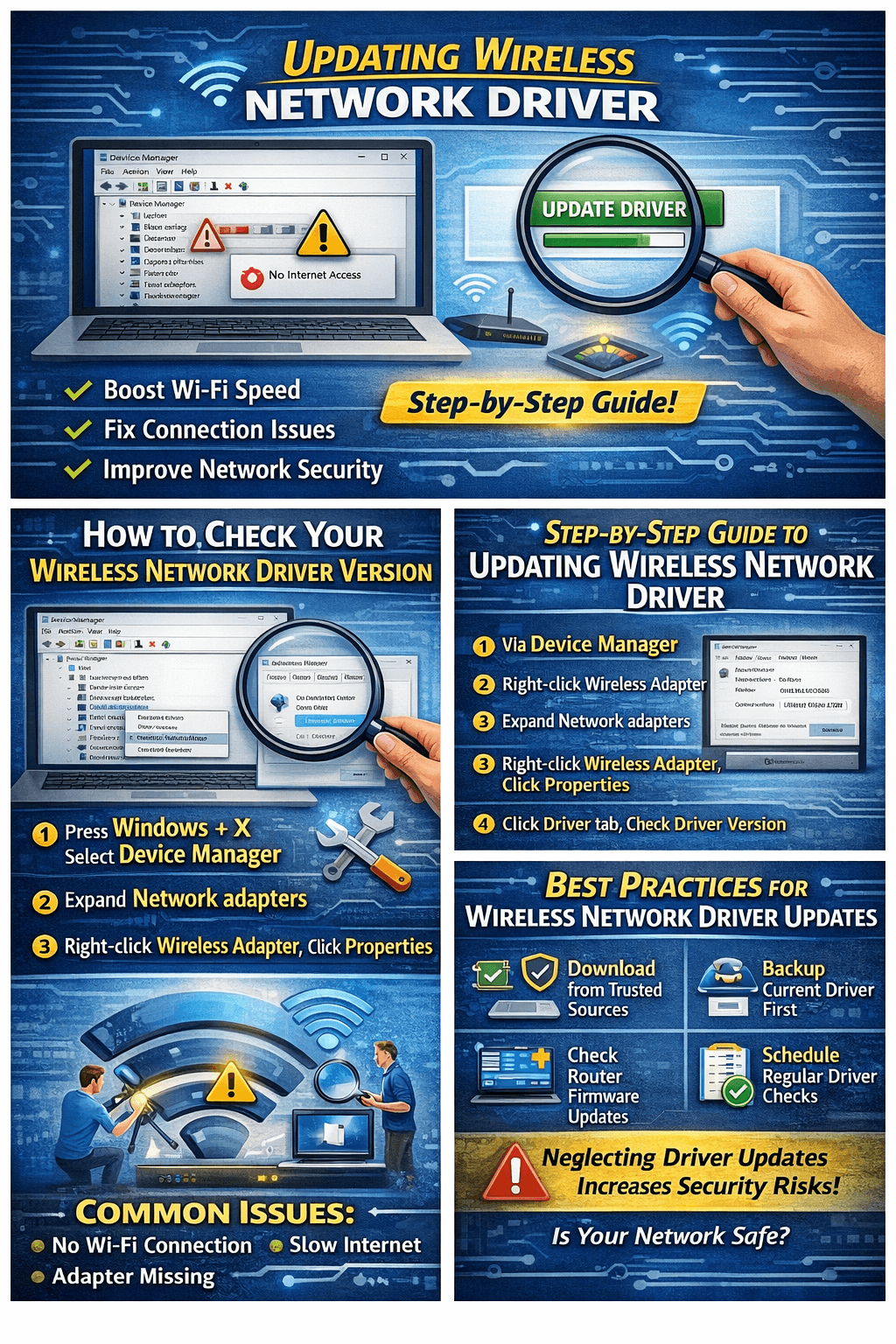
In this guide, we’ll uncover everything you need to know about updating your wireless network driver, including the tools, step-by-step methods, common issues, and why it’s essential to stay up-to-date.
What Is a Wireless Network Driver?
A wireless network driver is software that allows your computer to communicate with Wi-Fi adapters. Without it, your system can’t properly detect wireless networks or maintain a stable connection.
Signs you may need to update your wireless network driver include:
Wi-Fi connection drops frequently
Slow internet speed despite a strong signal
Network adapter not detected
Errors or warning symbols in Device Manager
Why Updating Wireless Network Driver Matters
Many users overlook the importance of wireless network driver updates. However, these updates are critical because they:
Improve internet connectivity speed
Fix compatibility issues with routers or new Wi-Fi standards
Resolve system crashes or network adapter errors
Enhance security and reduce vulnerabilities
How to Check Your Wireless Network Driver Version
Before updating, it’s essential to know your current driver version. Here’s how:
Press Windows + X and select Device Manager
Expand Network adapters and find your wireless adapter
Right-click and select Properties
Navigate to Driver tab to check Driver Version
Step-by-Step Guide to Updating Wireless Network Driver
Updating your wireless network driver can be done in multiple ways. Follow these proven methods for a smooth update:
1. Update via Windows Device Manager
Open Device Manager
Expand Network adapters
Right-click your wireless adapter and select Update driver
Choose Search automatically for updated driver software
Follow prompts to complete the installation
Tip: Restart your computer to apply changes fully.
2. Update Using Manufacturer’s Website
If Device Manager doesn’t find the latest driver:
- Visit your PC or adapter manufacturer’s official website
- Download the latest wireless network driver compatible with your system
- Run the installer and follow on-screen instructions
This method ensures you get the latest performance fixes that Windows might not provide.
3. Update via Third-Party Tools (Optional)
Tools like Driver Booster or Snappy Driver Installer can automatically detect outdated drivers and update them safely.
Note: Always download third-party tools from trusted sources to avoid malware.
Common Issues After Updating Wireless Network Driver
Even after updating, some users experience issues. Here’s how to troubleshoot:
Wi-Fi not connecting: Restart your router and PC
Slow internet: Roll back to the previous driver via Device Manager
Adapter missing: Reinstall the driver manually

Best Practices for Wireless Network Driver Updates
Update drivers only from trusted sources
Keep a backup of your current driver before updating
Check for firmware updates for your router as well
Schedule regular driver checks to maintain system performance
Neglecting driver updates could leave your network vulnerable to security threats.
Conclusion: Don’t Ignore Your Wireless Network Driver
Updating your wireless network driver is more than just a routine task—it’s a proactive measure to maintain fast, stable, and secure wireless connectivity. Whether it’s for work, gaming, or streaming, your internet experience depends heavily on keeping your drivers current.
Final tip: Set a reminder to check for wireless network driver updates monthly, especially after major Windows updates.