
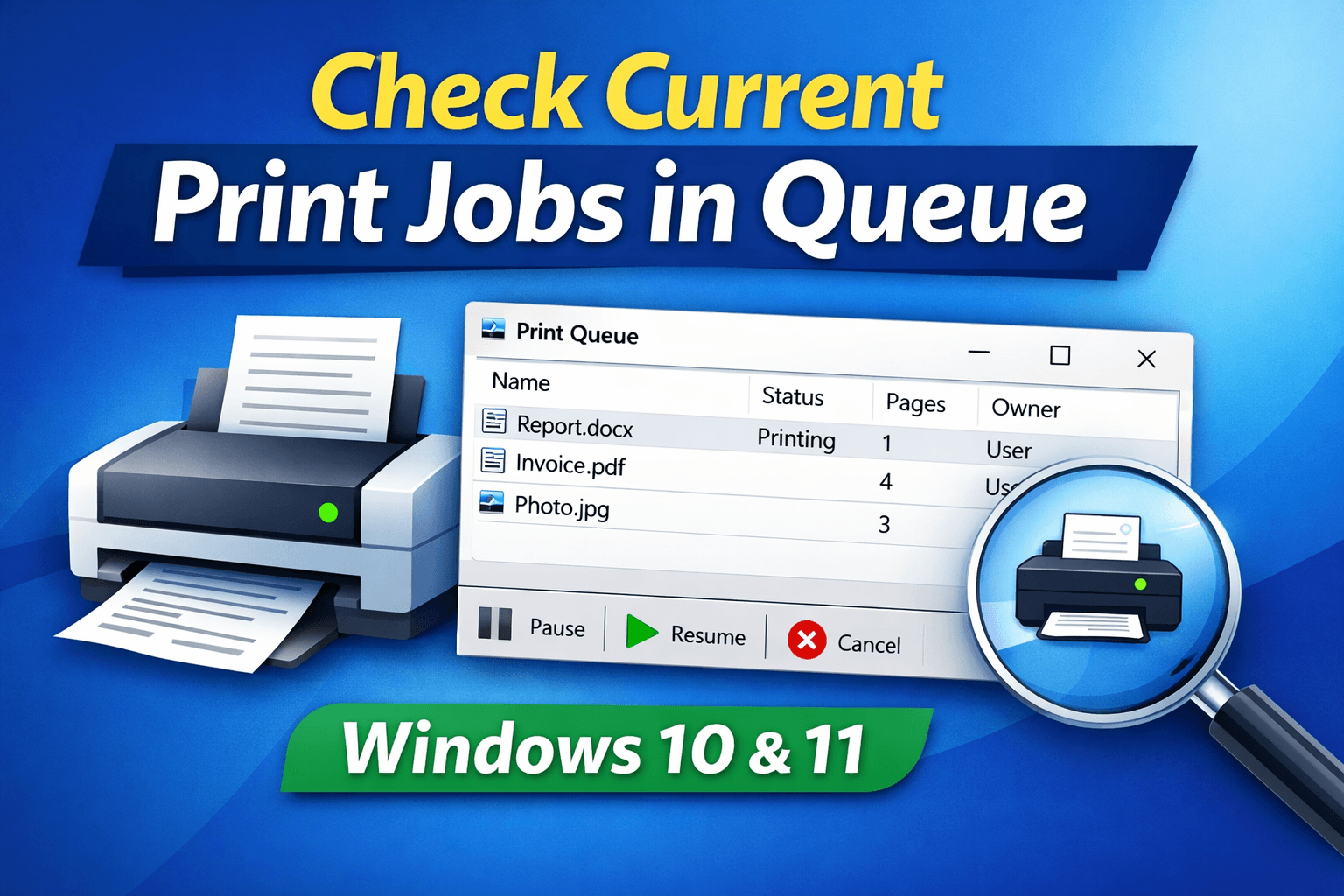
If you want to check current print jobs in queue Windows, this guide explains all working methods step by step. Whether you are using Windows 10 or Windows 11, you can easily view, pause, resume, or cancel print jobs from the printer queue.
What Is a Print Queue in Windows?
A print queue in Windows shows all documents waiting to be printed. When multiple files are sent to the printer, Windows places them in a queue and prints them one by one.
Knowing how to check current print jobs in queue Windows helps you:
- Cancel stuck print jobs
- Monitor printing progress
- Fix printer errors quickly
How to Check Current Print Jobs in Queue Windows (Best Methods)
Method 1: Check Print Queue Using Windows Settings
This is the most reliable method for Windows 10 and Windows 11 users.
Steps:
- Press Windows + I to open Settings
- Go to Bluetooth & devices
- Click Printers & scanners
- Select your active printer
- Click Open print queue
You will now see all current print jobs in the queue.
Method 2: Check Print Jobs from Control Panel
This classic method still works perfectly.
Steps:
Press Windows + R
Type:

Press Enter
Double-click your printer

The printer queue window will open showing all current jobs.
Method 3: Check Print Queue from System Tray
If a document is already printing:
- Look at the bottom-right corner of your screen
- Click the printer icon
- The print queue opens instantly
This is the fastest way to check current print jobs in queue Windows.
Method 4: Check Print Jobs Using Command Prompt
This method is useful for advanced users.
Steps:
Press Windows + R, type
cmdRun:


This displays active print jobs in text format.
How to Cancel or Clear Print Jobs in Windows
If a document is stuck:
- Open the print queue
- Right-click the document
- Select Cancel
If jobs don’t clear:
Restart Print Spooler from
services.msc
Why Print Jobs Get Stuck in Windows
Common reasons include:
- Printer offline
- Corrupt print file
- Driver issues
- Paper or ink error
Restarting the print spooler usually fixes the problem.
Windows Versions Supported
This guide works for:
- Windows 11
- Windows 10
- Windows 8.1

Pingback: How to Check if You Have Admin Privileges on Windows