Checking installed apps on your Windows device helps you understand what software is currently available on your system. It is useful for managing storage, identifying unused programs, troubleshooting issues, and maintaining overall system performance.
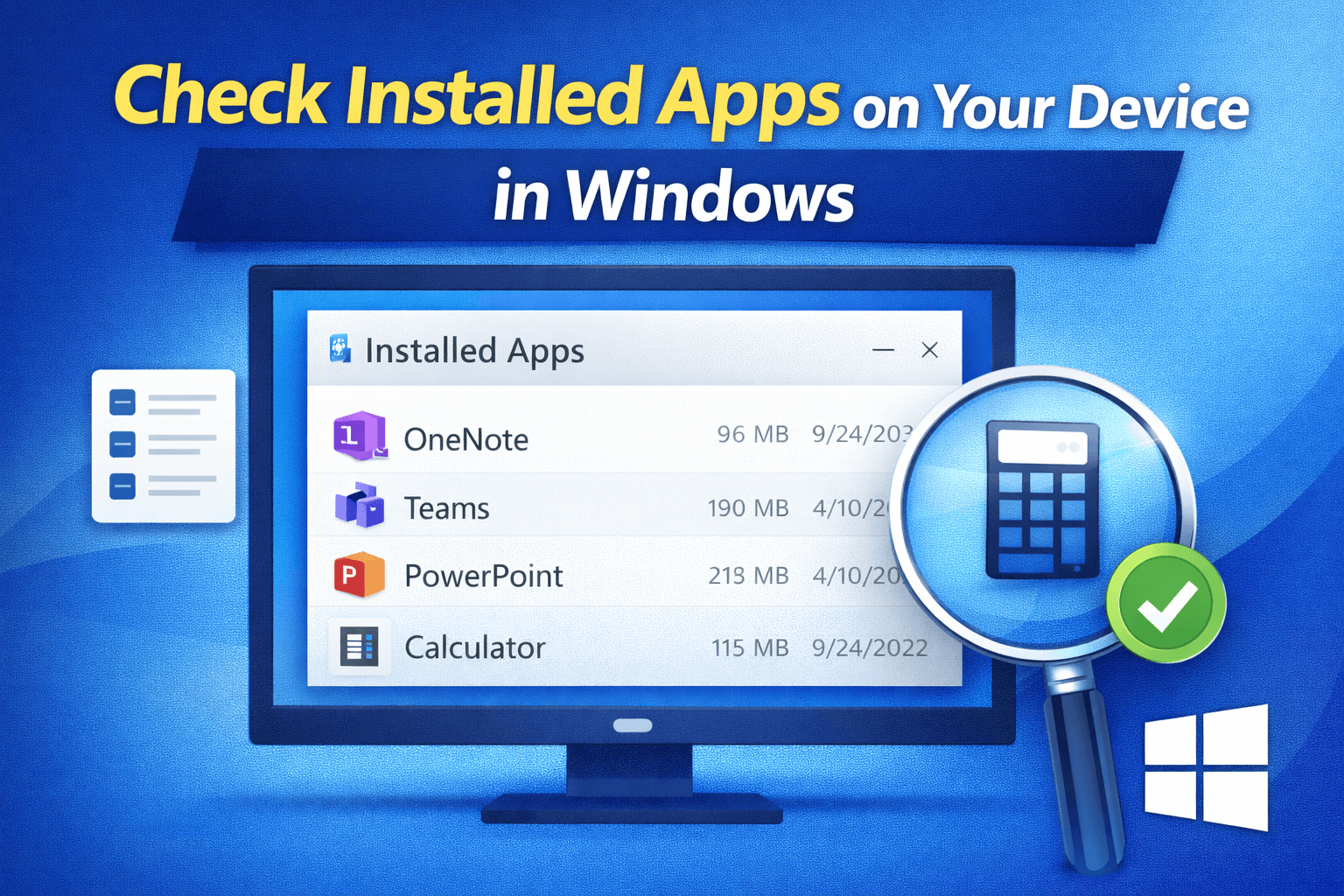
This guide explains what installed apps are, how to view them in Windows, why it is important, and how it affects users.
What Are Installed Apps in Windows?
Installed apps are software programs that have been added to your Windows device. These include:
- System apps that come with Windows
- Applications installed by the user
- Tools added during software or hardware setup
Each installed app occupies storage space and may run background processes.
How Checking Installed Apps Works
Windows keeps a list of all installed applications in its system settings. When you open this list, Windows displays:
- App name
- Installation size
- Installation date
- Version information (in some cases)
This helps users review and manage their software easily.
How to Check Installed Apps on Your Device in Windows
Method 1: Using Windows Settings
This is the most common and user-friendly method.
General steps:
- Open system settings
- Go to the apps or applications section
- View the complete list of installed apps
The list usually allows sorting by name, size, or installation date.
Method 2: Using Control Panel
Some applications are listed in the classic system interface.
This method displays:
Desktop programs
System-installed tools
Older applications
It is helpful for managing traditional software.
Method 3: Using Search
Windows search can be used to:
Find specific installed apps
Check if a program is already installed
Quickly open an application
This method is useful when looking for a single app.
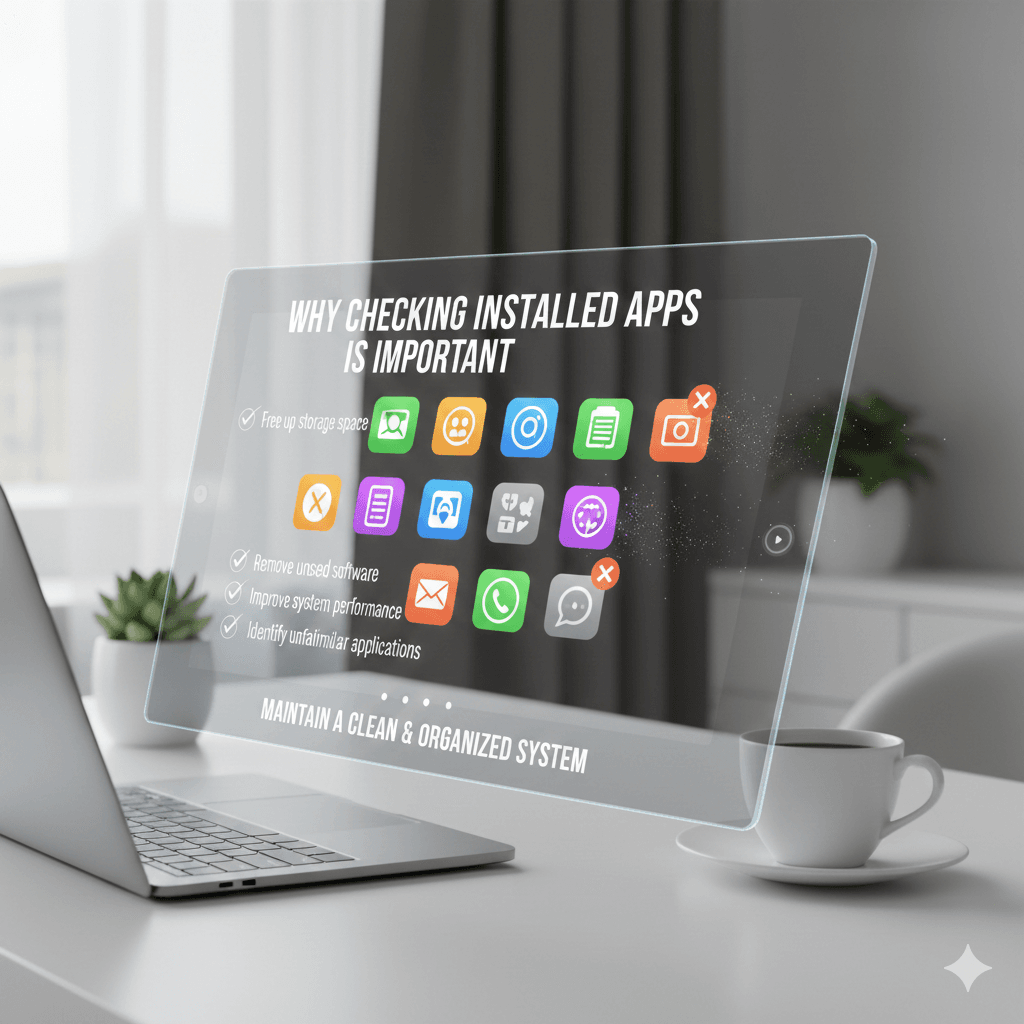
Why Checking Installed Apps Is Important
Regularly reviewing installed apps helps users:
Free up storage space
Remove unused or unnecessary software
Improve system performance
Identify unfamiliar applications
It also helps maintain a clean and organized system.
When You Should Review Installed Apps
Users may want to check installed apps when:
Storage space is low
The system feels slow
After installing new software
Before troubleshooting performance issues
Routine checks can prevent long-term system problems.
Public and User Impact
For individual users, checking installed apps improves device control and digital awareness.
For organizations, schools, and public institutions:
It helps manage shared devices
Reduces security risks
Supports efficient system maintenance
Clear visibility of installed software is essential in both personal and professional environments.
Common Issues Found When Checking Installed Apps
Users may discover:
Duplicate applications
Unused programs
Large apps consuming storage
Outdated software
Identifying these helps users make informed decisions.
Frequently Asked Questions (Installed Apps)
Can I see all apps installed on my Windows device?
Yes, Windows provides built-in tools that show a complete list of installed apps.
Does checking installed apps affect system performance?
No, viewing the list does not impact performance.
Why do some apps not appear in one list?
Some system apps or background tools may appear in different system sections.
How often should I review installed apps?
Reviewing installed apps every few months or when issues arise is recommended.
Apps on your Windows Device:
Checking installed apps on your Windows device is a simple but important practice. It helps users manage storage, improve performance, and maintain system stability. By regularly reviewing installed software, users can keep their devices organized, efficient, and secure.