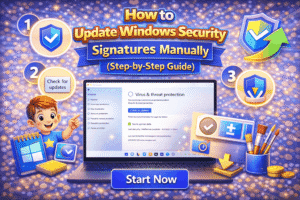
Learn how to protect your PC using Windows Security, manage virus scans, firewall settings, and troubleshoot security issues.
Windows Security (formerly Windows Defender) is the built-in security solution in Windows 10 and Windows 11. It protects your PC from viruses, malware, ransomware, and other threats. This guide explains how to access, use, and get help with Windows Security, including common troubleshooting and tips.
Method 1: Open Windows Security

Steps:
- Press Windows + S to open Search.
- Type Windows Security and press Enter.
- The Windows Security dashboard will open, showing:
- Virus & threat protection
- Account protection
- Firewall & network protection
- App & browser control
- Device security
- Device performance & health
- Family options
💡 Tip: Pin Windows Security to the taskbar for faster access.
Method 2: Run a Quick or Full Virus Scan
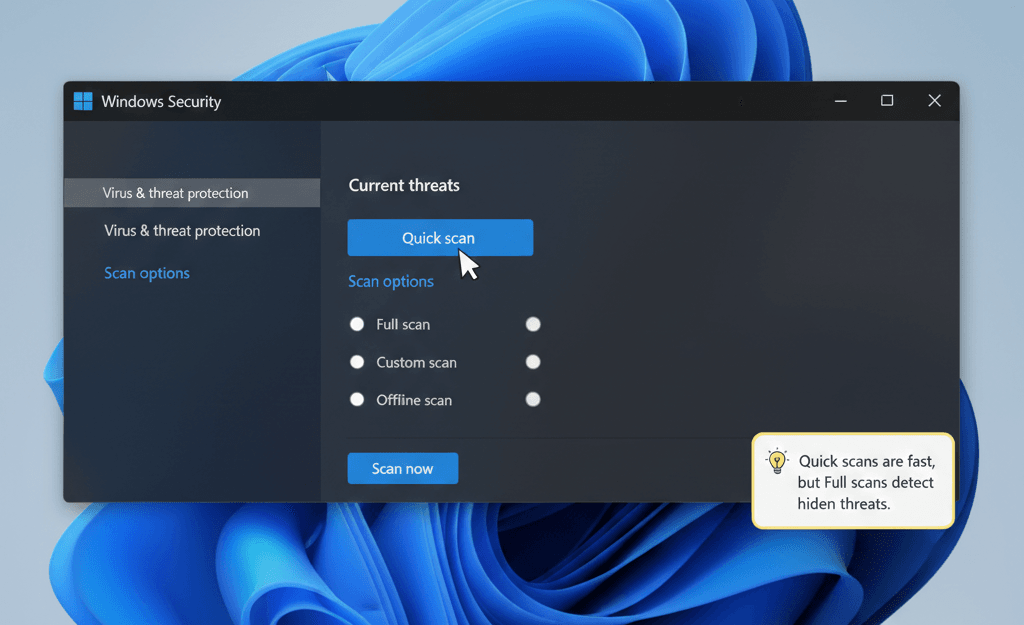
Steps:
- Open Windows Security → Virus & threat protection.
- Click Quick scan to scan critical system areas.
- To scan the full PC, click Scan options → Full scan → Scan now.
- Wait for the scan to complete. Remove or quarantine threats as prompted.
💡 Quick scans are fast, but Full scans detect hidden threats.
Method 3: Update Security Definitions

Keeping virus definitions updated ensures Windows Security can detect new threats.
Steps:
- Open Windows Security → Virus & threat protection.
- Click Check for updates under Virus & threat protection updates.
- Wait for definitions to download and install.
⚡ Tip: Updates are usually automatic, but manual updates help if you suspect your definitions are outdated.
Method 4: Manage Firewall & Network Protection
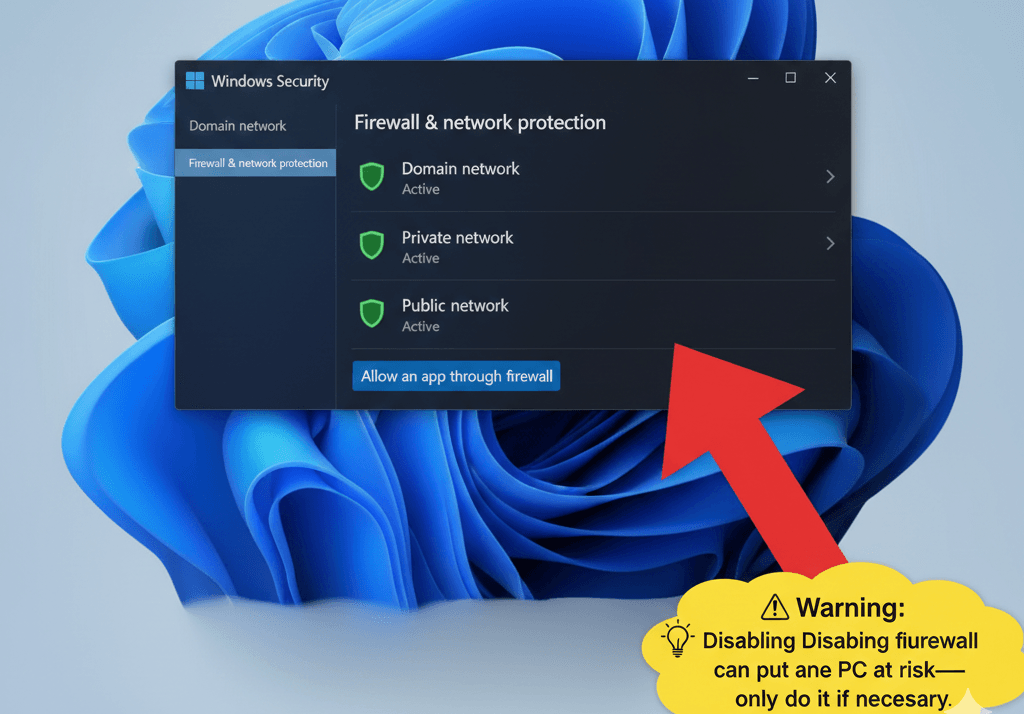
Steps:
- Open Windows Security → Firewall & network protection.
- Review active networks: Domain, Private, Public.
- Turn firewall on/off for specific networks if needed.
- Click Allow an app through firewall to manage apps.
💡 Warning: Disabling firewall can put your PC at risk—only do it if necessary.
Method 5: Use App & Browser Control
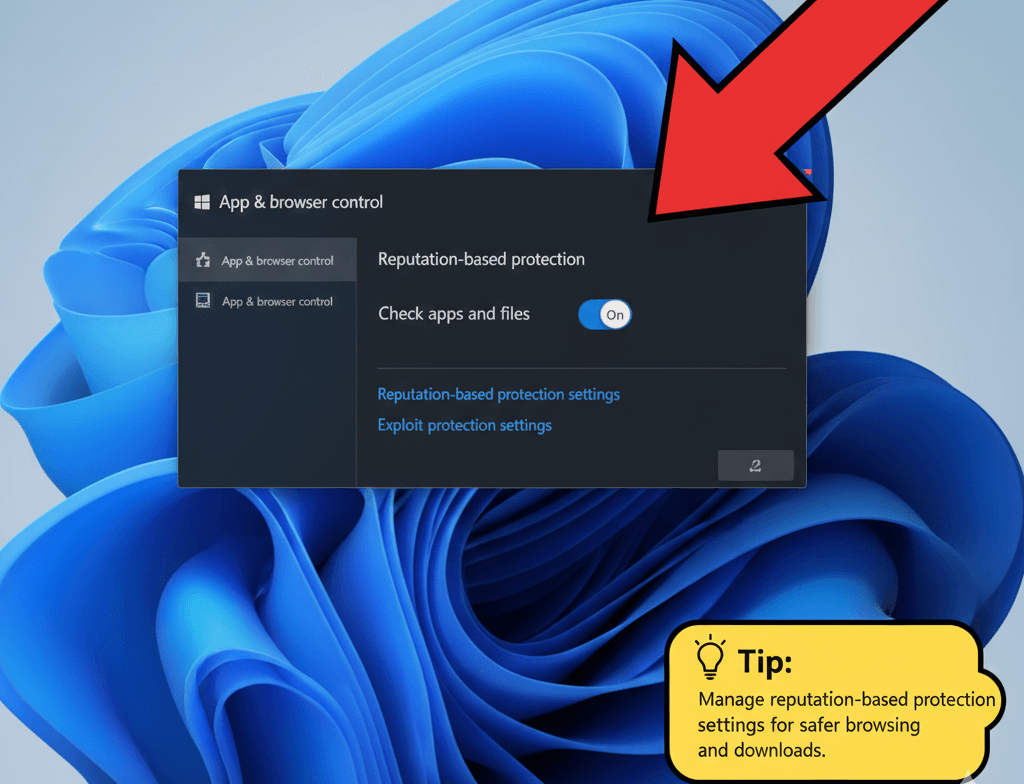
Steps:
- Open Windows Security → App & browser control.
- Enable Check apps and files for Microsoft SmartScreen protection.
- Manage reputation-based protection settings for safer browsing and downloads.
Method 6: Get Help With Windows Security
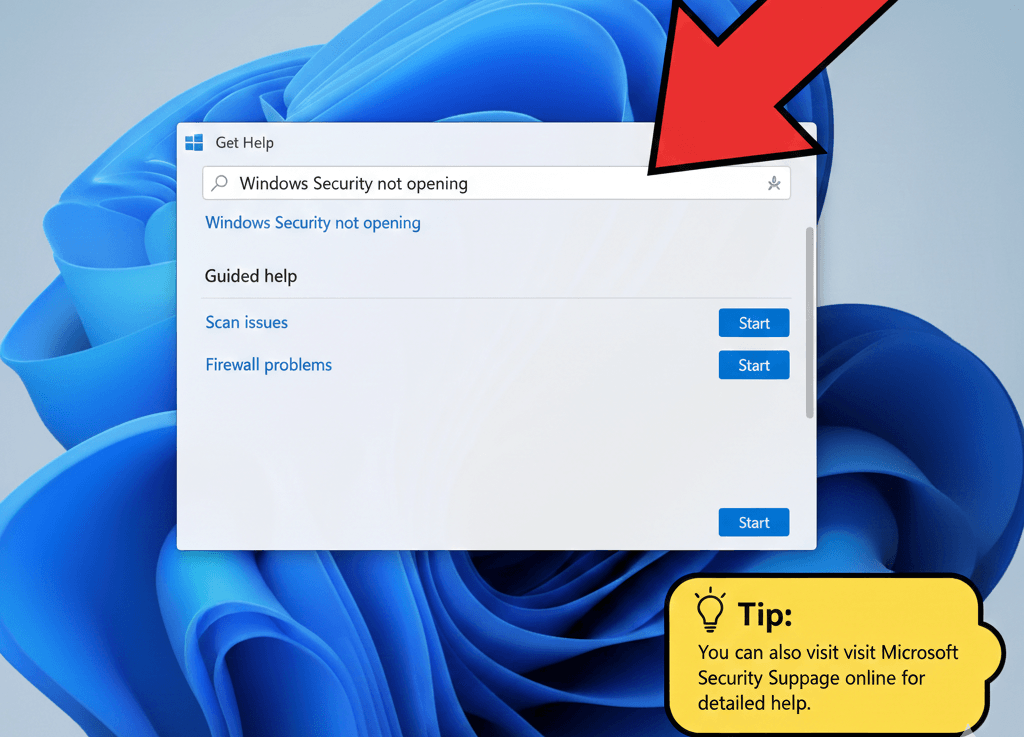
Steps:
- Press Windows + S, type Get Help, and open the app.
- Search for:
- Windows Security not opening
- Scan issues
- Firewall problems
- Follow guided troubleshooting steps.
💡 Tip: You can also visit the Microsoft Security Support page online for detailed help.
Method 7: Fix Common Windows Security Issues
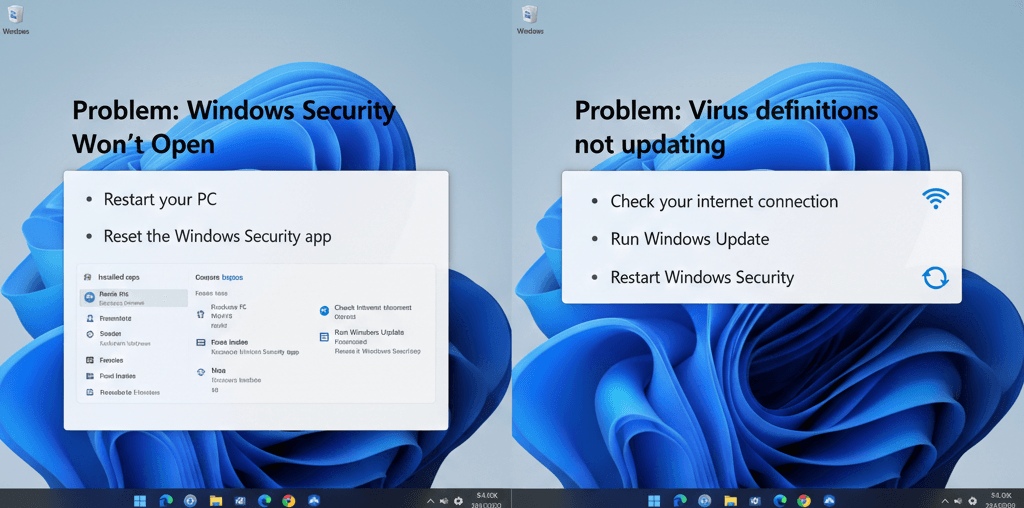
Problem: Windows Security Won’t Open
- Restart your PC
- Reset the Windows Security app:
- Settings → Apps → Installed apps
- Find Windows Security → Advanced options → Reset
Problem: Virus definitions not updating
- Check your internet connection
- Run Windows Update
- Restart Windows Security
Problem: Firewall issues
- Reset firewall settings:
- Windows Security → Firewall & network protection
- Click Restore firewalls to default
Tips and Warnings
Helpful Tips:
- Enable real-time protection for constant security.
- Schedule regular quick scans.
- Keep Windows updated to prevent vulnerabilities.
- Use Family Options to monitor child accounts safely.
Warnings:
- Avoid third-party apps claiming to “boost Windows Security.”
- Don’t disable firewall or antivirus permanently.
- Backup important files before major security changes.
Frequently Asked Questions (FAQs)
Is Windows Security free?
Yes, Windows Security is built into Windows 10 and Windows 11 and is completely free.
Can I use Windows Security with third-party antivirus?
Yes, but some features may be disabled if another antivirus is installed.
Why is Windows Security not opening?
Corrupted app data, pending updates, or system errors are common reasons.
Does Windows Security scan external drives?
Yes, you can manually scan USB drives and external hard disks.
Complete Windows Guide
Windows Security is a complete, built-in security solution for your PC. From real-time virus protection to firewall management, it keeps your computer safe. By following the steps above, you can use, troubleshoot, and get help with Windows Security efficiently.