A printer queue is a basic but important part of the printing process. Many people face printing issues but do not realize that the problem often starts in the printer queue. Understanding how the printer queue works can help fix common printing errors quickly.
What Is a Printer Queue?
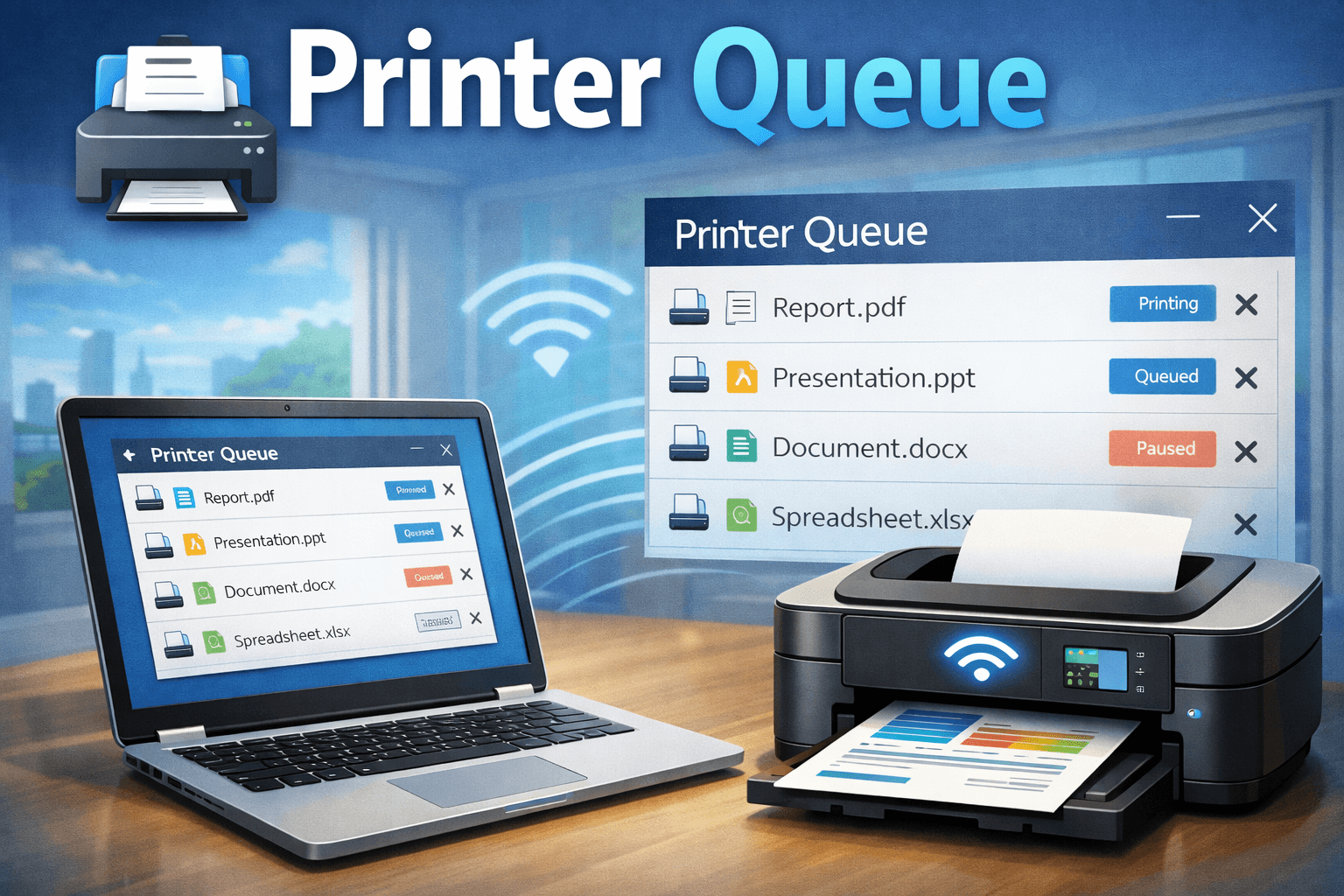
A printer queue is a waiting list of documents sent to a printer. When you click the print button, the document does not print immediately. Instead, it is placed in the printer queue. The printer then prints each document one by one.
If several people or applications send print commands at the same time, the printer queue manages the order.
Why the Printer Queue Is Important
The printer queue plays a key role in smooth printing. It helps in:
- Managing multiple print jobs
- Preventing printer overload
- Allowing users to pause or cancel print jobs
- Showing errors before printing starts
Without a printer queue, printers would struggle to handle more than one document at a time.
How the Printer Queue Works
The printer queue follows a simple process:
- A document is sent to print
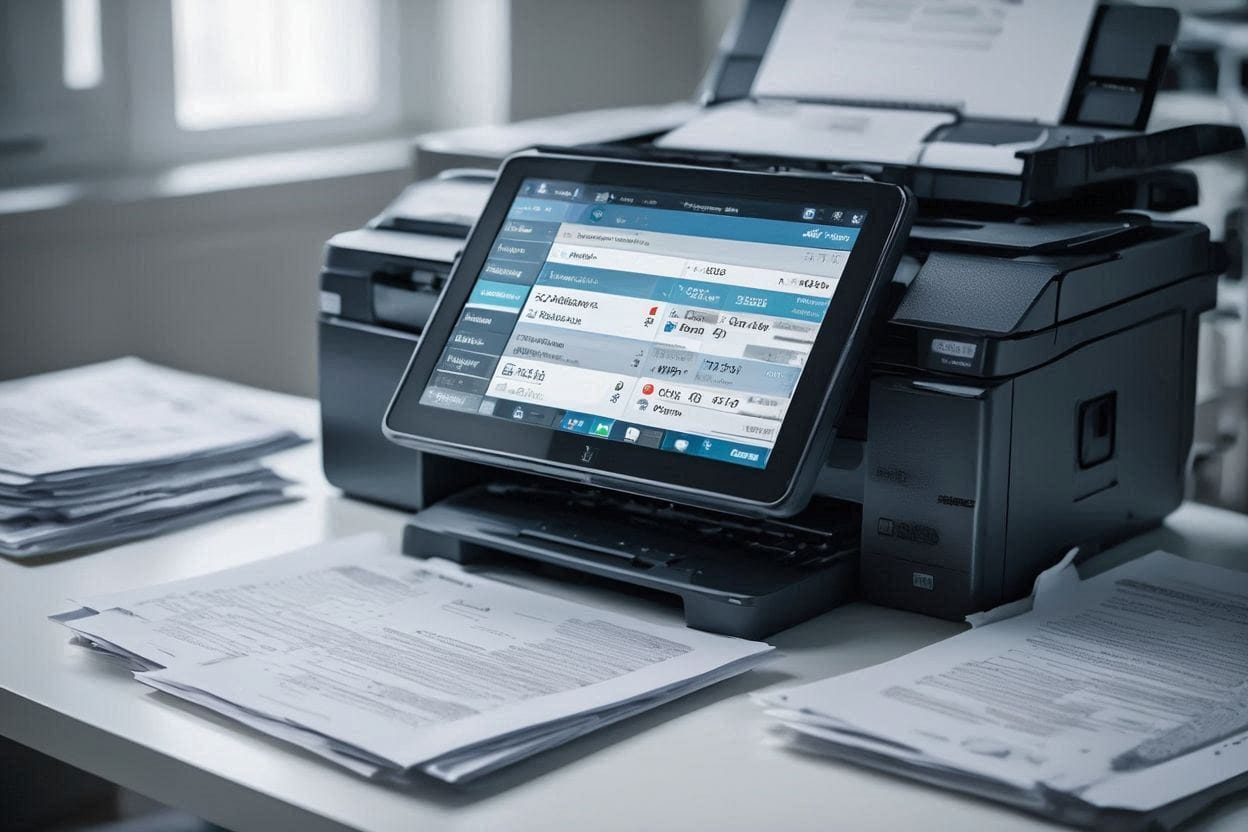
- The system stores the document in the queue
- The printer processes jobs in order
- Completed jobs are removed from the list
If the printer stops working or loses connection, the jobs remain stuck in the queue.
How to Open Printer Queue in Windows
Using Settings (Windows 10 and 11)
- Open Settings
- Go to Bluetooth & devices
- Click Printers & scanners
- Select your printer
- Click Open print queue
Using Control Panel
- Open Control Panel
- Click Devices and Printers
- Right-click the printer
- Select See what’s printing
How to Clear the Printer Queue
Clearing the printer queue often fixes stuck print jobs.
Cancel Print Jobs Manually
- Open the printer queue
- Click Printer from the top menu
- Select Cancel All Documents
- Restart the Print Spooler Service
This is the most reliable method.
Press Windows + R
Type
services.mscand press EnterFind Print Spooler
Right-click and select Restart
Restarting the print spooler clears temporary errors and restarts printing services.
Common Printer Queue Problems
Many printer issues are related to the queue, such as:
- Print jobs stuck in waiting state
- Printer showing offline status
- Repeated or duplicate print jobs
- Slow printing
- Error messages that block printing
These issues usually happen due to driver problems, connection issues, or software conflicts.
How to Fix Printer Queue Issues
To solve most printer queue problems, try these steps:

- Restart the printer
- Restart the computer
- Clear the printer queue
- Restart Print Spooler
- Update printer drivers
- Check Wi-Fi or USB connection
In many cases, restarting the spooler service is enough.
Printer Queue in Network Printing
In offices or shared environments, many users send print jobs to one printer. The printer queue becomes more important in such setups. A long queue can slow down printing or cause delays.
System administrators often monitor printer queues to avoid errors and manage workload.
Can Printer Queue Affect Printing Speed?
Yes. A large number of pending jobs can slow down printing. Corrupted files in the queue can also stop all printing until removed.
Keeping the printer queue clean improves performance.
Printer Queue Solution:
The printer queue is a simple but powerful system that controls how documents are printed. Most printing problems are connected to stuck or faulty queue jobs. Knowing how to access and clear the printer queue can save time and reduce frustration.
By managing the printer queue properly, users can keep their printers working smoothly and avoid common printing issues.