Windows Security (Microsoft Defender) uses security intelligence signatures to detect viruses, ransomware, spyware, and other threats. While these updates usually install automatically, you may need to update them manually if updates fail, your PC is offline, or protection looks outdated.
This guide explains all working methods, from the easiest to advanced options.
Method 1: Update Windows Security Signatures Using the Windows Security App (Recommended)
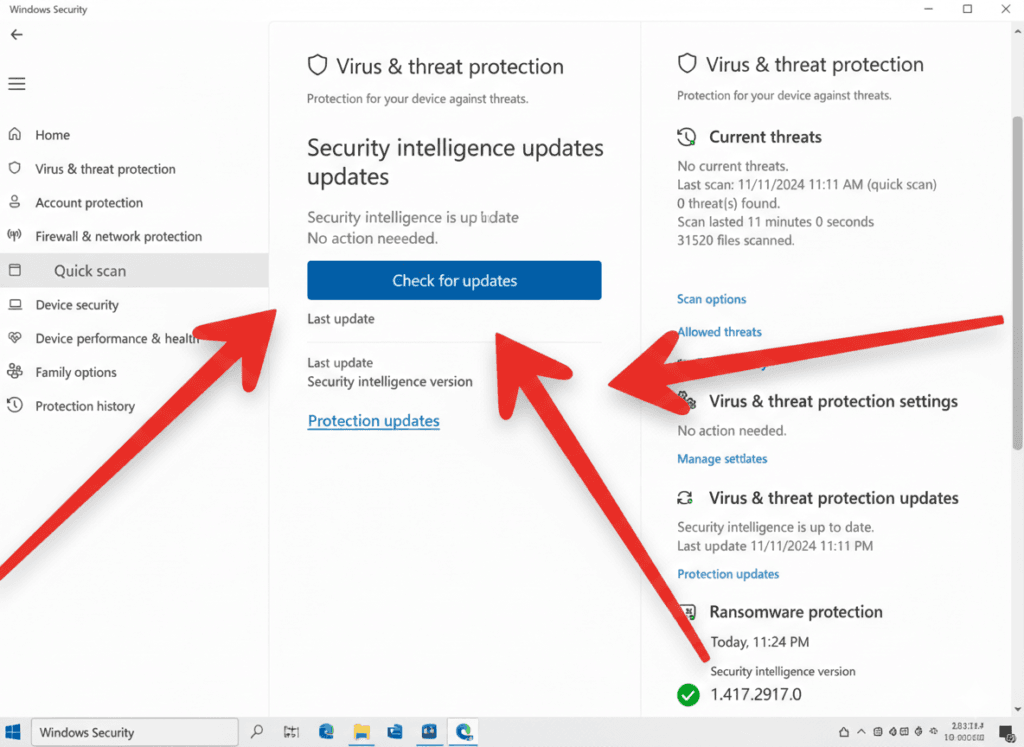
This is the safest and easiest way for most users.
Steps
Step 1: Open Windows Security
Press Windows + S, type Windows Security, and press Enter.
Step 2: Go to Virus & Threat Protection
Click Virus & threat protection from the dashboard.
Step 3: Open Protection Updates
Scroll down and click Protection updates (or Virus & threat protection updates).
Step 4: Click Check for Updates
Click Check for updates to download the latest security signatures.
Step 5: Confirm Update Status
Once complete, you’ll see the latest Security intelligence version and date.
✅ Best method for Windows 10 and Windows 11 users.
Method 2: Update Security Signatures Using Windows Update
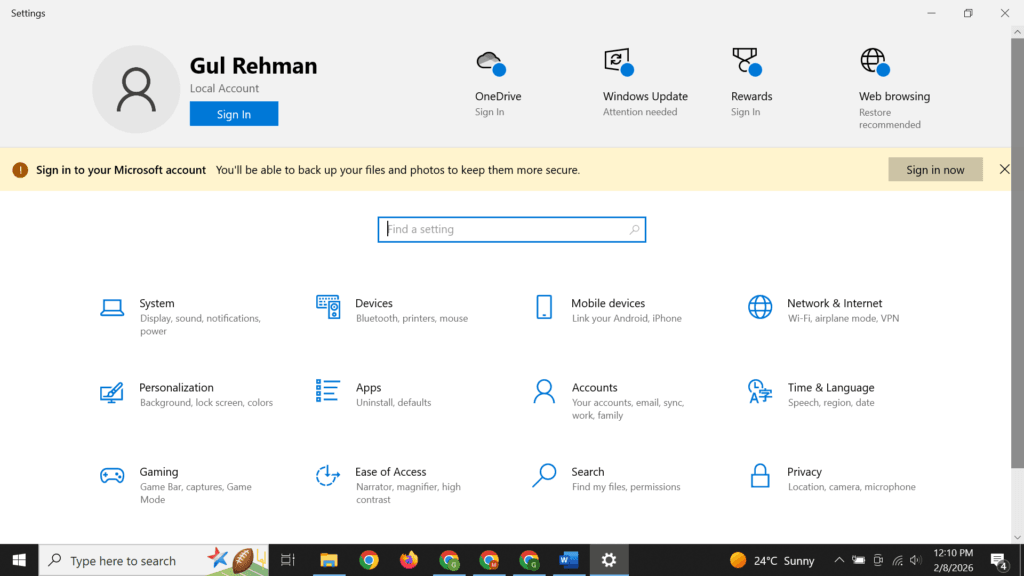
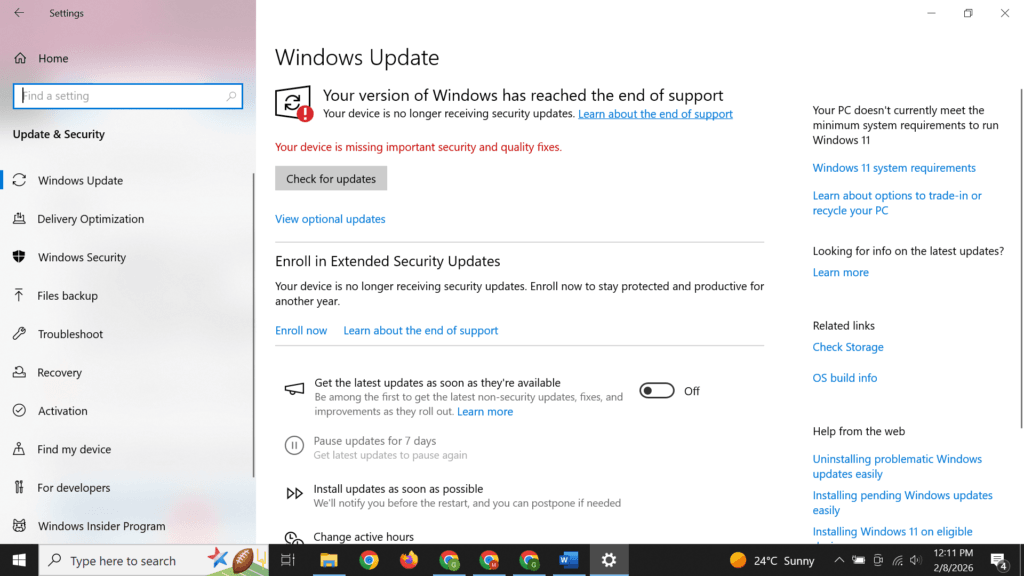
Windows Security signatures are also delivered through Windows Update.
Steps
- Press Windows + I to open Settings.
- Go to Windows Update.
- Click Check for updates.
- Install any Security Intelligence Updates available.
- Restart your PC if prompted.
💡 Tip: This method helps when Windows Security app updates fail.
Method 3: Manually Update Signatures Using Command Prompt (Advanced)
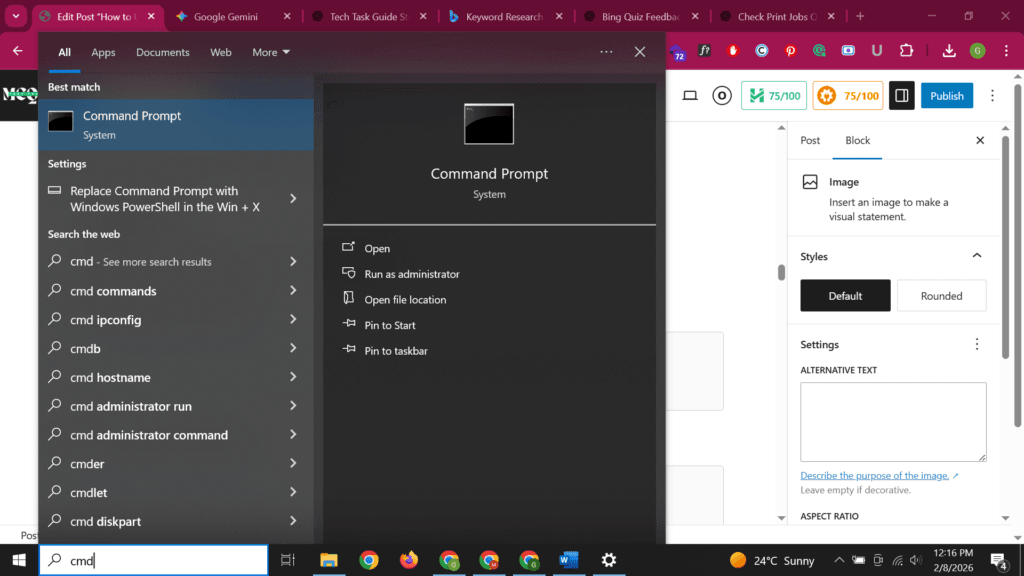
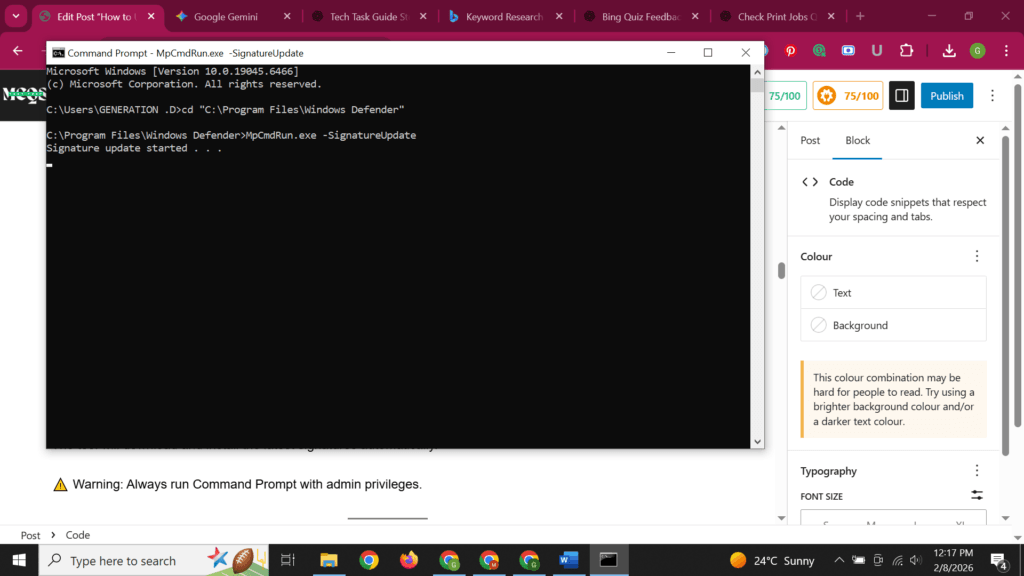
Use this method if the Windows Security interface is not opening.
Steps
Step 1: Open Command Prompt as Administrator
- Press Windows + S
- Type
cmd - Right-click Command Prompt → Run as administrator
Step 2: Navigate to Defender Folder
cd "C:\Program Files\Windows Defender"
Step 3: Run the Update Command
MpCmdRun.exe -SignatureUpdate
Step 4: Wait for Completion
The tool will download and install the latest signatures automatically.
⚠️ Warning: Always run Command Prompt with admin privileges.
Method 4: Update Windows Security Signatures Offline (No Internet)
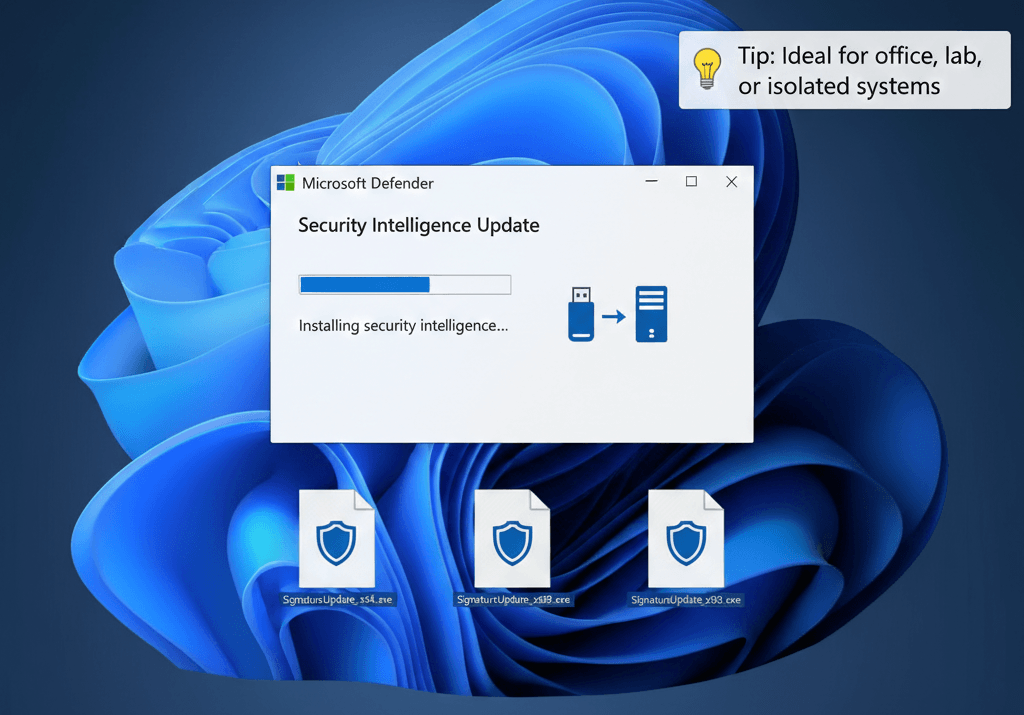
This method is useful for offline or restricted PCs.
Steps
- On another PC, download the Microsoft Defender Security Intelligence Update from Microsoft.
- Choose the correct version:
- 32-bit (x86)
- 64-bit (x64)
- ARM
- Transfer the file using USB.
- Run the downloaded
.exefile on the offline PC. - Restart the system if required.
💡 Tip: Ideal for office, lab, or isolated systems.
How to Check If Security Signatures Are Up to Date
Steps
- Open Windows Security.
- Go to Virus & threat protection.
- Click Protection updates.
- Check:
- Security intelligence version
- Last updated date
If the date is recent, your PC is protected.
Fix: Windows Security Signatures Not Updating
Try These Solutions
- Restart your PC
- Ensure internet connection is active
- Run Windows Update
- Temporarily disable third-party antivirus
- Reset Windows Security:
- Settings → Apps → Installed apps → Windows Security → Advanced options → Reset
Tips and Warnings
Helpful Tips
- Update signatures daily for best protection
- Keep real-time protection enabled
- Use offline updates for restricted networks
- Pair signature updates with regular system updates
Warnings
- Do not download signature files from non-Microsoft websites
- Avoid disabling Windows Security permanently
- Third-party antivirus may block Defender updates
Frequently Asked Questions (FAQ)
What are Windows Security signatures?
They are virus definitions used to identify malware and threats.
How often are signatures updated?
Multiple times per day.
Do I need to restart after updating signatures?
Usually no, but restart if prompted.
Can I update Defender without Windows Update?
Yes, using the Windows Security app or Command Prompt.
Windows Guide for Beginners:
Manually updating Windows Security signatures ensures your PC stays protected even when automatic updates fail. Whether you use the Windows Security app, Command Prompt, or offline update packages, these methods guarantee your system has the latest threat protection.