Getting help in Windows is essential when your computer shows errors, slows down, fails to update, or crashes unexpectedly. Windows includes several built-in tools designed to diagnose problems, guide users toward solutions, and restore normal system performance.

This complete guide explains all ways to get help in Windows, which option to use for specific problems, how Windows help tools work, and what to do when nothing seems to fix the issue.
All Ways to Get Help in Windows
Windows provides multiple help options, each designed for different types of problems. Most users are only aware of one or two methods, but using the right tool can save significant time.
Get Help App
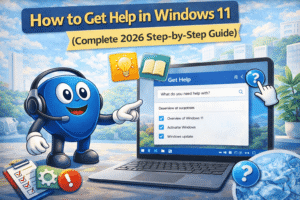
The Get Help app is the primary support tool in Windows. It offers automated troubleshooting, step-by-step guidance, and access to Microsoft support when needed.
Built-In Troubleshooters
Windows includes automated troubleshooters for common issues such as:
- Windows Update errors
- Printer problems
- Internet and network issues
- Audio and display problems
These tools scan your system and apply fixes automatically.
F1 Help Key
Pressing F1 opens Windows help resources or browser-based support pages related to your current screen or problem.
Control Panel Tools
Advanced users can access device settings, system recovery options, and administrative tools through the Control Panel.
Microsoft Support Website
For detailed articles and official documentation, Windows can redirect users to Microsoft’s support platform.
Which Windows Help Option to Use for Each Problem
Many users struggle because they use the wrong help tool. Below is a clear mapping of common Windows problems and the best help option to use.
| Windows Problem | Best Help Method |
|---|---|
| Windows update failed | Windows Update Troubleshooter |
| Blue screen error | Event Viewer + Reliability Monitor |
| Printer not working | Printer Troubleshooter |
| PC running slow | Reliability Monitor |
| Internet not connecting | Network Troubleshooter |
| App not opening | Get Help App |
| Windows won’t start | Safe Mode + Recovery Options |
This approach is missing from most articles and greatly improves problem resolution.
How the Get Help App Works
The Get Help app acts as a guided support system inside Windows.
What It Does
- Asks questions about your issue
- Suggests fixes based on symptoms
- Runs automated diagnostics
- Connects you to human support if needed
What It Does Not Do
- It does not fix hardware damage
- It does not work fully without internet
- It may redirect complex issues to online support
Understanding its limitations helps avoid frustration.
How to Get Help in Windows Without Internet
Many guides assume you are online. Windows also provides offline help options.
Offline Help Methods
- Built-in troubleshooters (available without internet)
- Safe Mode diagnostics
- Windows Recovery Environment
- Local system restore points
These tools are critical when internet access is unavailable or Windows fails to load properly.
How Windows Troubleshooting Actually Works
When a troubleshooting tool runs:
- Windows scans system files and services
- It checks known error patterns
- Fixes are applied automatically when possible
- A report is generated
This process is safe and reversible in most cases.
Advanced Built-In Windows Help Tools
Event Viewer
Event Viewer records system errors, warnings, and crashes. It helps identify the cause of:
- Blue screen errors
- App crashes
- Driver failures
Reliability Monitor
Reliability Monitor shows a timeline of system stability, crashes, and updates. It is easier to understand than technical logs.
Error Codes
Windows error codes help identify specific failures. Searching error codes often leads to precise solutions.
These tools are powerful but rarely explained in simple language.
Windows 10 vs Windows 11: Help Options Compared
| Feature | Windows 10 | Windows 11 |
|---|---|---|
| Get Help app | Yes | Yes |
| Built-in troubleshooters | Yes | Yes |
| Recovery options | Yes | Improved |
| Settings layout | Traditional | Simplified |
Both versions offer similar help tools, but Windows 11 provides a more streamlined interface.
What to Do If Windows Help Does Not Fix the Problem
When built-in help tools fail, follow this escalation path:
- Run System Restore
- Use Startup Repair
- Reset this PC (keep files option)
- Reinstall Windows (last resort)
- Seek professional repair for hardware issues
This step-by-step escalation is missing from most guides.
Public and User Impact
Effective Windows help tools:
- Reduce repair costs
- Improve productivity
- Help non-technical users solve problems
- Support schools, offices, and public institutions
Understanding how to get help empowers users and reduces downtime.
Frequently Asked Questions (FAQs)
Is Windows Get Help free?
Yes, built-in help tools are free.
Can I talk to a human using Windows help?
In some cases, the Get Help app connects users to support agents.
Does Windows help work offline?
Some tools do, including troubleshooters and recovery options.
Is reinstalling Windows always necessary?
No, it should only be used after other options fail.
Windows Help Guide:
Getting help in Windows does not require advanced technical knowledge. By using the correct built-in tools, understanding how troubleshooting works, and following a logical escalation path, most Windows problems can be resolved quickly and safely. This guide provides a complete, practical approach that most existing articles fail to cover.