Windows 11 is Microsoft’s latest operating system, designed to be clean, fast, and easy to use. If you are new to Windows 11, this guide will walk you through the basics so you can use your computer confidently.
Method 1: Get Familiar with the Windows 11 Desktop
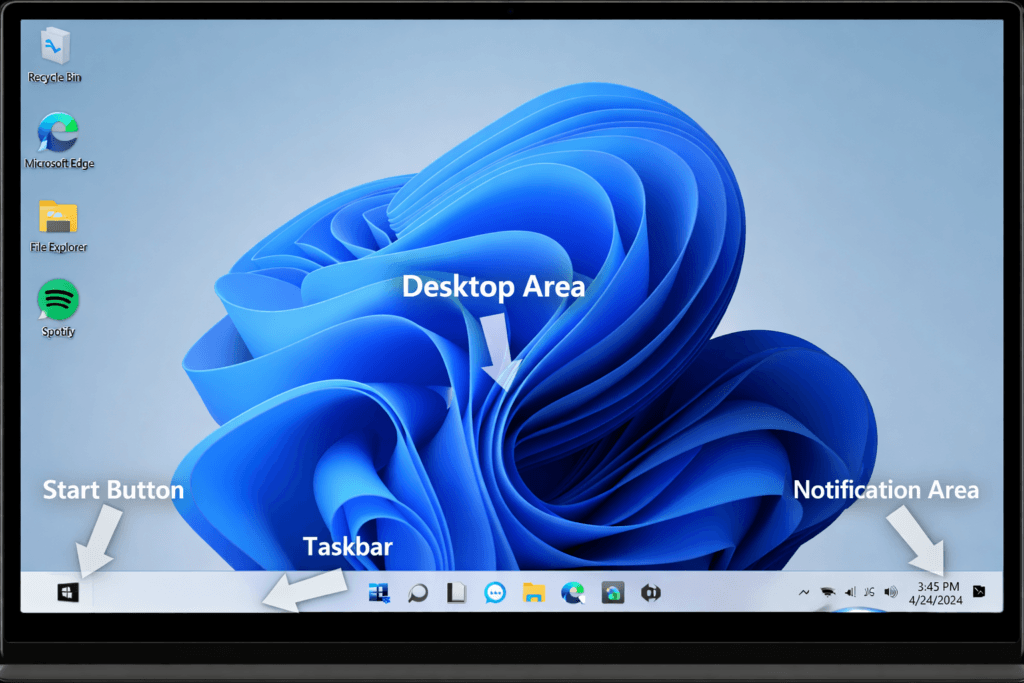
- Turn on your computer and sign in
- The desktop is the main screen you see
- You can open apps, folders, and files from here
- Right-click on the desktop to change display and personalization settings
Method 2: Use the Start Menu
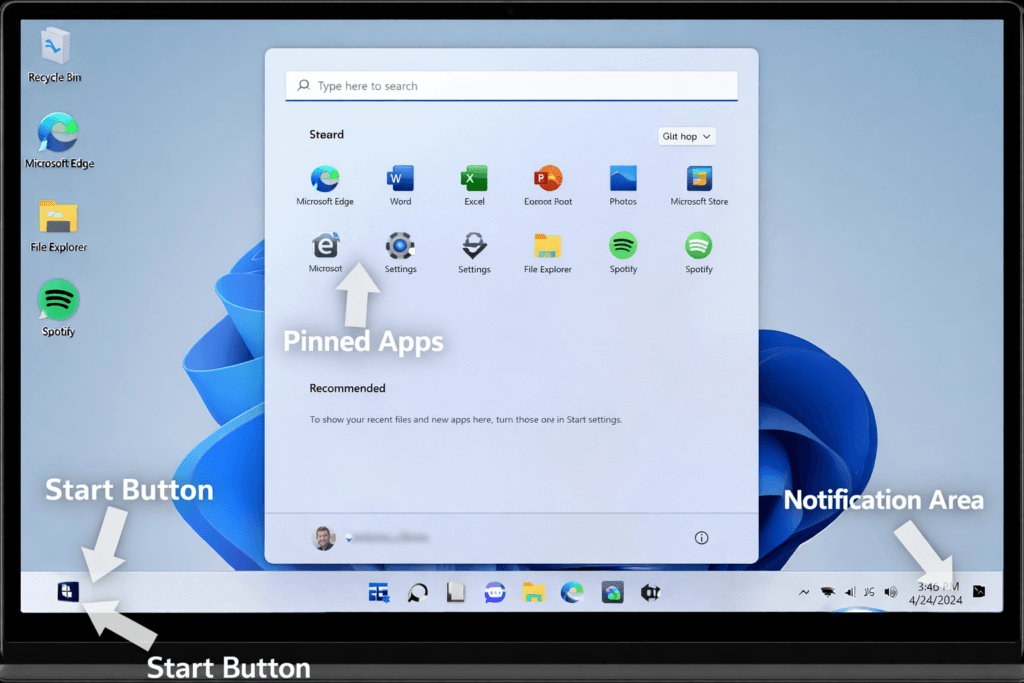
- Click the Start button (Windows icon) on the taskbar
- View Pinned apps at the top
- See Recommended files and apps below
- Click All apps to see everything installed
- Use the Power button to shut down or restart
Method 3: Search for Apps, Files, and Settings
- Press Windows + S or click the search icon
- Type what you’re looking for (example: Settings, Photos, Bluetooth)
- Click the result you want to open
- Use search to find help articles and system options
Method 4: Open and Use Settings
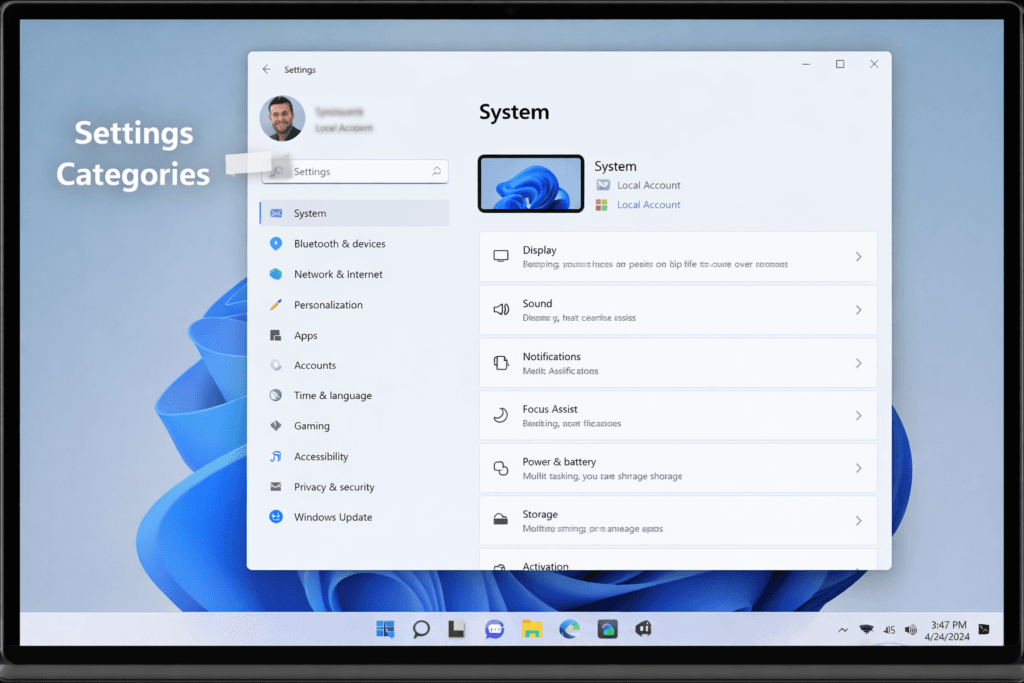
- Press Windows + I to open Settings
- Use common sections:
- System (display, sound, notifications)
- Bluetooth & devices
- Network & internet
- Windows Update
- Click any option to change system behavior
Method 5: Manage Files with File Explorer
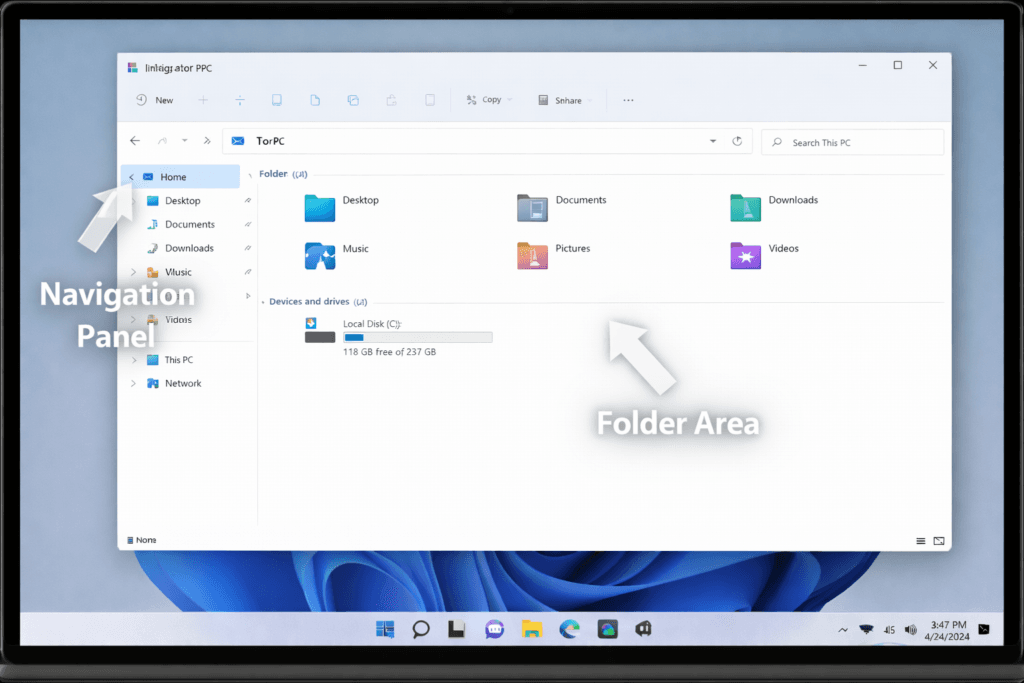
- Press Windows + E to open File Explorer
- Use folders like:
- Documents
- Downloads
- Pictures
- Videos
- Double-click files to open them
- Use the search bar to find files quickly
Method 6: Install and Remove Apps
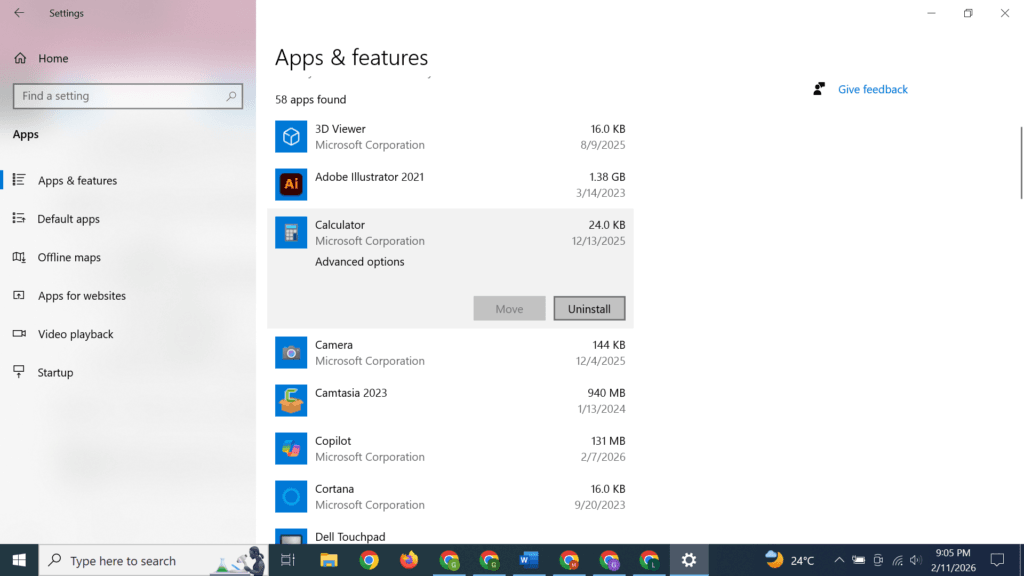
- Open Settings
- Go to Apps > Installed apps
- To uninstall an app:
- Click the three dots
- Select Uninstall
- Install apps safely from the Microsoft Store
Method 7: Multitask Using Snap Layouts
- Hover your mouse over the maximize button
- Choose a window layout
- Select apps to fill the layout
- Work with multiple apps side by side
Method 8: Connect to the Internet
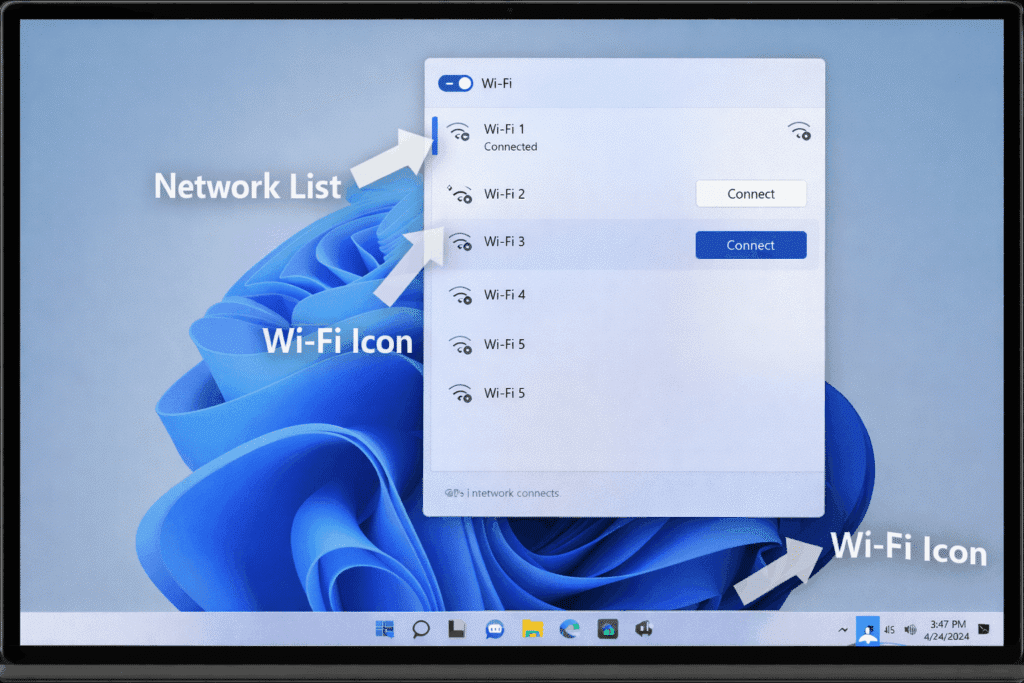
- Click the Wi-Fi icon on the taskbar
- Select your network
- Enter the password
- Click Connect
Method 9: Keep Windows 11 Updated
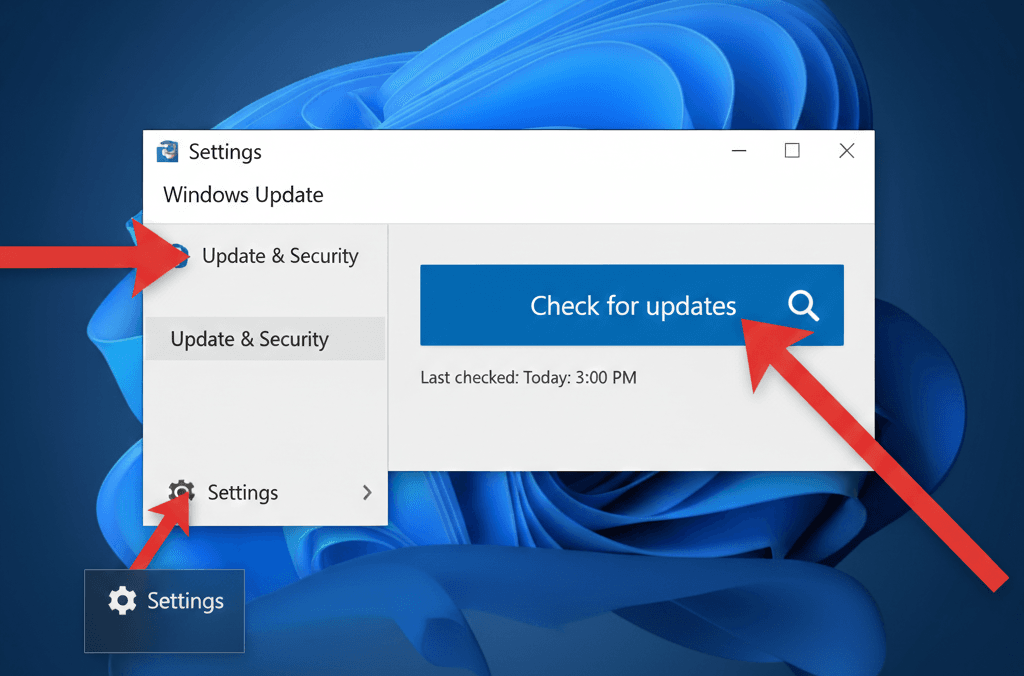
- Open Settings
- Click Windows Update
- Select Check for updates
- Install updates when available
Method 10: Stay Protected with Windows Security
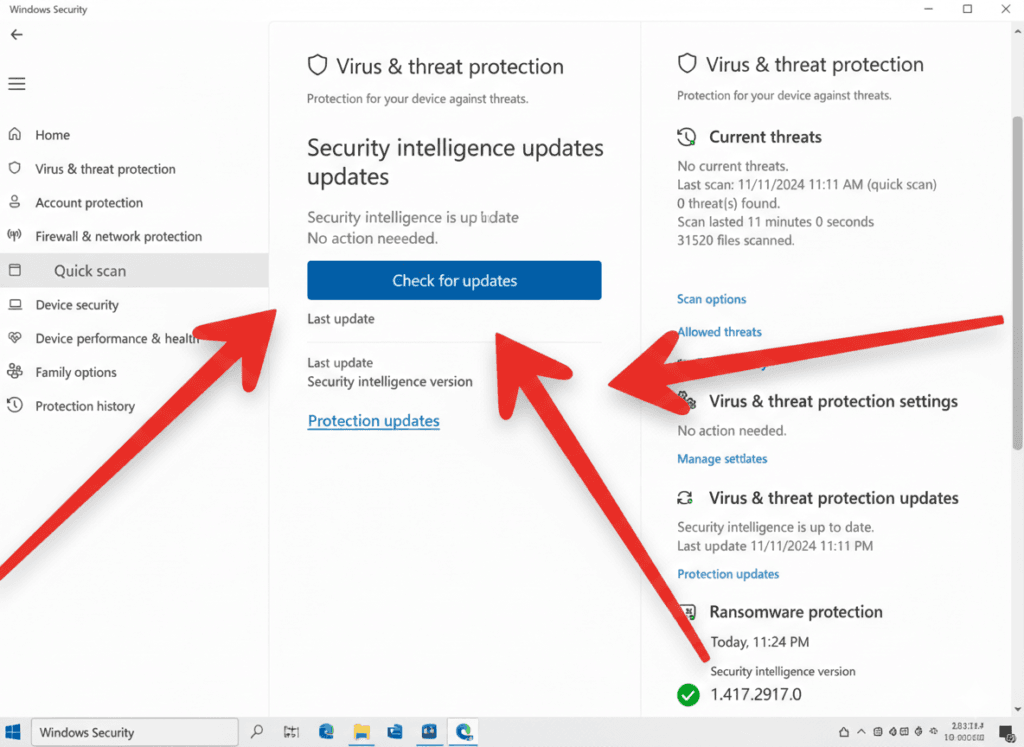
- Open Windows Security
- Use built-in protection:
- Virus & threat protection
- Firewall
- Device security
- No extra antivirus is required for most users
Method 11: Get Help When You’re Stuck
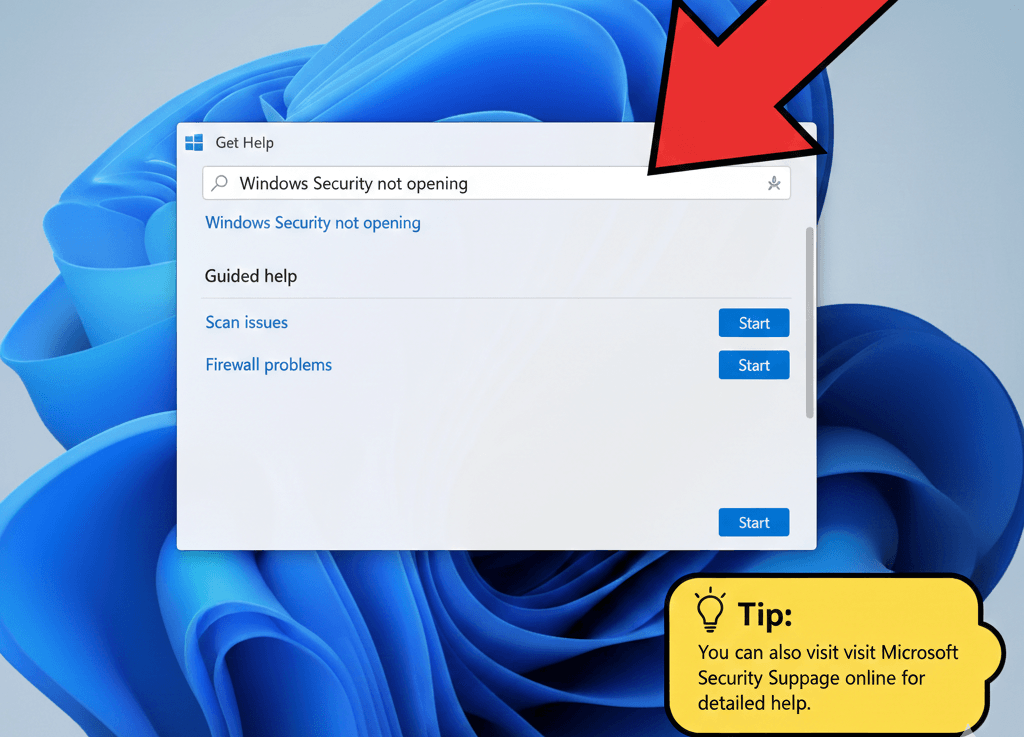
- Press Windows + S
- Type Get Help
- Open the app
- Describe your issue and follow instructions
- Contact Microsoft support if needed
Helpful Keyboard Shortcuts for Beginners
- Windows + I → Open Settings
- Windows + E → File Explorer
- Windows + S → Search
- Alt + Tab → Switch apps
- Windows + L → Lock PC
Final Tips for New Windows 11 Users
- Restart your PC regularly
- Keep updates enabled
- Avoid unknown software
- Use OneDrive for backups
- Explore settings slowly
Windows Guide for Beginners
Windows 11 is designed to be easy, secure, and beginner-friendly. Once you learn the Start menu, Settings, and File Explorer, daily use becomes simple and enjoyable.