Need to check if you have admin privileges on Windows? This guide explains simple ways to confirm administrator access on Windows 10 and Windows 11 without technical tools.
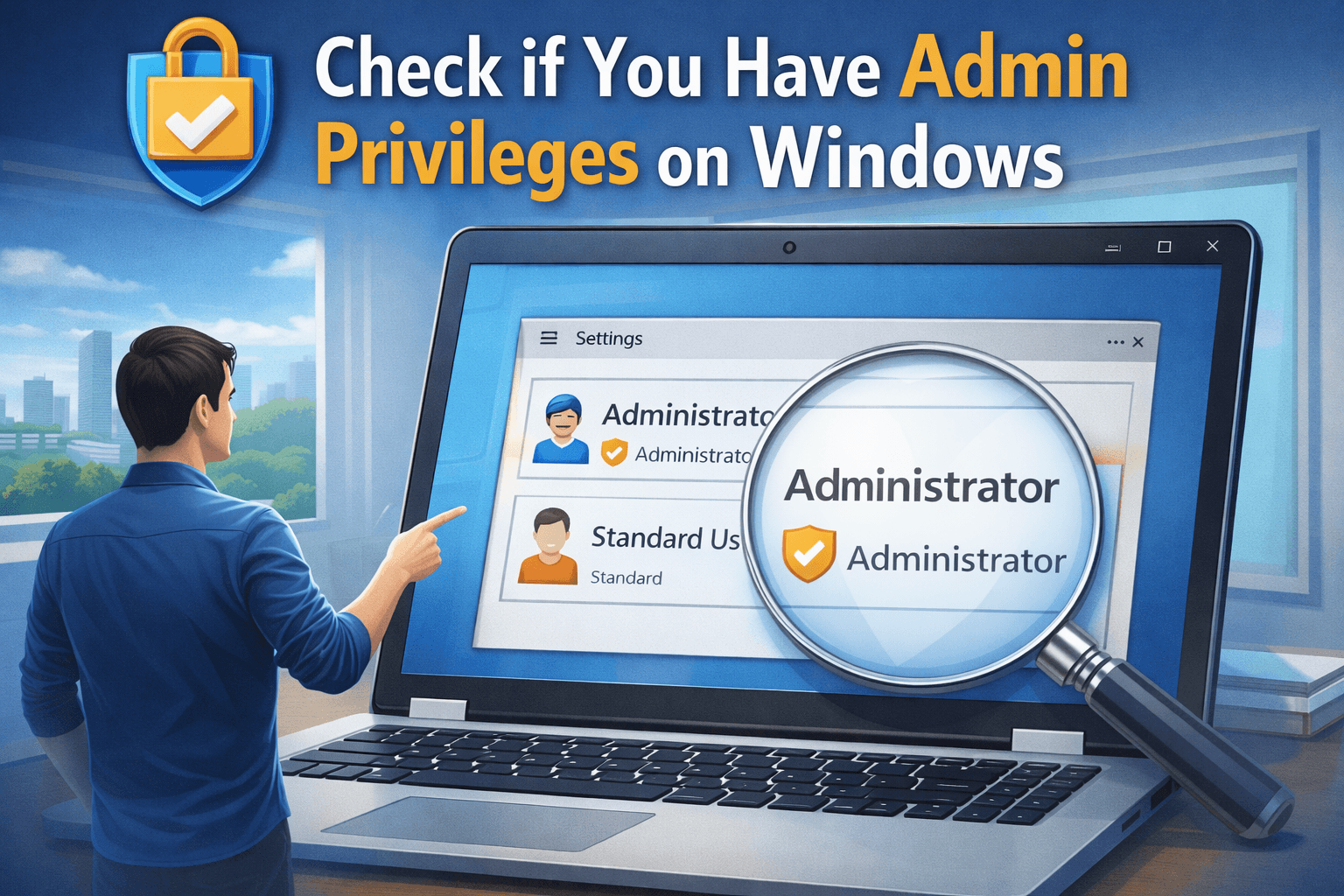
Understanding Administrator Access in Windows
Windows uses permission levels to control what users can change on a system. Administrator access allows full control, while standard user accounts are intentionally restricted to protect system files and settings.
If you are unable to install software, update drivers, or modify system settings, your account may not have administrator privileges.
Why You Should Check Admin Privileges
Many common Windows tasks require administrator rights. Without them, Windows may block actions silently or display permission warnings.
Admin access is required for:
- Installing system-wide software
- Updating hardware drivers
- Changing security and firewall settings
- Creating or managing other user accounts
Checking your account type helps identify permission-related issues quickly.
Method 1: Check Admin Privileges Using Windows Settings
This method is recommended for most users and works on Windows 10 and Windows 11.
Open Settings
Select Accounts
Click Your info
Under your account name, Windows will display your account type.
If it shows Administrator, you have full system access.
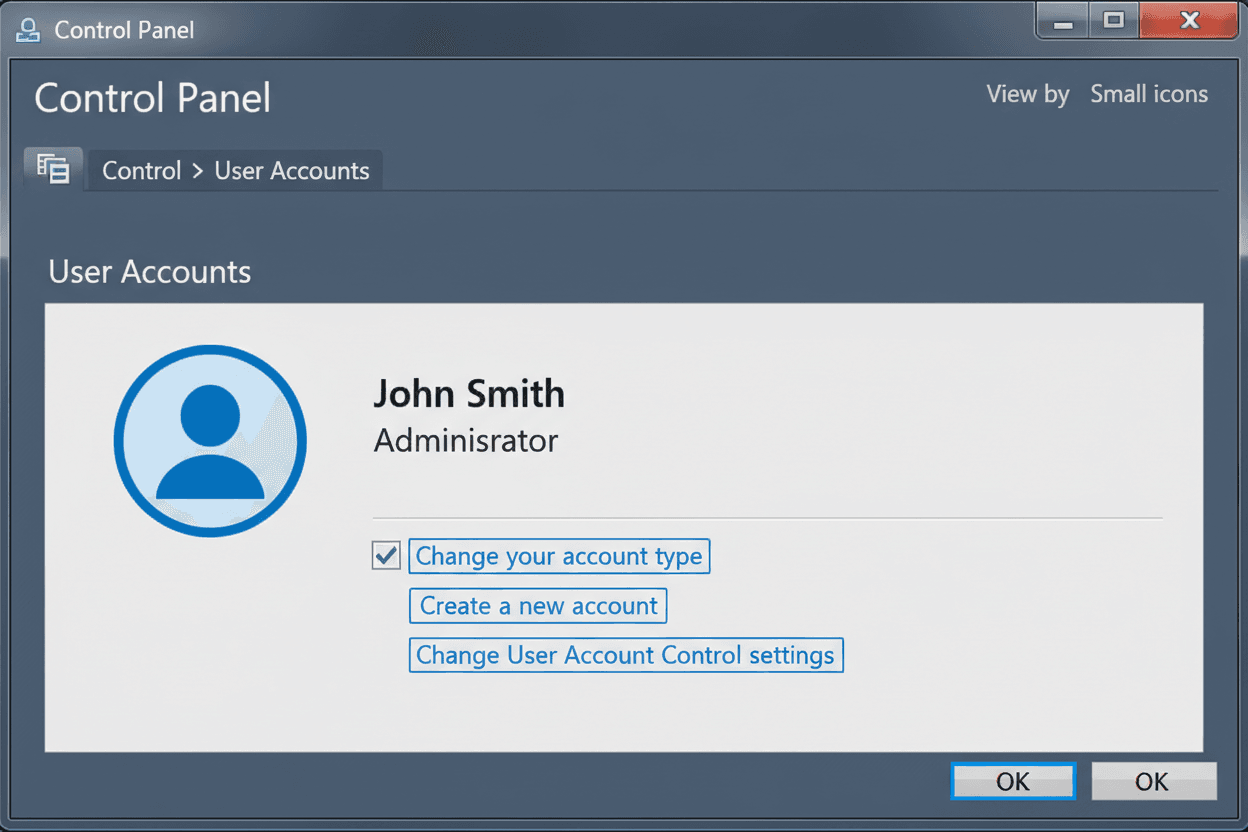
Method 2: Verify Administrator Access Through Control Panel
The Control Panel provides a traditional view of user accounts.
Open Control Panel
Select User Accounts
Click User Accounts
Your current account type will appear below your username.
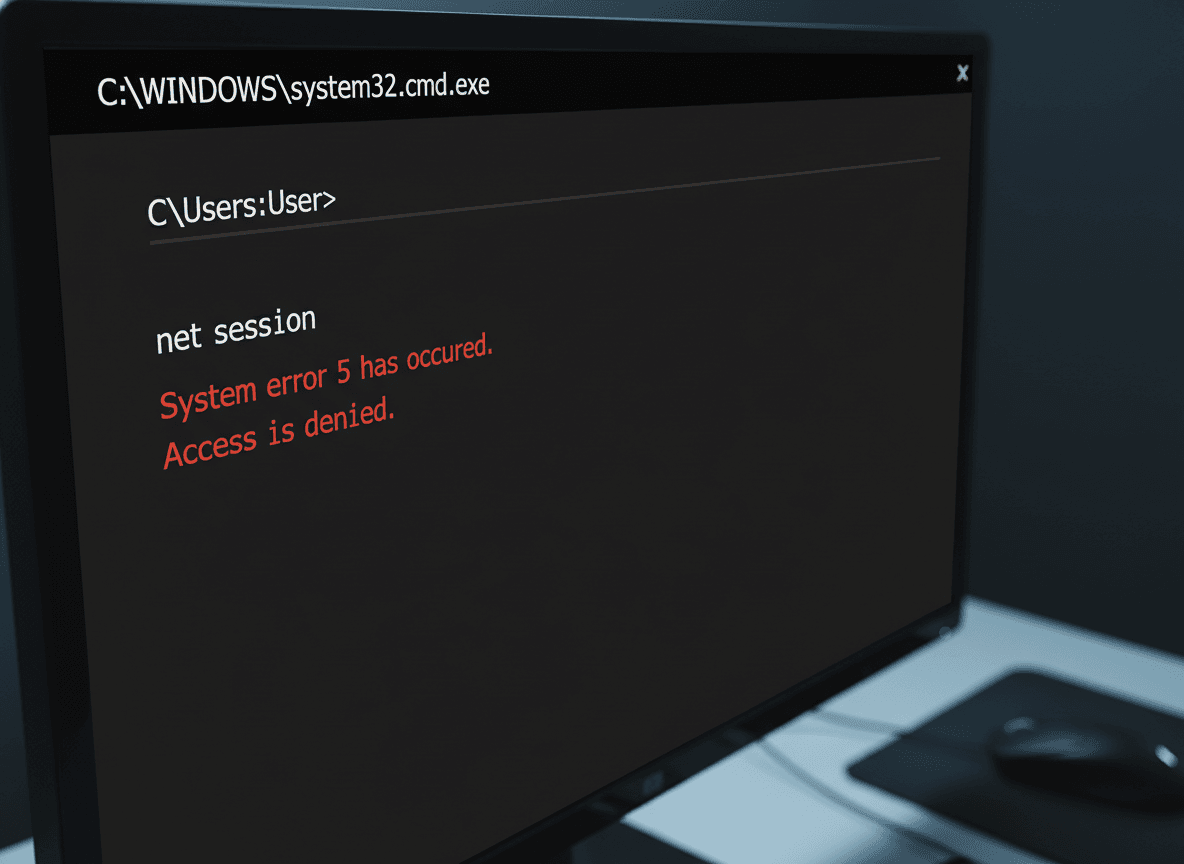
Method 3: Confirm Admin Rights Using Command Prompt
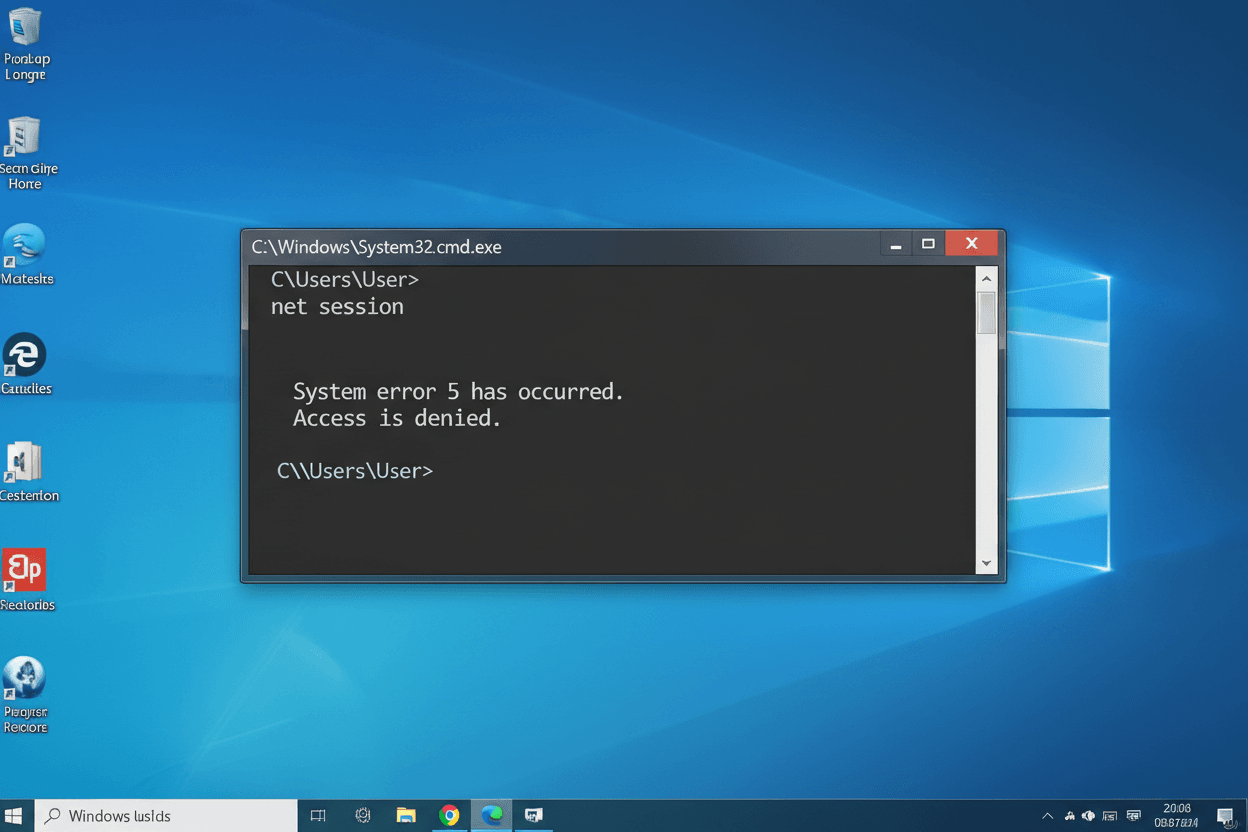
This method is useful when graphical access is limited.
Open Command Prompt
Enter
net userNote your username
Type
net user yourusernameand press Enter
If Administrators appears in the group list, the account has admin privileges.
Common Signs That Indicate Admin Access
Even without checking settings, administrator access is often noticeable:
- Software installs without restriction
- Driver updates complete without errors
- System settings open without password prompts
- User Account Control requests confirmation instead of credentials
These behaviors usually confirm administrator status.
What Happens If You Don’t Have Admin Privileges
Standard user accounts are limited by design. If admin access is required:
- Request permission from the system administrator
- Use an existing administrator account
- Ask for temporary access for specific tasks
Changing account type requires administrator approval.
Security Considerations
Administrator accounts have full system control. For daily use, standard accounts reduce risk from malware or accidental system changes. Many professionals use standard accounts and switch to admin only when needed.
Frequently Asked Questions:
Can Windows have more than one administrator?
Yes, multiple administrator accounts can exist on the same system.
Is admin access required to install all software?
No, some applications allow per-user installation without admin rights.
Do driver updates always need admin privileges?
Yes, driver installations modify system files and require administrator access.
Can admin privileges be revoked later?
Yes, another administrator can change or remove admin access at any time.
Admin Privileges Windows Settings:
Checking if you have admin privileges on Windows is a simple but important step when dealing with system restrictions. Windows provides multiple ways to confirm your access level, helping users understand what actions they are allowed to perform without confusion.