
Connecting a wireless printer to a Windows computer is easier than many people think. Whether you are using Windows 10 or Windows 11, wireless printing allows you to print documents without using cables. This guide explains how to connect a wireless printer easily on Windows, even if you are not a technical user.
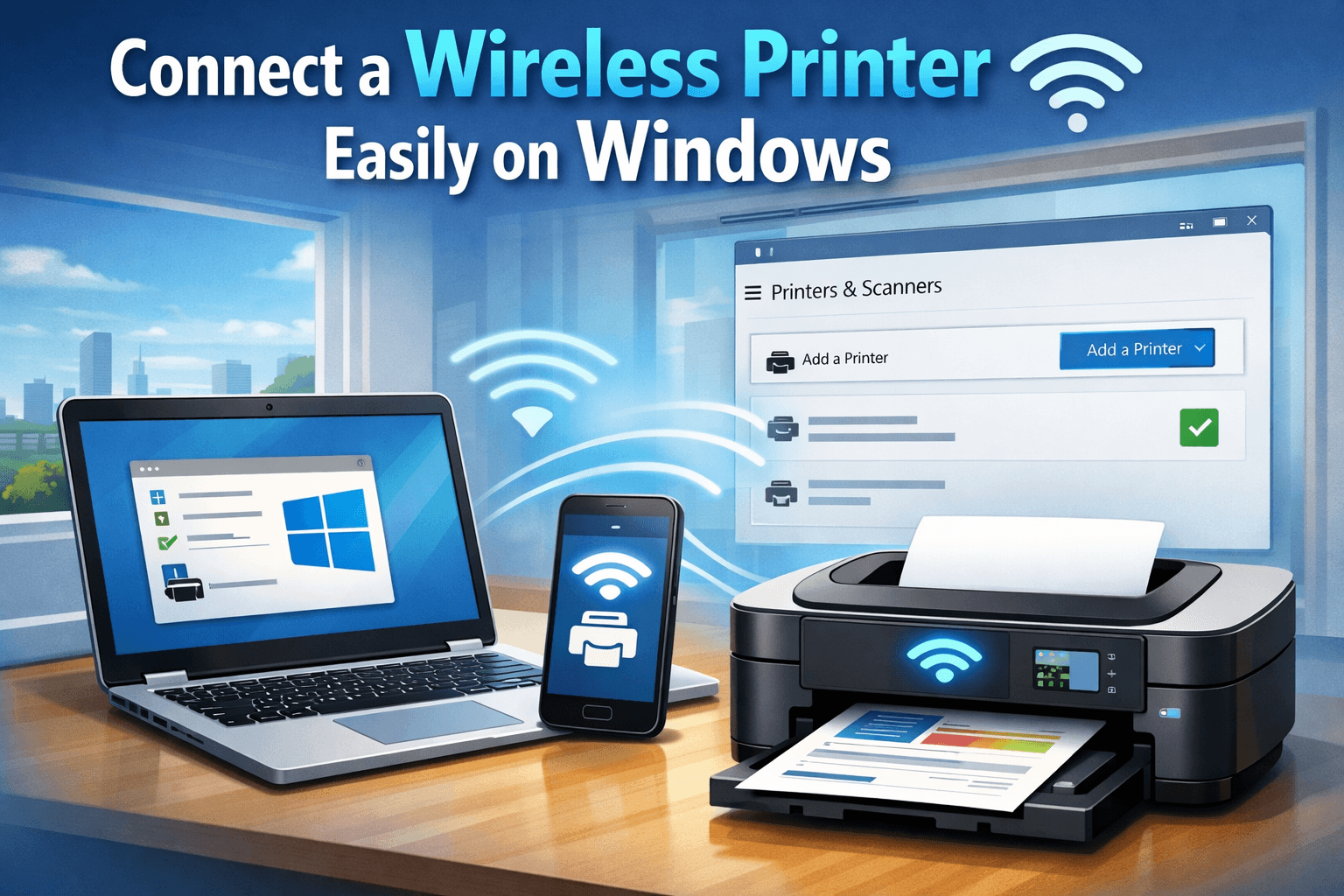
This method works for most popular printer brands and is suitable for home users, students, and office setups in the World.
What You Need Before Connecting a Wireless Printer on Windows
Before starting, make sure the following are ready:
A working Wi-Fi connection
A wireless printer powered on
A Windows 10 or Windows 11 computer
Printer connected to the same Wi-Fi network as your PC
Having both devices on the same network is the most important requirement.
How to Connect a Wireless Printer Easily on Windows 10
Follow these simple steps to connect a wireless printer on Windows 10:
Step 1: Open Windows Settings
Click the Start menu
Select Settings
Go to Devices
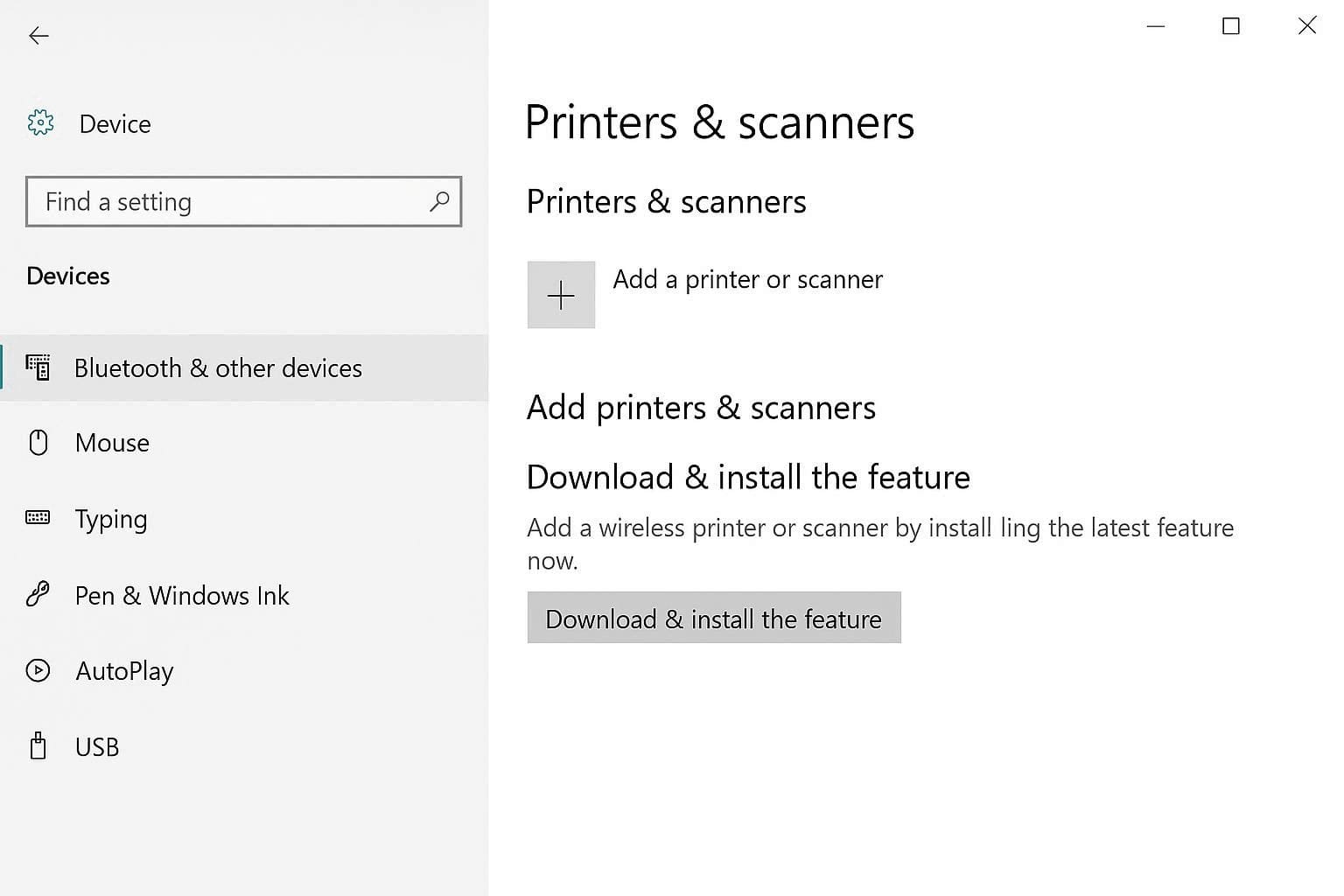
Step 2: Go to Printers & Scanners
Click Printers & scanners
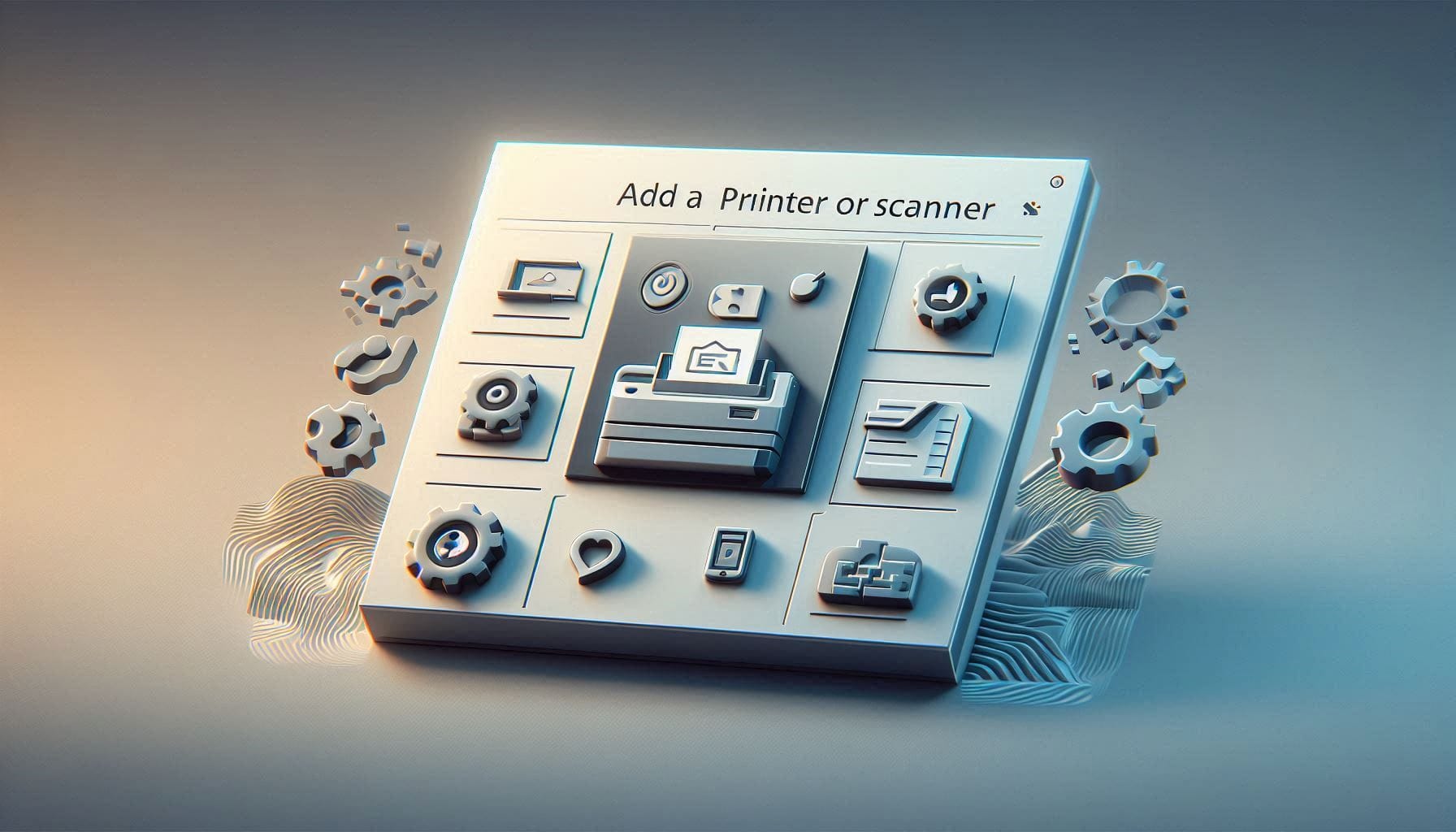
Select Add a printer or scanner
Windows will automatically search for nearby wireless printers.
Step 3: Select Your Wireless Printer
When your printer appears, click on it
Press Add device
Wait for Windows to complete the setup
Once added, your printer is ready to use.
How to Connect a Wireless Printer Easily on Windows 11
Windows 11 uses a similar process with a slightly different layout:
Open Settings
Click Bluetooth & devices
Select Printers & scanners
Click Add device
Choose your wireless printer from the list
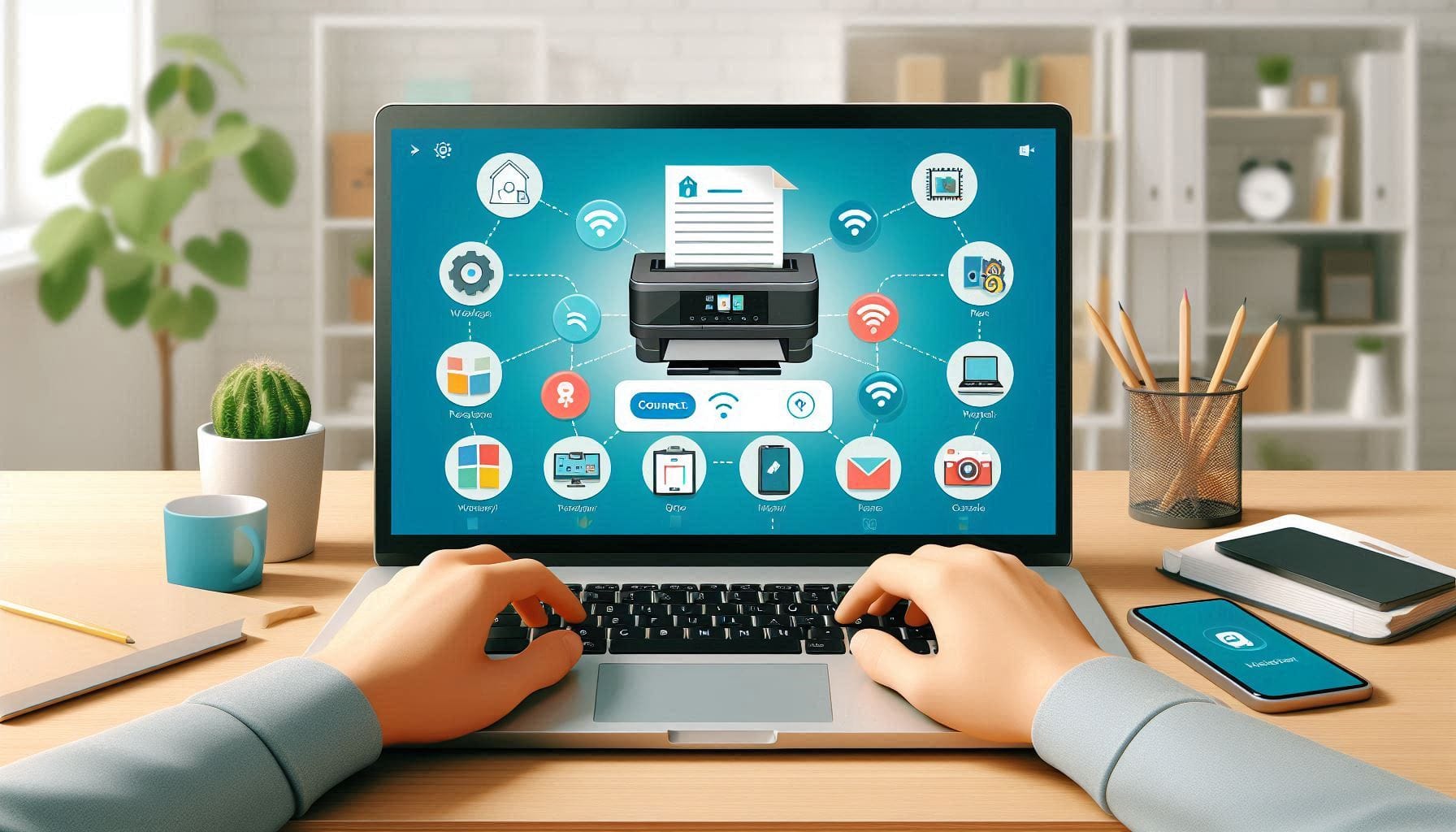
How Wireless Printing Works on Windows
Wireless printers communicate with Windows computers using Wi-Fi. Instead of sending data through a cable, print commands are sent over the network. Windows automatically installs basic drivers for most printers, which allows quick setup without manual downloads.
Common Problems When Connecting a Wireless Printer
Some users may face minor issues while trying to connect a wireless printer easily on Windows:
Printer not appearing in the list
Weak Wi-Fi signal
Printer connected to a different network
Outdated printer drivers
Quick Fix Tips
Restart both the printer and computer
Check Wi-Fi connection on the printer screen
Move printer closer to the router
Run Windows Printer Troubleshooter
Impacts on Public
Wireless printers are widely used in Pakistan for:
Students: Printing assignments and online class material
Home users: Easy document printing without cables
Small offices: Shared printing over one Wi-Fi network
Freelancers: Efficient printing for invoices and contracts
Wireless printing reduces clutter, saves time, and improves productivity.
FAQs – Connect a Wireless Printer Easily on Windows
Q1: Can I connect a wireless printer without installing drivers?
Yes, Windows automatically installs basic drivers for most printers.
Q2: Do Windows 10 and Windows 11 support wireless printers?
Yes, both versions fully support wireless printing.
Q3: Why is my wireless printer not showing on Windows?
This usually happens due to network mismatch or Wi-Fi issues.
Q4: Can multiple computers use the same wireless printer?
Yes, as long as all computers are on the same Wi-Fi network.
Connect a wireless printer easily windows:
Learning how to connect a wireless printer easily on Windows saves time and removes the need for cables. With built-in Windows tools, most printers can be connected in just a few minutes. This guide helps users in Pakistan set up wireless printing without technical difficulty.
Pingback: The Essential Guide to Printer Queue for Seamless Printing