If File Explorer isn’t opening, crashing, freezing, or showing missing files in Windows 11 Pro, this guide will walk you through all the practical ways to get help and fix the issue — from built-in tools to advanced troubleshooting.
Method 1: Use the Built-in “Get Help” App (Official Microsoft Support)
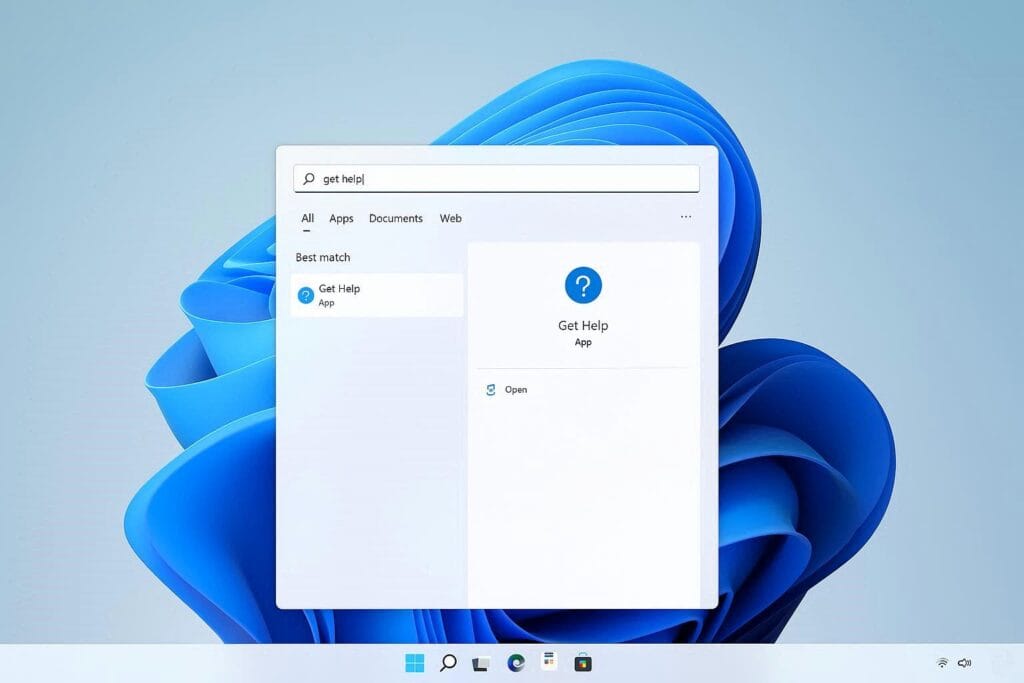
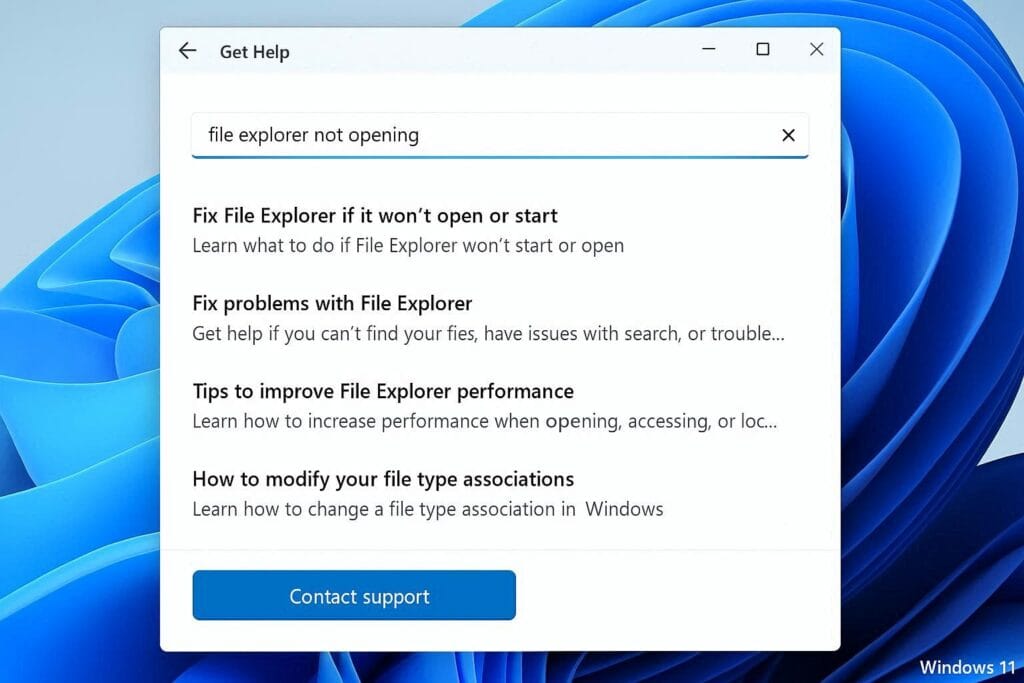
Steps:
- Click the Start button.
- Type Get Help in the search bar.
- Open the Get Help app.
- Type your issue (example: “File Explorer not opening”).
- Follow the suggested solutions.
- If needed, click Contact Support inside the app.
💡 Best for: Beginners who want guided troubleshooting.
Method 2: Restart File Explorer (Quick Fix)
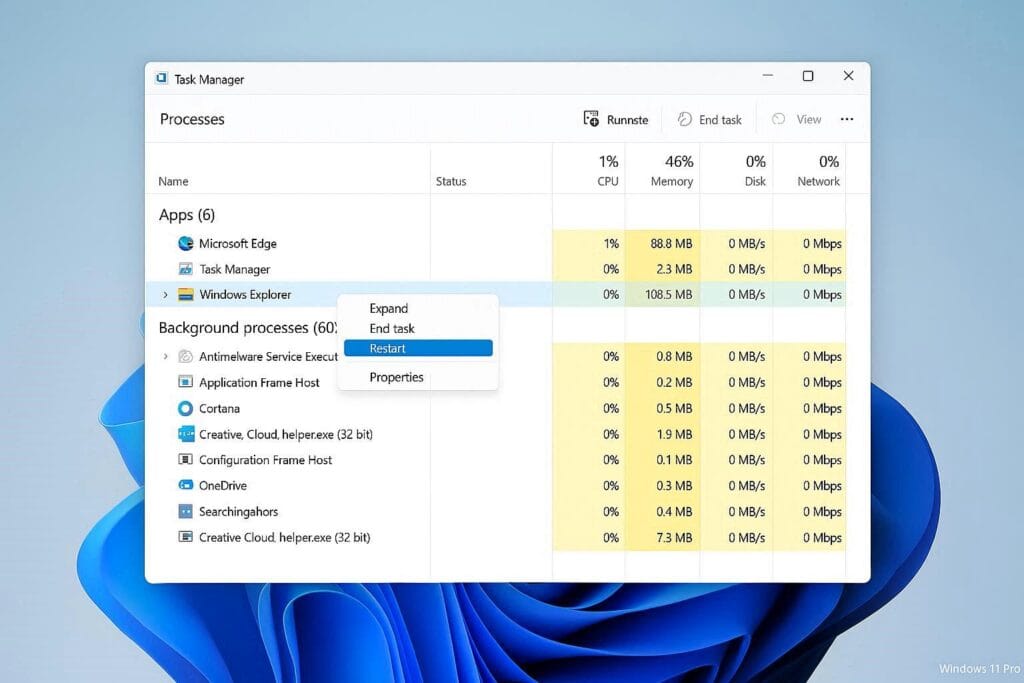
If File Explorer freezes or stops responding:
- Press Ctrl + Shift + Esc to open Task Manager.
- Find Windows Explorer under Processes.
- Right-click it.
- Click Restart.
This refreshes the Windows interface instantly.
Method 3: Run the System File Checker (Advanced Fix)
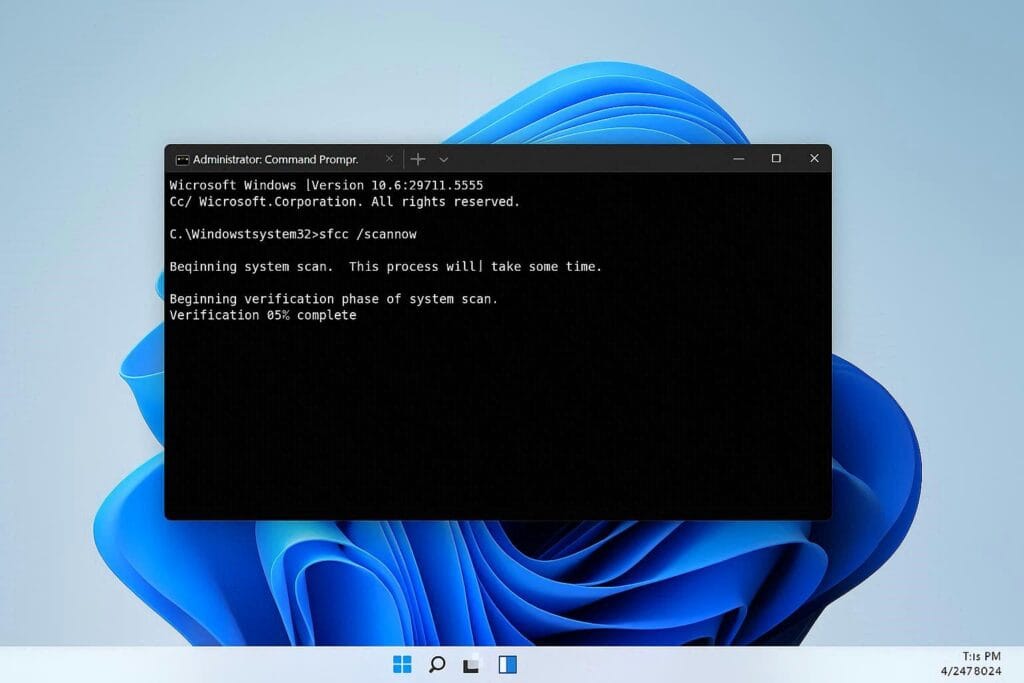
Corrupted system files can cause File Explorer errors.
Steps:
- Type cmd in Start search.
- Right-click Command Prompt → Choose Run as Administrator.
- Type:
sfc /scannow
- Press Enter.
- Restart your PC after the scan completes.
This scans and repairs damaged Windows files.
Method 4: Clear File Explorer History
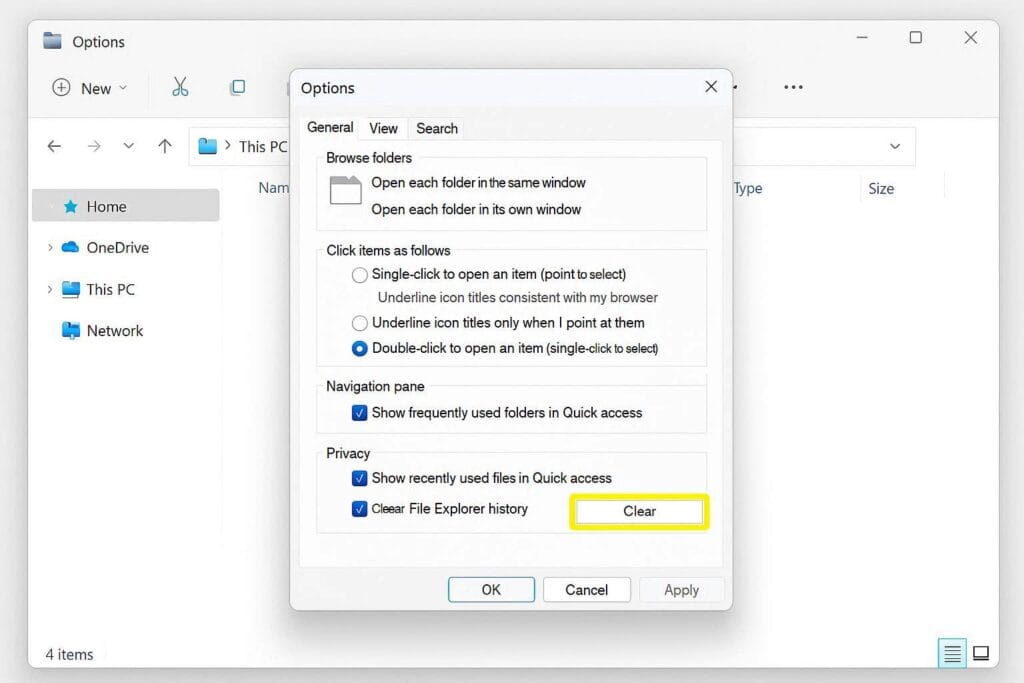
Sometimes cache/history causes crashes.
- Open File Explorer.
- Click the three dots (⋯) → Options.
- Under Privacy, click Clear.
- Click OK.
Method 5: Check for Windows Updates
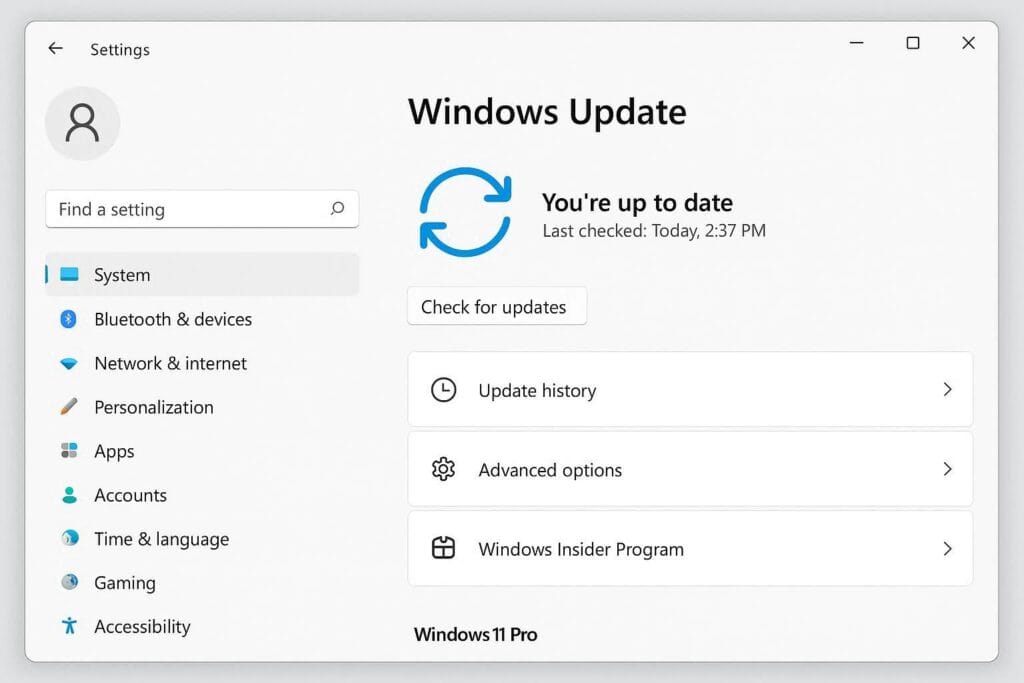
Outdated builds may cause bugs.
- Open Settings.
- Go to Windows Update.
- Click Check for updates.
- Install any available updates.
Method 6: Use Windows Troubleshooter
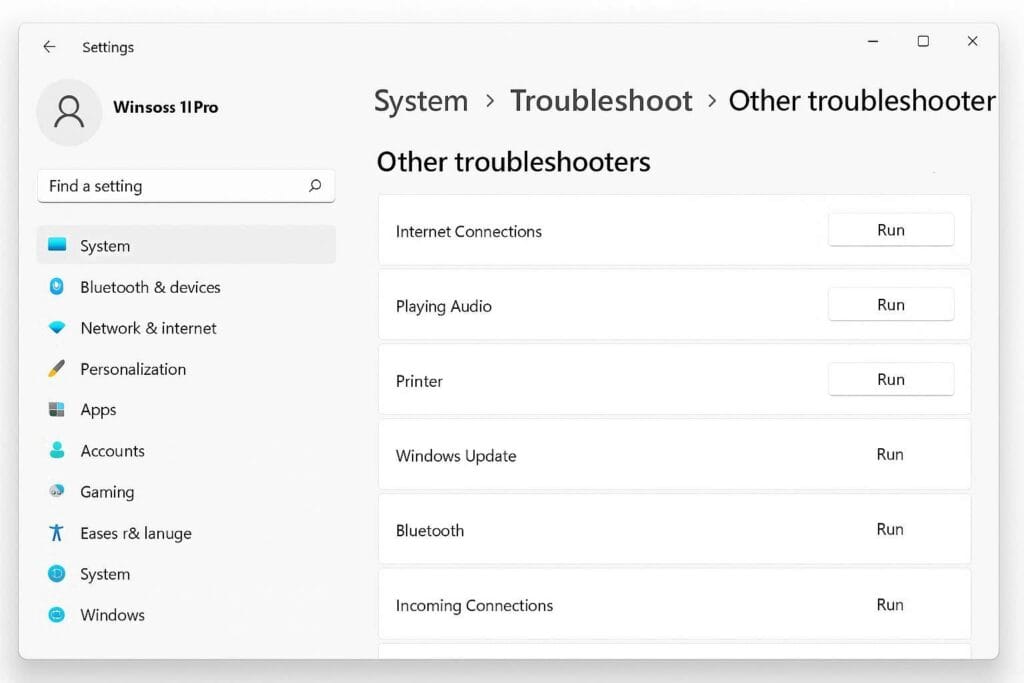
- Open Settings.
- Go to System → Troubleshoot → Other troubleshooters.
- Run the available troubleshooters.
Method 7: Reset File Explorer Settings
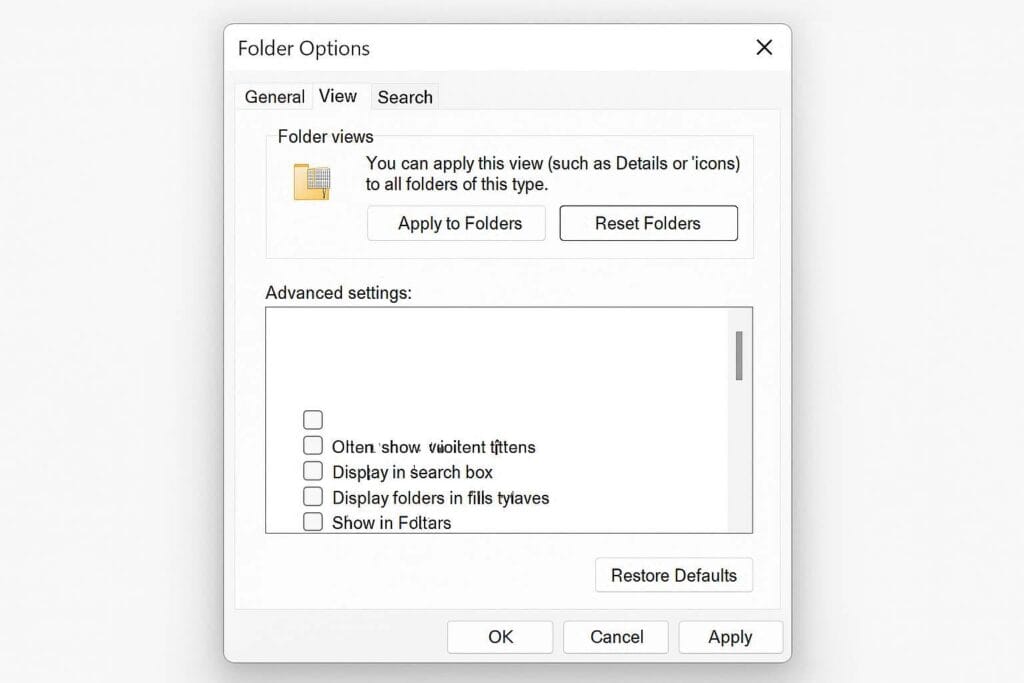
If File Explorer layout looks broken:
- Open File Explorer Options.
- Go to the View tab.
- Click Reset Folders.
- Click Restore Defaults.
Method 8: Boot into Safe Mode (If Explorer Won’t Open)
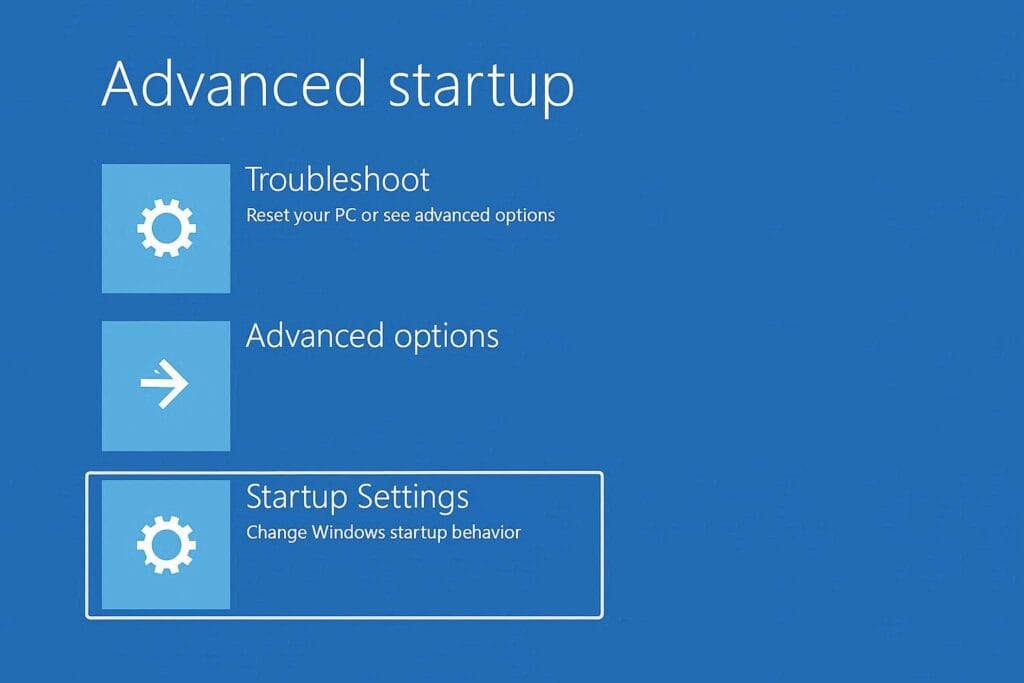
- Open Settings → System → Recovery.
- Click Advanced Startup → Restart now.
- Choose Troubleshoot → Advanced Options → Startup Settings.
- Select Safe Mode.
If File Explorer works in Safe Mode, a third-party app may be causing the problem.
Common File Explorer Problems (Windows 11 Pro)
| Problem | Likely Cause | Quick Fix |
|---|---|---|
| Explorer not opening | Corrupted files | Run sfc /scannow |
| Explorer keeps crashing | Cache issue | Clear history |
| Files not showing | View settings | Check hidden files |
| Slow loading | Indexing issue | Rebuild search index |
| Right-click slow | Third-party shell extension | Disable startup apps |
When to Contact Microsoft Support
Use:
- Get Help app → Contact Support
- Microsoft Support website
- Feedback Hub (for reporting bugs)
FAQ
Why is File Explorer slow in Windows 11 Pro?
Large Quick Access history, indexing issues, or corrupted files.
Can I reinstall File Explorer?
File Explorer is built into Windows and cannot be reinstalled separately, but system repair tools can fix it.
Does Windows 11 Pro differ from Home version?
Troubleshooting steps are mostly identical, but Pro includes additional management tools.
Quick Checklist (For Fast Fix)
✔ Restart Explorer
✔ Clear history
✔ Run sfc /scannow
✔ Update Windows
✔ Check Safe Mode
✔ Use Get Help