Microsoft Paint is a simple yet powerful image-editing tool built into Windows. Whether you want to draw, edit photos, resize images, or fix Paint issues, Windows offers several ways to get help and learn how Paint works.
This guide explains all easy ways to get help with Paint in Windows, including built-in help options, tips, shortcuts, and troubleshooting when Paint doesn’t work properly.
📌 Ways to Get Help With Paint in Windows
- Use Paint’s built-in Help
- Learn Paint tools and features
- Use keyboard shortcuts
- Get help using Windows Search
- Reinstall or fix Paint if it’s missing
- Troubleshoot common Paint problems
Method 1: Use Built-in Help in Microsoft Paint
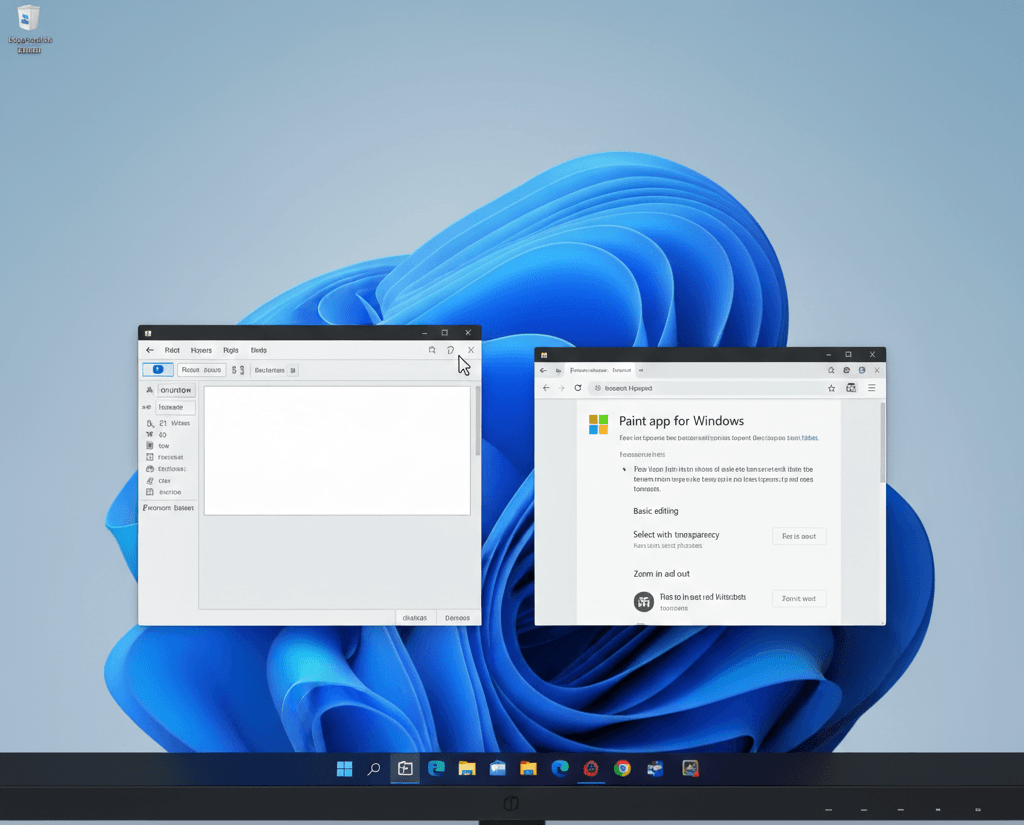
Paint includes basic help and guidance directly inside the app.
Steps
- Open Paint
- Click the Help ( ? ) icon or press F1
- Browse help topics related to tools and features
✔ This opens Microsoft’s official Paint help documentation explaining how tools work.
Method 2: Learn Paint Tools (What Each Tool Does)
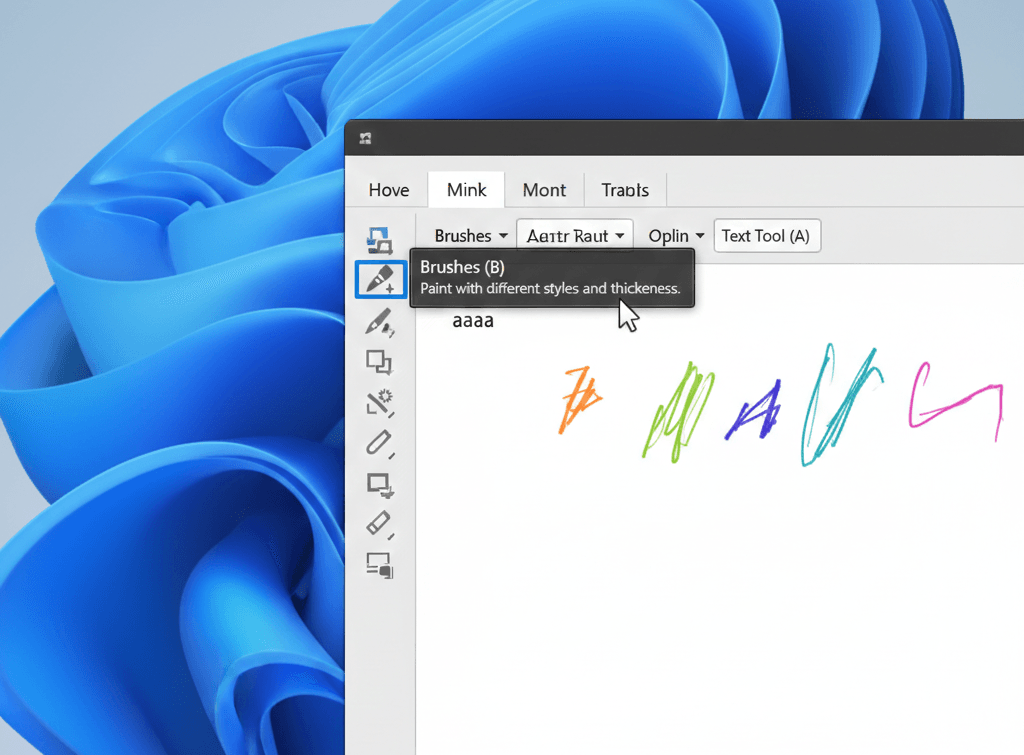
Understanding Paint tools solves most beginner problems.
Common Paint Tools Explained
- Pencil – Freehand drawing
- Brushes – Paint with different styles and thickness
- Eraser – Remove parts of the image
- Fill (Bucket) – Fill closed areas with color
- Text Tool (A) – Add text to images
- Select Tool – Move, crop, or copy parts of an image
- Resize – Change image size in percentage or pixels
- Rotate – Flip or rotate images
💡 Tip: Hover over any tool to see a short description.
Method 3: Use Keyboard Shortcuts in Paint (Fast Help)
Keyboard shortcuts make Paint easier and faster.
Useful Paint Shortcuts
| Action | Shortcut |
|---|---|
| New file | Ctrl + N |
| Open image | Ctrl + O |
| Save image | Ctrl + S |
| Undo | Ctrl + Z |
| Redo | Ctrl + Y |
| Select all | Ctrl + A |
| Resize | Ctrl + W |
| Zoom in | Ctrl + + |
| Zoom out | Ctrl + – |
Learning these shortcuts is one of the easiest ways to “get help” using Paint efficiently.
Method 4: Use Windows Search to Get Help With Paint
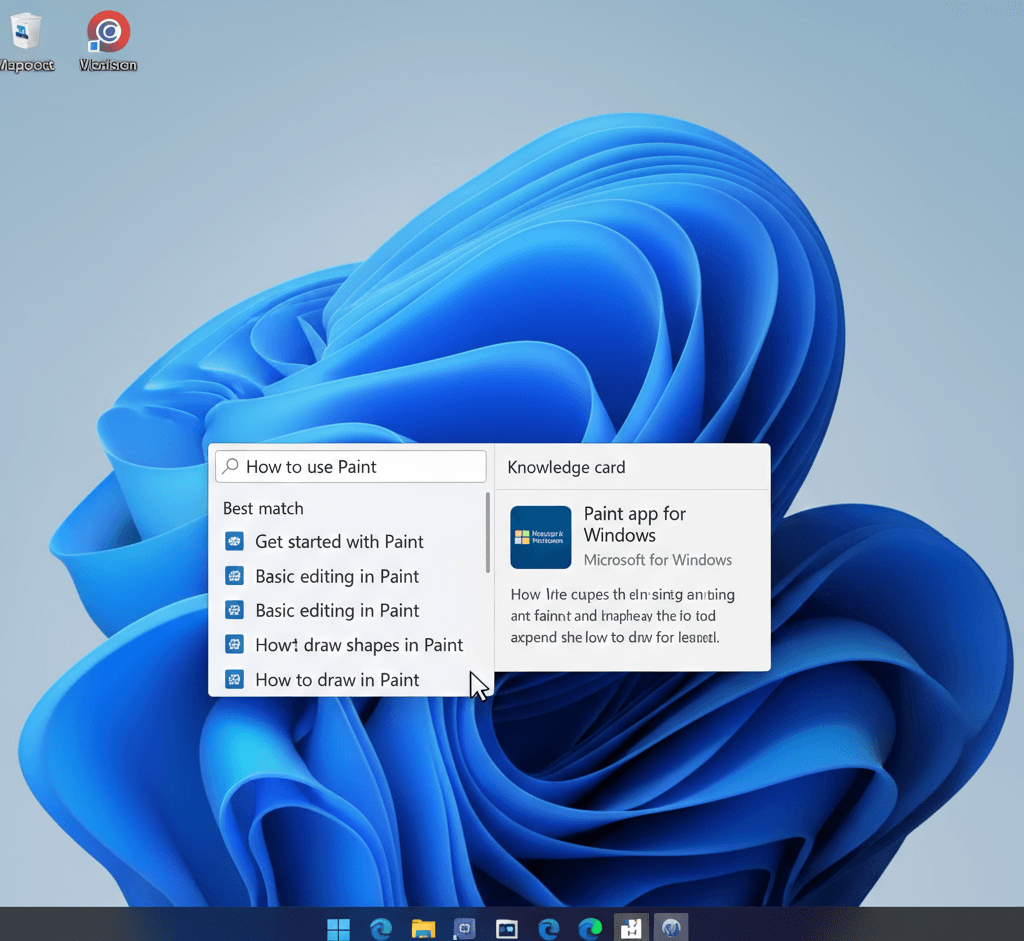
Windows Search provides instant help articles and tips.
Steps
- Click the Search bar on the taskbar
- Type How to use Paint or Paint help
- Open suggested Microsoft help articles
This method is useful when you don’t know how to perform a specific task.
Method 5: Fix Paint Not Opening or Crashing
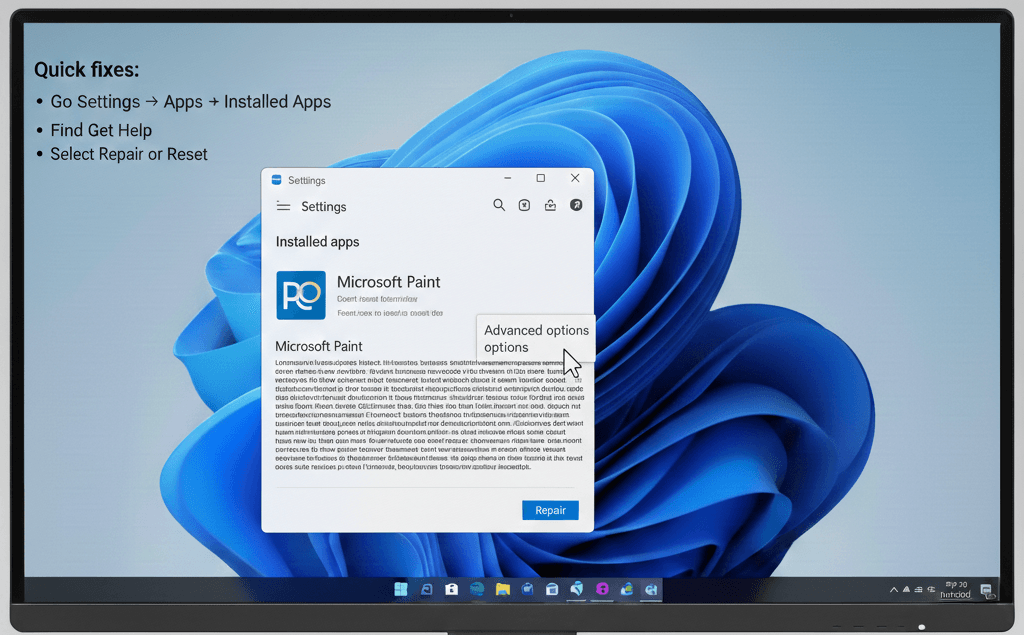
If Paint doesn’t open or closes unexpectedly, try these fixes.
Fix 1: Restart Paint & Windows
Close Paint and restart your PC.
Fix 2: Repair Paint App
- Open Settings
- Go to Apps → Installed apps
- Find Microsoft Paint
- Click Advanced options
- Click Repair
Method 6: Reinstall Paint in Windows
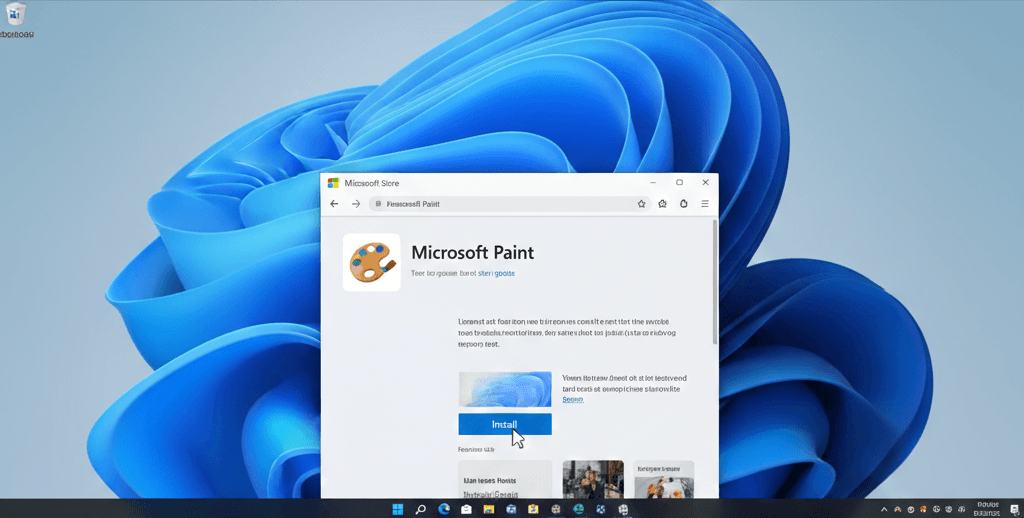
If Paint is missing or broken, reinstall it easily.
Steps
- Open Microsoft Store
- Search for Microsoft Paint
- Click Install
Paint is now a Store app in newer Windows versions, so reinstalling is quick and safe.
Method 7: Restore Classic Paint (If Removed)
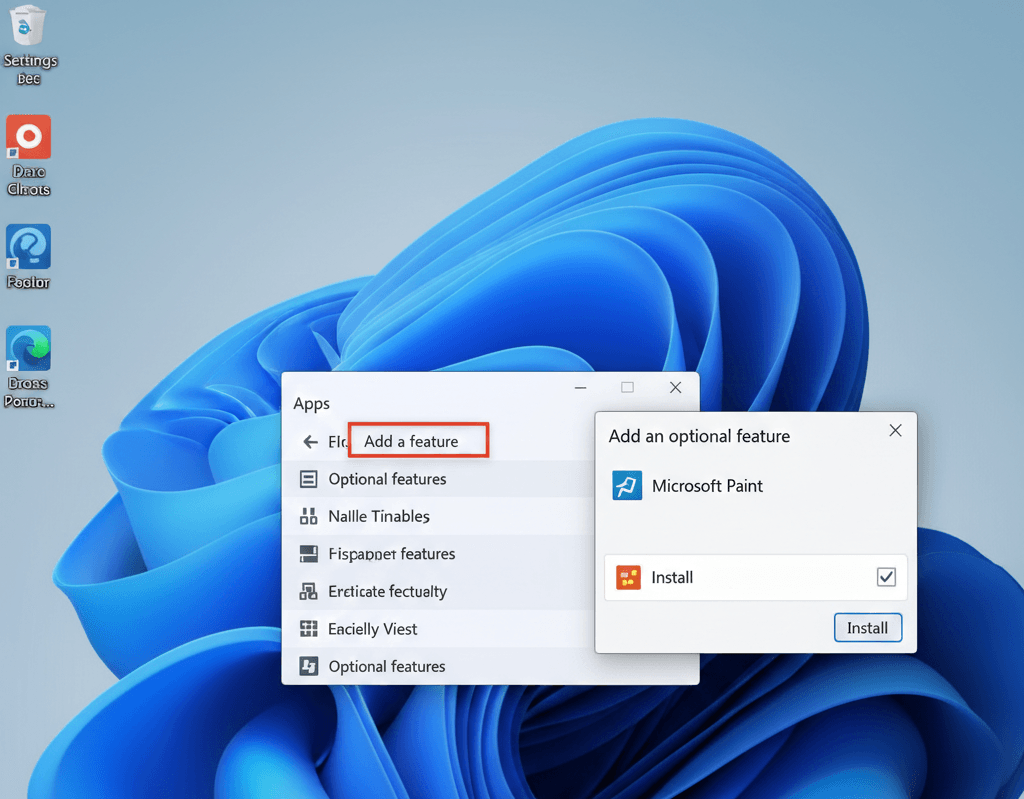
If Paint was removed accidentally:
- Open Settings
- Go to Apps → Optional features
- Click Add a feature
- Install Microsoft Paint
Common Problems in Paint & Solutions
| Problem | Solution |
|---|---|
| Paint not opening | Repair or reinstall Paint |
| Image blurry after resize | Resize using pixels, not percentage |
| Cannot save image | Save in PNG or JPG format |
| Text tool not working | Select text area before typing |
| Paint missing | Install from Microsoft Store |
Helpful Tips for Using Paint Better
✅ Use PNG format for best image quality
✅ Zoom in for precise editing
✅ Use Ctrl + Z often to undo mistakes
✅ Save copies before major edits
Warnings ⚠
- Paint is not a professional photo editor
- Avoid third-party “Paint fixer” software
- Back up images before overwriting
Frequently Asked Questions (FAQ)
Is Microsoft Paint free?
Yes. Paint is completely free and included with Windows.
Can Paint edit photos?
Paint supports basic photo editing like cropping, resizing, and adding text.
Is Paint removed in Windows 11?
No. Paint is still available and is now updated through Microsoft Store.
Can I draw with a mouse in Paint?
Yes. You can draw using a mouse, touch screen, or stylus.
Windows Help Guide for beginners
Microsoft Paint remains one of the easiest tools for basic image editing in Windows. With built-in help, simple tools, and easy fixes, anyone can use Paint without technical experience.
If you follow the steps above, you can get help with Paint in Windows, fix issues, and use the app more confidently.