Windows Apps are built-in or downloadable programs that make your PC productive and fun. Whether you’re using apps from the Microsoft Store, pre-installed utilities, or third-party apps, Windows provides ways to manage, troubleshoot, and get help efficiently.
This guide explains all working methods, step-by-step, with tips, tricks, and fixes for common problems.
Method 1: Open and Manage Windows Apps
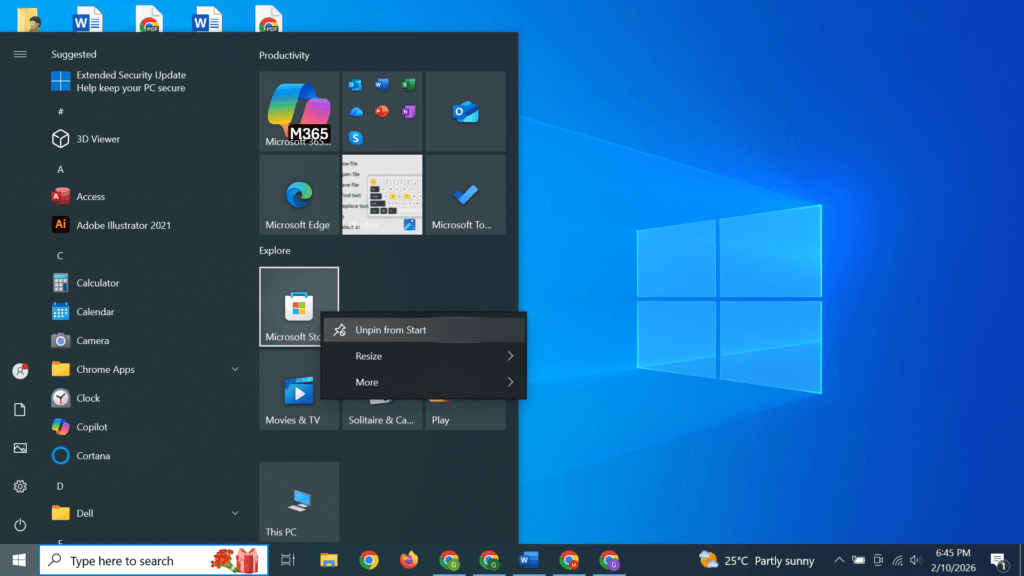
Steps:
- Click the Start Menu or press Windows key.
- Type the app name in the search bar.
- Click the app to open it.
- To pin apps for quick access:
- Right-click the app → Pin to Start or Pin to Taskbar.
💡 Tip: Use Alt + Tab to switch between open apps quickly.
Method 2: Install Apps from Microsoft Store
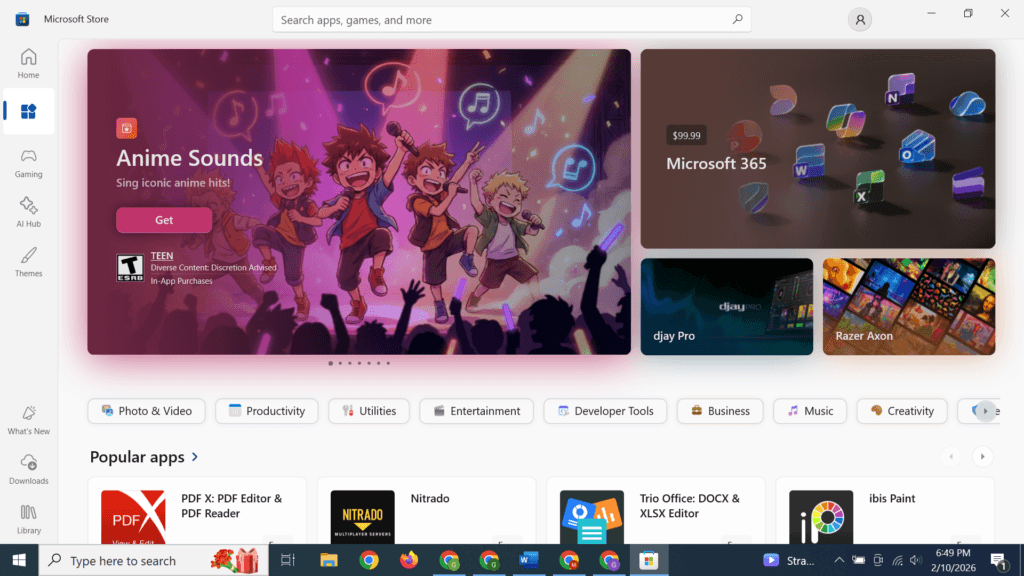
Steps:
- Open Microsoft Store from Start Menu.
- Browse or search for the app you want.
- Click Get or Install.
- Wait for the app to download and install.
- Open the app from Start Menu or Taskbar.
💡 Tip: Always install apps from the Microsoft Store for security.
Method 3: Update Windows Apps
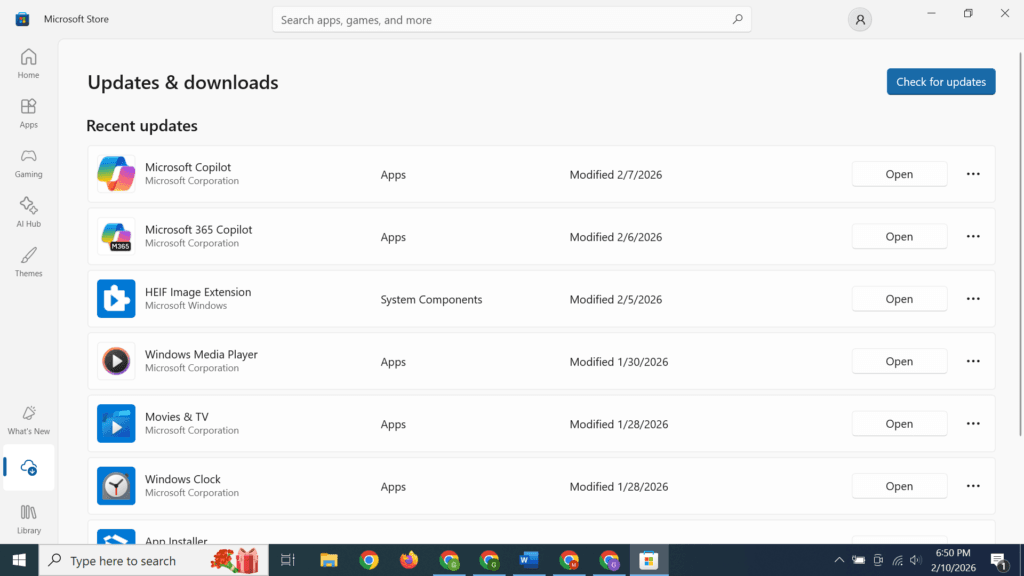
Steps:
- Open Microsoft Store → Library.
- Click Get updates to update all apps.
- Or select individual apps to update manually.
⚡ Keeping apps updated ensures security, stability, and new features.
Method 4: Get Help with a Windows App
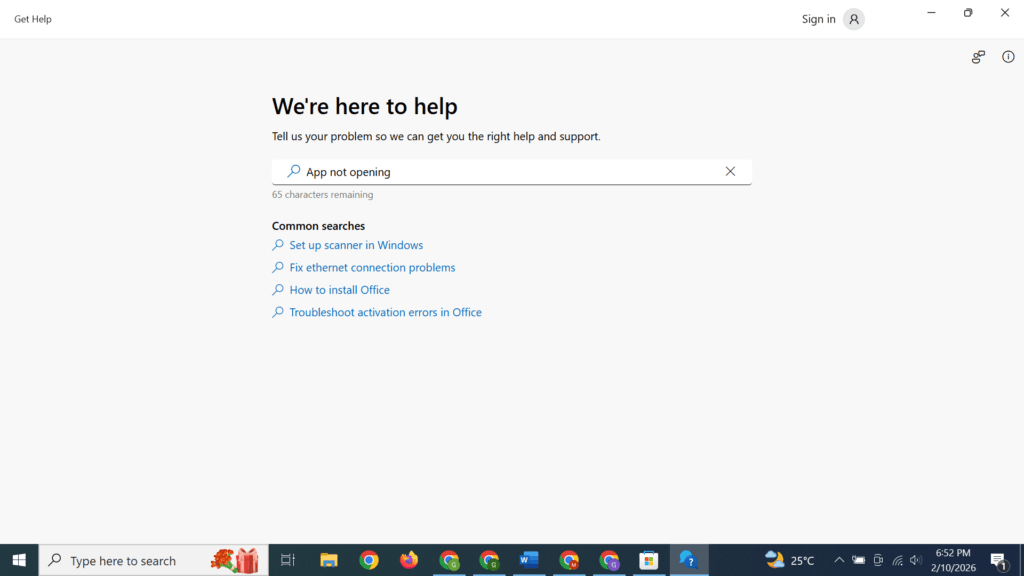
Steps:
- Press Windows + S, type Get Help, and open the app.
- Type your app issue, such as:
- App not opening
- Crashing frequently
- Installation issues
- Follow the guided instructions provided by the Windows Help app.
💡 Tip: You can also check Microsoft Support online for app-specific guides.
Method 5: Fix Common Windows App Problems
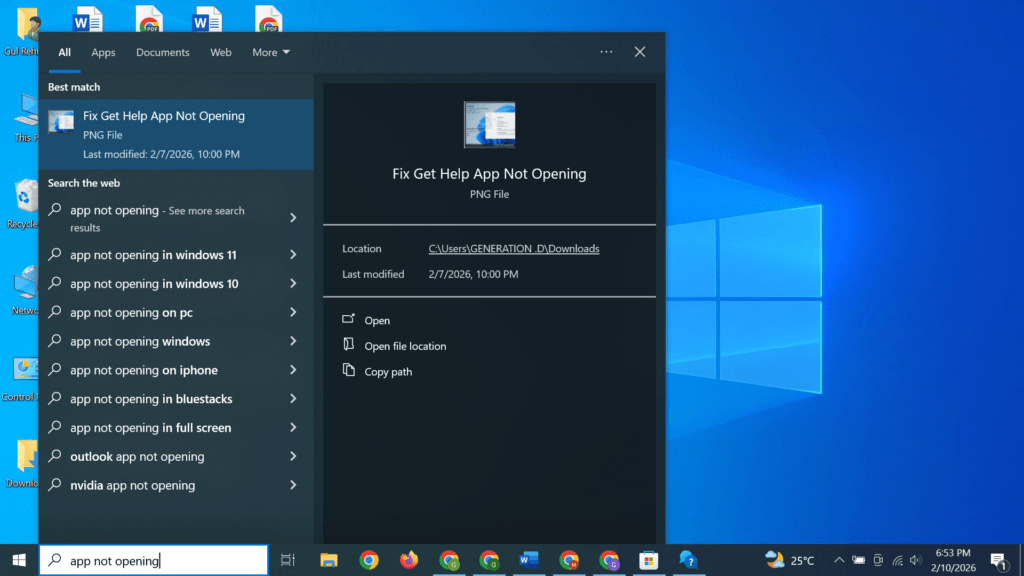
Problem: App won’t open
- Restart your PC
- Check for updates in Microsoft Store
- Repair or reset the app:
- Go to Settings → Apps → Installed apps
- Select the app → Advanced options → Repair
- If still not working → Reset
Problem: App crashes
- Update your Windows system
- Update the app in Microsoft Store
- Restart the computer
Problem: App missing after update
- Open Settings → Apps → Optional Features
- Reinstall the app from Microsoft Store
Method 6: Uninstall or Reinstall Windows Apps
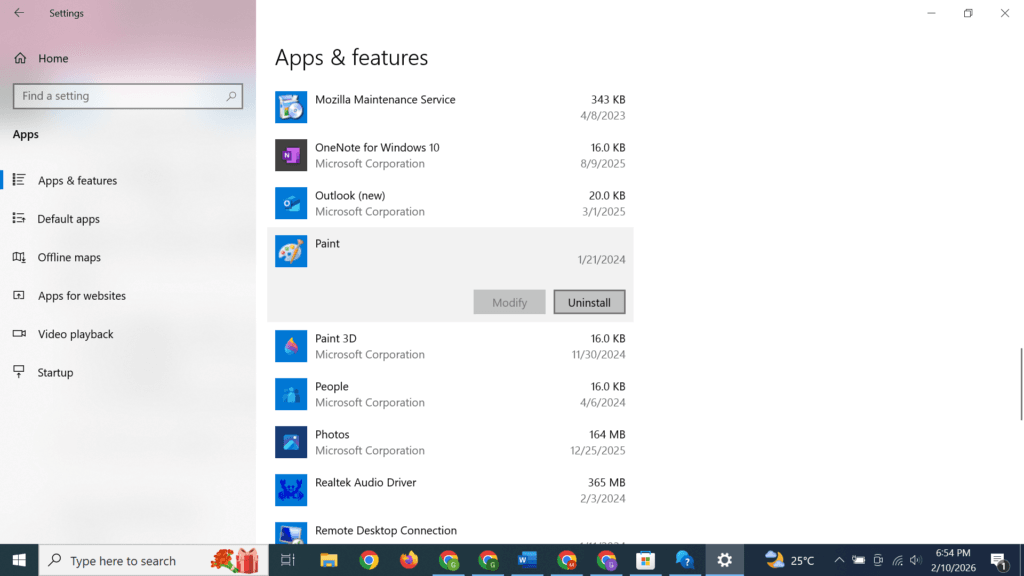
Steps:
- Open Settings → Apps → Installed apps.
- Find the app you want to remove.
- Click Uninstall.
- Reinstall the app from Microsoft Store if needed.
⚡ Tip: Some pre-installed apps cannot be uninstalled, but you can disable them.
Tips and Warnings
Helpful Tips
- Keep apps updated for security and stability.
- Use Get Help for app troubleshooting.
- Pin frequently used apps to Taskbar or Start Menu.
- Avoid downloading apps from unknown sources.
Warnings
- Do not disable Windows apps that are essential for the system.
- Avoid third-party “app fixers” to prevent malware.
- Backup data from apps before uninstalling.
Frequently Asked Questions (FAQ)
Can I install third-party apps on Windows?
Yes, but always use trusted sources to avoid malware.
Why does my app keep crashing?
Possible reasons: outdated app, system conflicts, or corrupted files.
How do I update all apps at once?
Open Microsoft Store → Library → Get Updates.
Can I reset a Windows app?
Yes. Settings → Apps → Installed apps → Advanced options → Reset.
Complete Windows Guide for Beginners
Windows Apps are powerful tools for productivity and entertainment. With built-in repair, reset, and help options, you can troubleshoot almost any problem without technical expertise. By following the steps above, you can open, manage, update, and fix Windows apps efficiently.