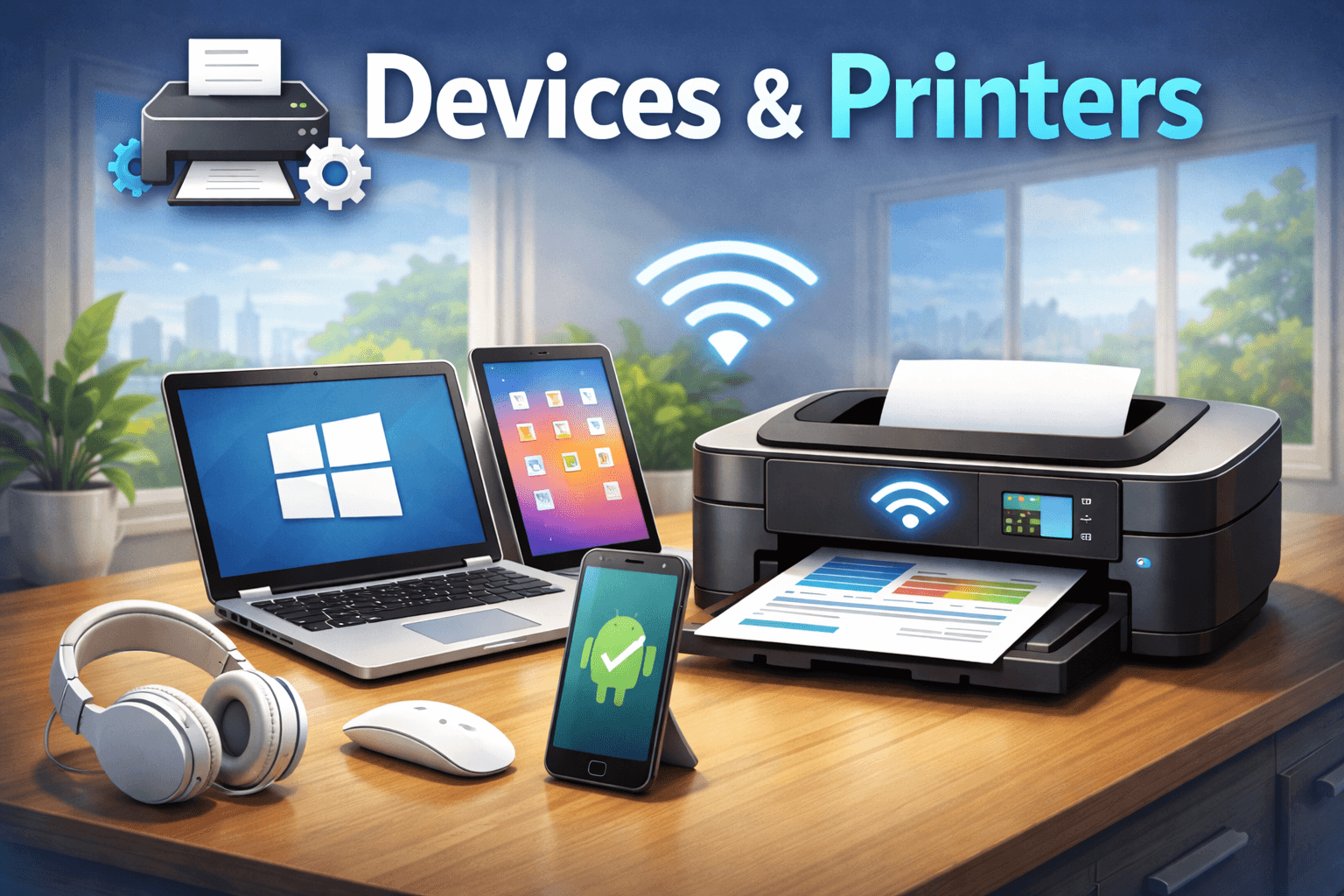
Devices and Printers is a section in Windows that shows all connected hardware in one place. It helps users manage printers, scanners, keyboards, mice, speakers, and other connected devices. This feature is especially useful for checking printer status and fixing connection problems.
What Are Devices and Printers?
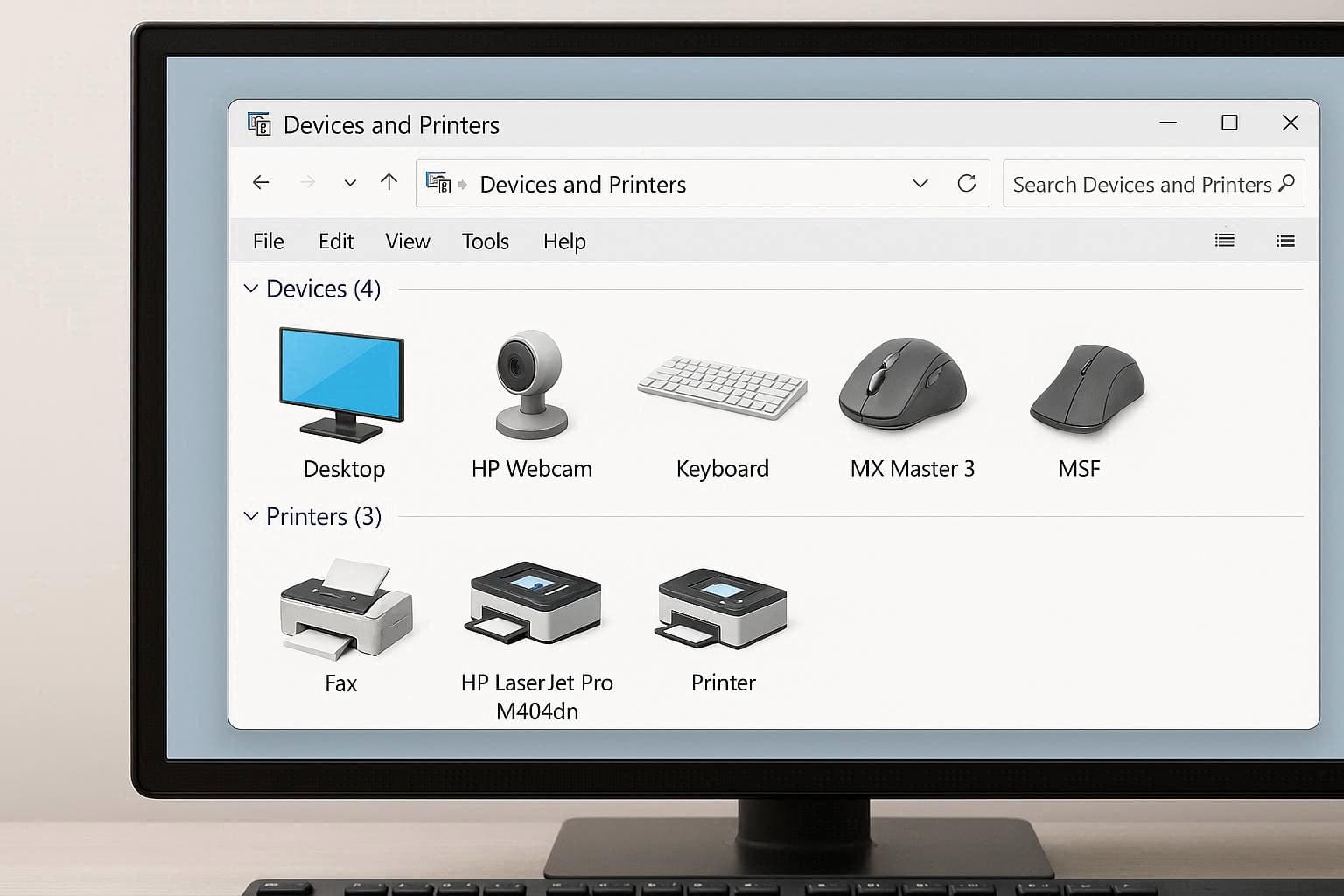
Devices and Printers is a control panel area in Windows where you can see all hardware connected to your computer. These devices can be connected using USB, Bluetooth, or a network.
It allows users to view device status, remove devices, and access basic settings without installing extra software.
What Devices Appear in Devices and Printers?
The following items usually appear:
- Printers and scanners
- Wireless and Bluetooth devices
- Keyboard and mouse
- Headphones and speakers
- External storage devices
- Network-connected devices
Each device is shown with an icon and name for easy identification.
Why Devices and Printers Is Important
Devices and Printers helps users:
- Check if a printer is connected or offline
- Open printer queue
- Set a default printer
- Remove unused devices
- Troubleshoot hardware issues
It is one of the easiest ways to manage printers in Windows.
How to Open Devices and Printers in Windows
Method 1: Using Control Panel
Open Control Panel
Click Devices and Printers
Method 2: Using Search
Click the Start menu
Type Devices and Printers
Press Enter
Method 3: Using Run Command
Press Windows + R
Type
control printersPress Enter
Managing Printers Using Devices and Printers
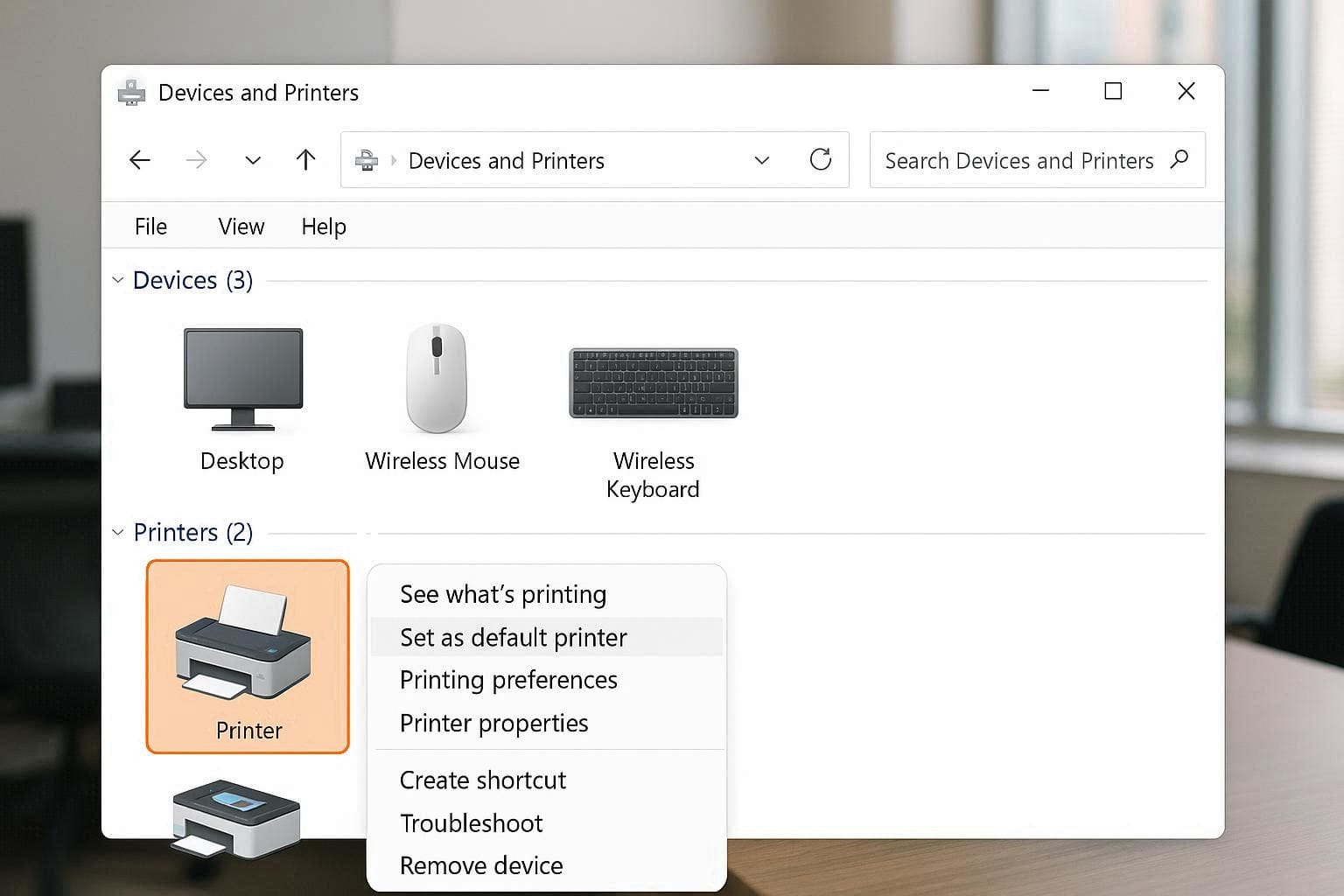
Devices and Printers gives quick access to printer options.
You can:
- Right-click a printer to open print queue
- Set a printer as default
- Remove a printer
- Access printer properties
- Troubleshoot printing problems
This section is commonly used when print jobs are stuck.
How Devices and Printers Helps with Printer Problems
When a printer is not working, Devices and Printers helps identify issues like:
- Printer offline
- Printer paused
- Driver missing
- Connection problems
Right-clicking the printer gives troubleshooting options that solve many basic problems.
Difference Between Devices and Printers and Printers & Scanners
| Devices and Printers | Printers & Scanners |
|---|---|
| Found in Control Panel | Found in Settings |
| Shows all connected devices | Shows only printers |
| Offers classic printer tools | Limited options |
| Better for troubleshooting | Better for basic setup |
For advanced printer management, Devices and Printers is more useful.
Removing a Printer from Devices and Printers
Open Devices and Printers
Right-click the printer
Click Remove device
Confirm the action
This helps when reinstalling a printer.
Common Problems Seen in Devices and Printers
- Printer not appearing
- Printer showing offline
- Duplicate printer entries
- Device showing error icon
Most of these issues can be fixed by restarting the printer or updating drivers.
Devices And Printers:
Devices and Printers is an important Windows feature for managing printers and other hardware. It provides a clear view of connected devices and helps solve common printer problems. Knowing how to use Devices and Printers saves time and makes device management easier.