If you’re searching for how to get help in Windows 11, you’re likely facing one of these issues:
- Windows 11 is not working properly
- You can’t find a setting
- An update failed
- WiFi, Bluetooth, or sound isn’t working
- The Get Help app is not responding
- You want to contact a real Microsoft support agent
- Windows 11 won’t boot
This guide covers every possible way to get help in Windows 11, including:
- Built-in help tools
- Advanced troubleshooting
- Offline repair options
- Recovery Mode support
- Contacting Microsoft directly
- Fixing broken Help features
Let’s begin.
1️⃣ Quick Answer: Fastest Way to Get Help in Windows 11
Method (Quick Access):
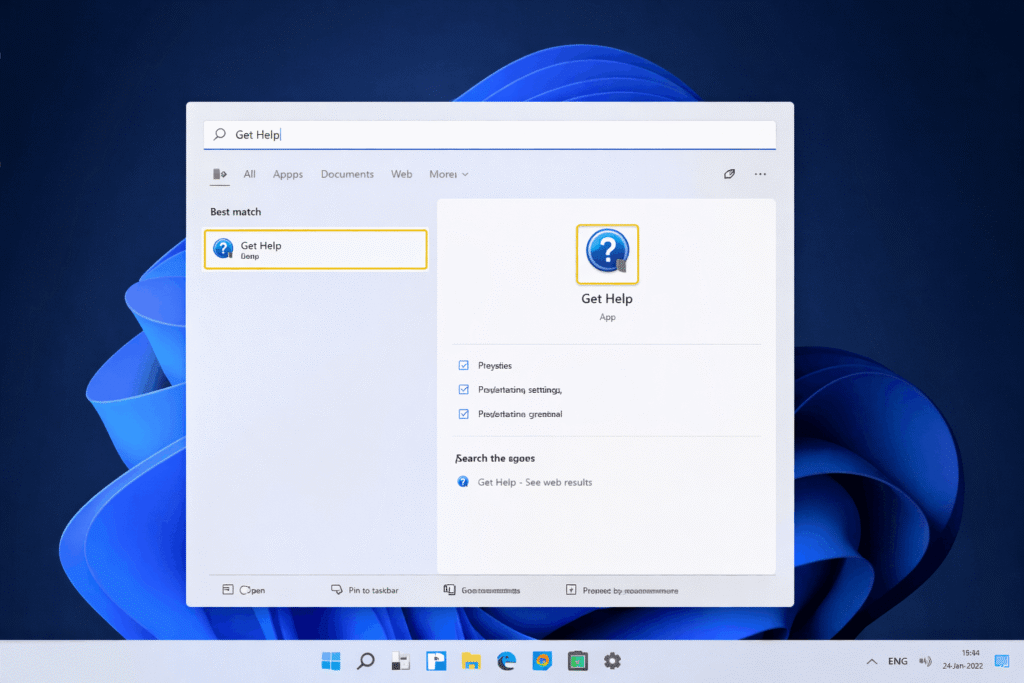
- Click Start
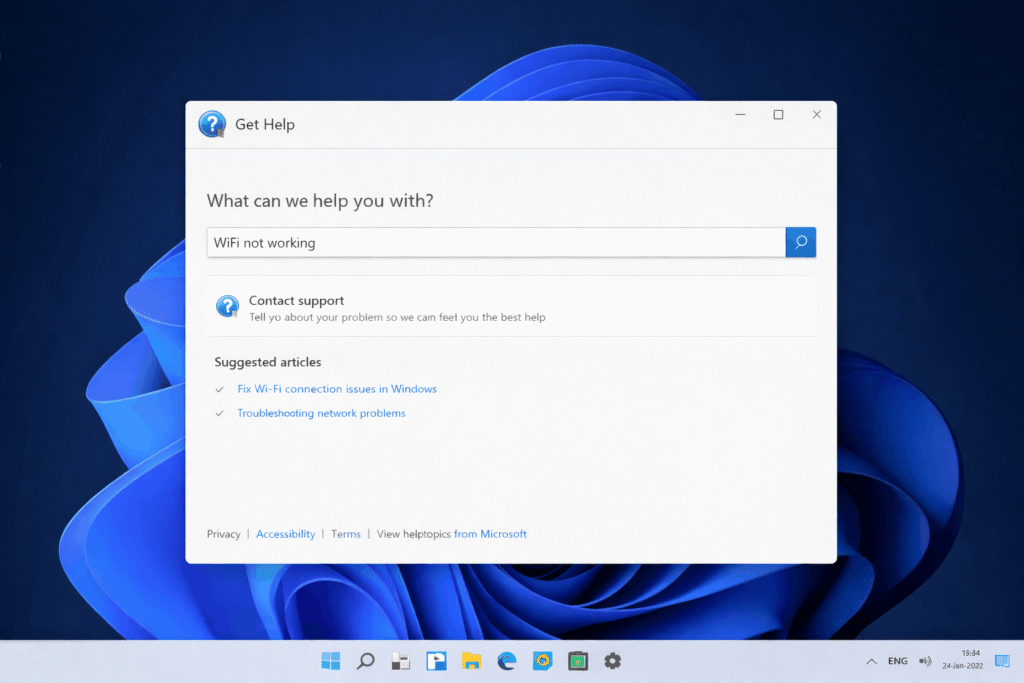
- Type Get Help
- Open the Get Help app
- Describe your issue
2️⃣ What Is the Get Help App in Windows 11?
The Get Help app is Microsoft’s built-in support system in Windows 11. It provides:
- Guided troubleshooting
- Automated diagnostics
- Microsoft support escalation
- Account-specific help
Unlike Windows 10, Windows 11 integrates it more tightly with system services.
3️⃣ How to Use Get Help App Properly (Advanced Walkthrough)
Many users don’t use it correctly.
Step-by-Step:
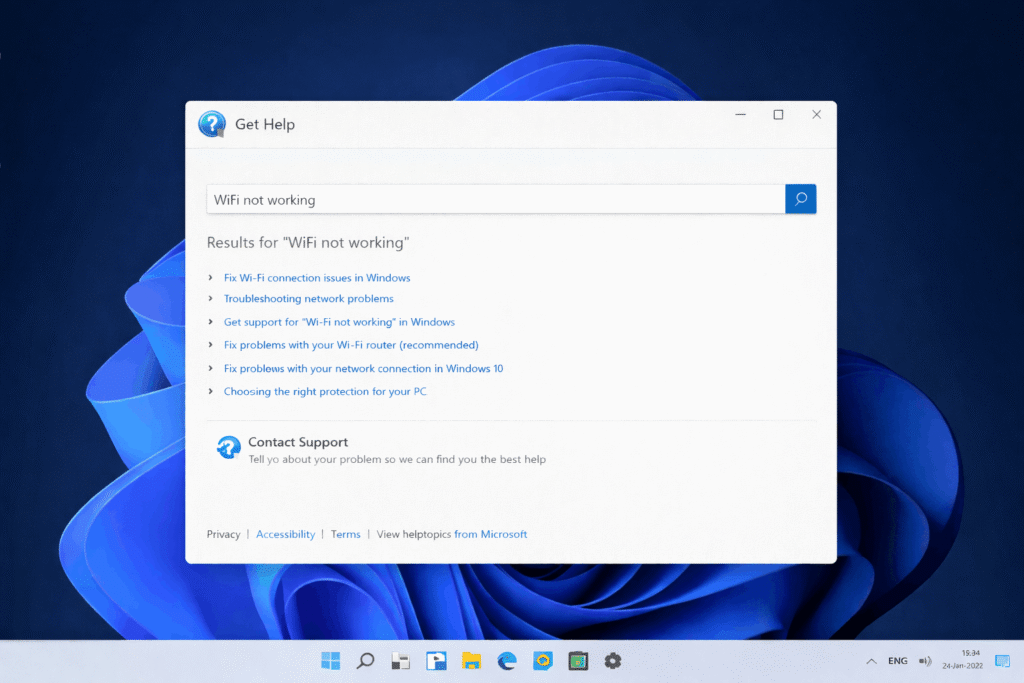
- Open Get Help
- Type specific issue:
- “Windows 11 update stuck at 0%”
- “Bluetooth not detecting device”
- Select relevant result
- Follow guided repair steps
When “Contact Support” Appears
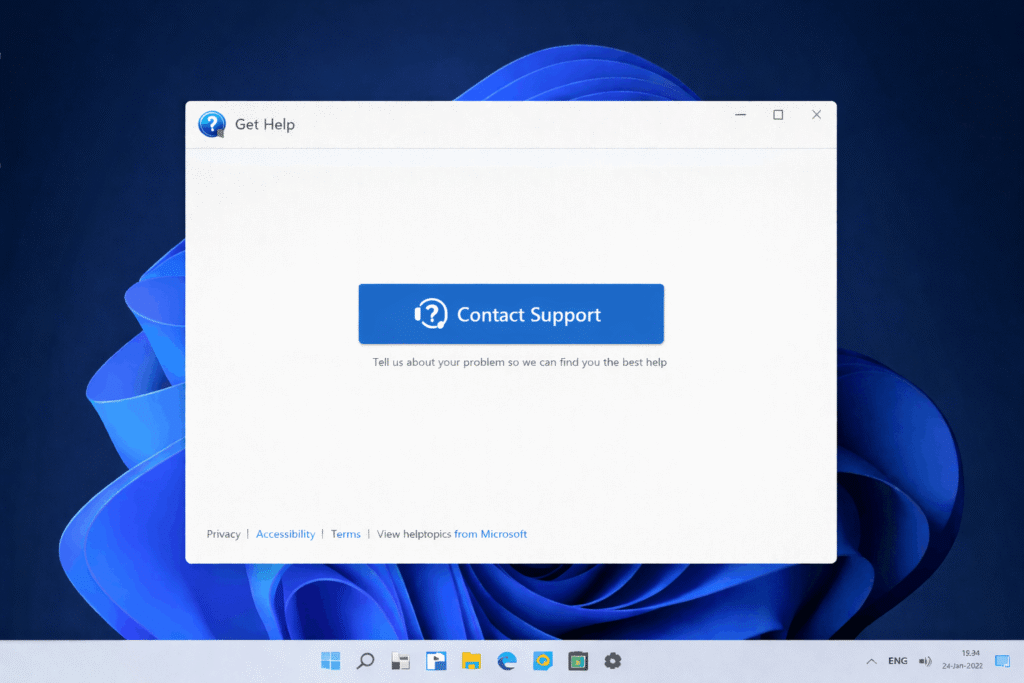
Sometimes, after troubleshooting fails, the app shows a Contact Support option.
4️⃣ How to Get Help in Windows 11 Using Troubleshooters
Windows 11 includes built-in troubleshooters for common problems.
Steps:
- Open Settings
- Click System
- Select Troubleshoot
- Click Other troubleshooters

“Other troubleshooters” page listing:
- Windows Update
- Internet Connections
- Audio
- Bluetooth
- Printer
Run a Troubleshooter
Click Run next to the problem.

5️⃣ How to Get Help in Windows 11 Without Internet
This is a major content gap competitors ignore.
If your internet is not working:
Option 1: Use Control Panel
- Press Win + R
- Type:
control
- Open Troubleshooting

Option 2: Use System File Checker
- Right-click Start
- Open Windows Terminal (Admin)
- Type:
sfc /scannow
6️⃣ Fix: Get Help App Not Working in Windows 11
Common complaints:
- App not opening
- Blank screen
- Freezing
- No results found
Fix 1: Reset the App
- Open Settings
- Click Apps
- Select Installed apps
- Find Get Help
- Click Advanced options
- Click Reset

Fix 2: Reinstall via PowerShell
Open Windows Terminal as Admin and run:
Get-AppxPackage *Microsoft.GetHelp* -AllUsers | Reset-AppxPackage
7️⃣ How to Talk to a Real Person in Windows 11
Many users ask:
How do I talk to a real Microsoft agent in Windows 11?
Method:
- Open Get Help
- Describe issue
- Select Contact Support
- Choose:
- Chat
- Call back
Important Notes
- Availability depends on region
- Not all issues qualify
- Hardware support may require warranty
8️⃣ How to Get Help in Windows 11 When It Won’t Boot
If Windows 11 fails to start:
Method 1: Automatic Repair
- Turn PC on
- Force shutdown during boot 3 times
- Enter Recovery Mode
Navigate to:
Troubleshoot → Advanced Options

Advanced Options screen showing:
- Startup Repair
- System Restore
- Command Prompt
- Startup Settings
Safe Mode
Advanced Options → Startup Settings → Restart → Safe Mode
9️⃣ Windows 11-Specific Issues & Where to Get Help
Here are common Windows 11 problems users search for:
1. Start Menu Not Working
Use:
- Restart Windows Explorer
- Run sfc /scannow
- Reset Start menu via PowerShell
2. Windows 11 Update Stuck
Use:
- Windows Update Troubleshooter
- Clear SoftwareDistribution folder
3. Taskbar Not Responding
Restart explorer.exe via Task Manager.
Task Manager showing Windows Explorer process.
4. Activation Problems
Use Get Help app → Activation section.
🔟 Advanced Windows 11 Help Tools

Event Viewer
Used for advanced error diagnosis.
Steps:
- Press Win + X
- Click Event Viewer
Event Viewer window showing Windows Logs → System.
Reliability Monitor
- Press Win + R
- Type:
perfmon /rel
Reliability Monitor window with timeline view.
Windows Recovery Environment (WinRE)
Advanced troubleshooting system.
WinRE Troubleshoot menu.
1️⃣1️⃣ Frequently Asked Questions
How do I open Help in Windows 11?
Search for “Get Help” in the Start menu.
Is Windows 11 support free?
Basic software support is free. Hardware or advanced support may require payment.
Why does F1 open Edge in Windows 11?
Windows 11 redirects help searches to Microsoft Edge online.
How do I fix Windows 11 when it won’t start?
Use Recovery Mode → Startup Repair.
Can I get help in Windows 11 without internet?
Yes. Use Control Panel troubleshooters, SFC scan, and Recovery Mode.
1️⃣2️⃣ Which Method Should You Use?
| Situation | Best Method |
|---|---|
| Simple issue | Troubleshooter |
| Account problem | Get Help |
| System won’t boot | Recovery Mode |
| No internet | Offline tools |
| Serious error | Event Viewer |
1️⃣3️⃣ Complete Windows Help Guide
Windows 11 provides more support tools than previous versions, but most users only know about the Get Help app.
Now you know:
- Built-in automated tools
- Offline repair methods
- Recovery Mode access
- Advanced diagnostics
- How to contact Microsoft
- How to fix broken help systems