
Checking the printer status on this computer helps users understand whether a printer is ready, offline, paused, or facing an error. This is an essential step when documents do not print as expected or when managing multiple print tasks.
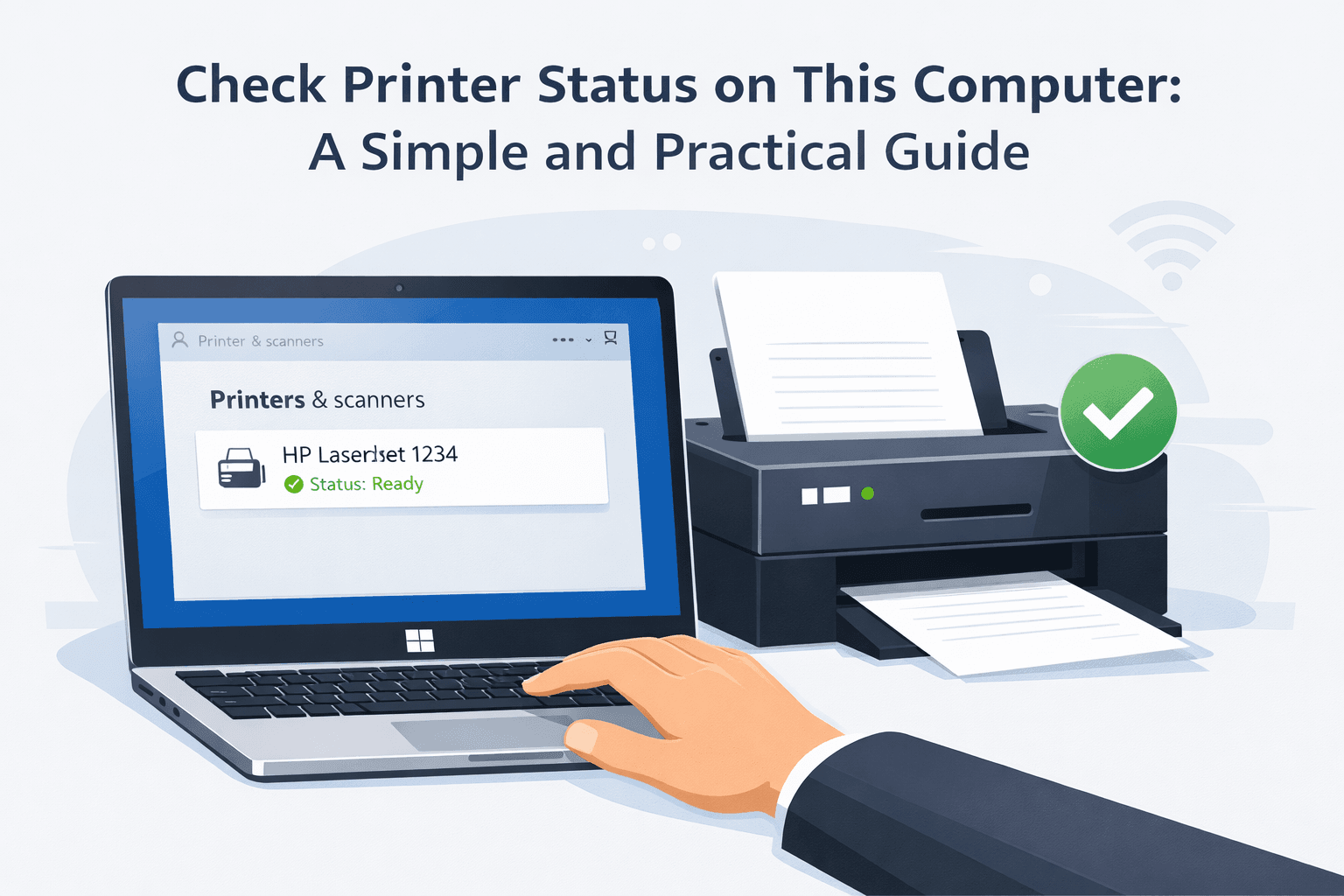
This guide explains how printer status works in Windows and why it matters for everyday users.
What Does “Printer Status” Mean?
Printer status shows the current condition of a printer connected to a computer. It indicates whether the printer is:
- Ready to print
- Offline or disconnected
- Paused
- Busy with print jobs
- Experiencing errors
By checking printer status, users can quickly identify why printing is not working.
How Printer Status Works on a Computer
When a printer is connected to a computer, the operating system continuously monitors its activity. The system checks:
- Connection availability
- Print queue activity
- Hardware responses
- Error signals
This information is displayed as the printer’s status, allowing users to take action if needed.
Why It Is Important to Check Printer Status
Checking printer status helps users:
- Avoid unnecessary troubleshooting
- Save time when print jobs fail
- Detect connectivity or hardware issues early
- Manage multiple printers more effectively
It is especially useful in offices, schools, and shared computer environments.
Ways to Check Printer Status on This Computer
Windows provides built-in tools that make it easy to view printer status without installing additional software.

Using System Settings
System settings provide a clear and modern way to view printer status. This view shows whether the printer is online, paused, or printing documents.
This method is suitable for most users and works well for checking basic printer activity.
Using the Control Panel
The Control Panel displays detailed printer information, including:
- Current printer status
- Pending print jobs
- Printer availability
It is useful for users who prefer traditional system tools or need more detailed control.
Checking Printer Status from the Print Queue
The print queue shows active and pending print jobs along with printer status. If the printer is paused or facing an issue, it will be visible here.
This method is helpful when troubleshooting stuck or delayed print jobs.
Common Printer Status Messages and Their Meaning
Users may encounter different printer status messages, such as:
- Ready – Printer is available
- Offline – Printer is not connected
- Paused – Printing is temporarily stopped
- Error – A problem needs attention
Understanding these messages helps users respond quickly.
Common Issues Revealed by Printer Status Checks

Checking printer status may reveal:
- Connection problems
- Stuck print jobs
- Driver-related issues
- Hardware errors
Identifying these early prevents repeated printing failures.
Impact on Everyday Users and Shared Systems
For personal users, checking printer status avoids frustration and wasted time. For shared systems in offices, libraries, or schools, it improves efficiency and reduces technical support requests.
Clear printer status visibility supports smoother workflows.
Frequently Asked Questions
Why does my printer show offline on this computer?
This usually indicates a connection issue, such as a network problem or powered-off printer.
Can checking printer status fix printing issues?
Checking status does not fix issues directly, but it helps identify the cause quickly.
Does printer status update automatically?
Yes, Windows updates printer status in real time based on printer activity.
How often should printer status be checked?
Users should check printer status whenever printing issues occur or before large print tasks.
Printer Status on This Computer:
Checking printer status on this computer is a simple yet essential step in managing printing tasks. It provides clear information about printer readiness, helps identify errors early, and improves overall productivity. Understanding printer status allows users to resolve issues faster and maintain smooth printing operations.
